The Outbound Call Search is a simple report that shows every call placed from a single extension or device in Cisco Unified Communications Manager (CUCM). For each call you can see the number dialed, the time, and the duration – making it ideal for reviewing an employee’s outbound activity or tracking an outbound dialing campaign.
Who Can Use This Report
What you can search depends on your role:
Role | What they can search |
Administrator / Global Manager | Any extension, number, or pattern. A Search Criteria dropdown (Contains, Begins With, Ends With, Is Exactly) controls how the entry is matched. |
Manager | A drop-down list of the extensions assigned to them, plus their own number. |
Standard user | Their own number only – pre-selected and locked. |
Performing an Outbound Search
- Click Track Calls on the menu bar.
- Select the Outbound heading to expand that section.
- Choose who to search for, and set any display options or filters you would like.
- Select the time period for the search.
- Press the Search button.
The Search Form
Who to Search For
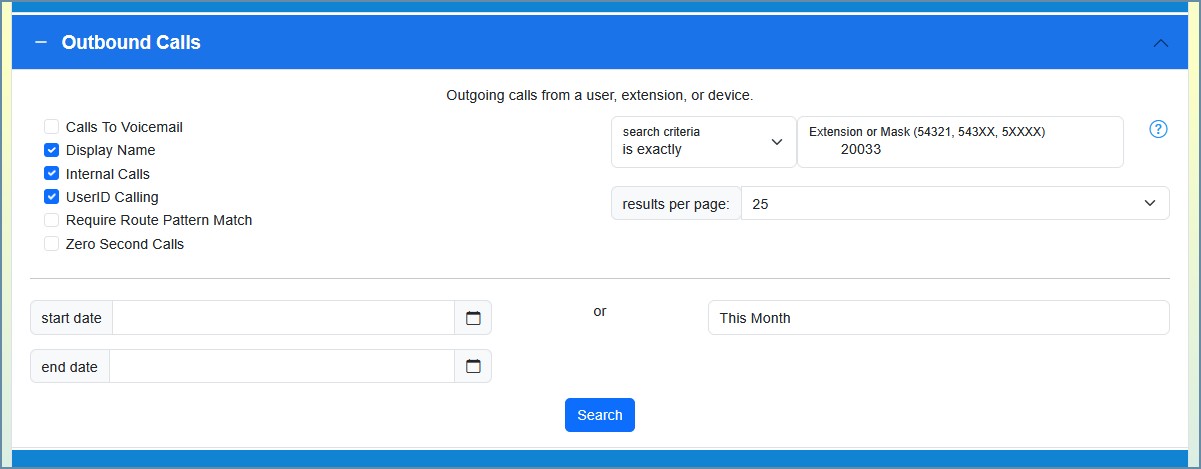
Administrators and global managers type an extension or number into the search box and choose how it should be matched with the Search Criteria dropdown (Contains, Begins With, Ends With, or Is Exactly). Managers select an extension from a drop-down list; standard users see only their own number.
Display On Results Page
These checkboxes add optional columns to the results table:
Option | Description |
Display Name [PRO] | Show the end-user name assigned to the extension instead of just the number. |
UserID Calling | The CUCM end-user ID associated with the calling device – lets you see which user placed an outbound call from a shared line. |
Remote Location: If the Remote Location feature is enabled in your system settings, an extra column shows a geographic lookup of the dialed number’s area code.
Search Modifications
These checkboxes change which outbound calls are included:
Filter | Description |
Internal Calls | Include calls from one internal extension to another. |
Local Calls | Deprecated : Include calls to local numbers (defined by your administrator’s dial-plan settings). Appears only when NANP mode is enabled. |
Long Distance Calls | Deprecated : Include calls to long-distance numbers (defined by your administrator’s dial-plan settings). Appears only when NANP mode is enabled. |
Calls to Voicemail | Include calls the extension makes to voicemail (for example, checking messages). |
Zero Second Calls | Include 0-second calls (typically calls that never connected – misdials, quick hang-ups, errors). |
Route Pattern Only | Show only calls that left through a route pattern in your dial plan – in other words, true external calls – filtering out internal and feature calls. |
Results Per Page
A drop-down sets how many calls appear on each page: 25, 50, 100, 250, or 500.
Date Range
Custom dates: Click the calendar icon to choose a start and end date and time. If left blank, the search defaults to today.
Predefined dates: Choose a preset range such as Today, Yesterday, This Week, or Last 7 Days.
Once your time frame is set, click Search.
Understanding the Results
Call Activity Chart
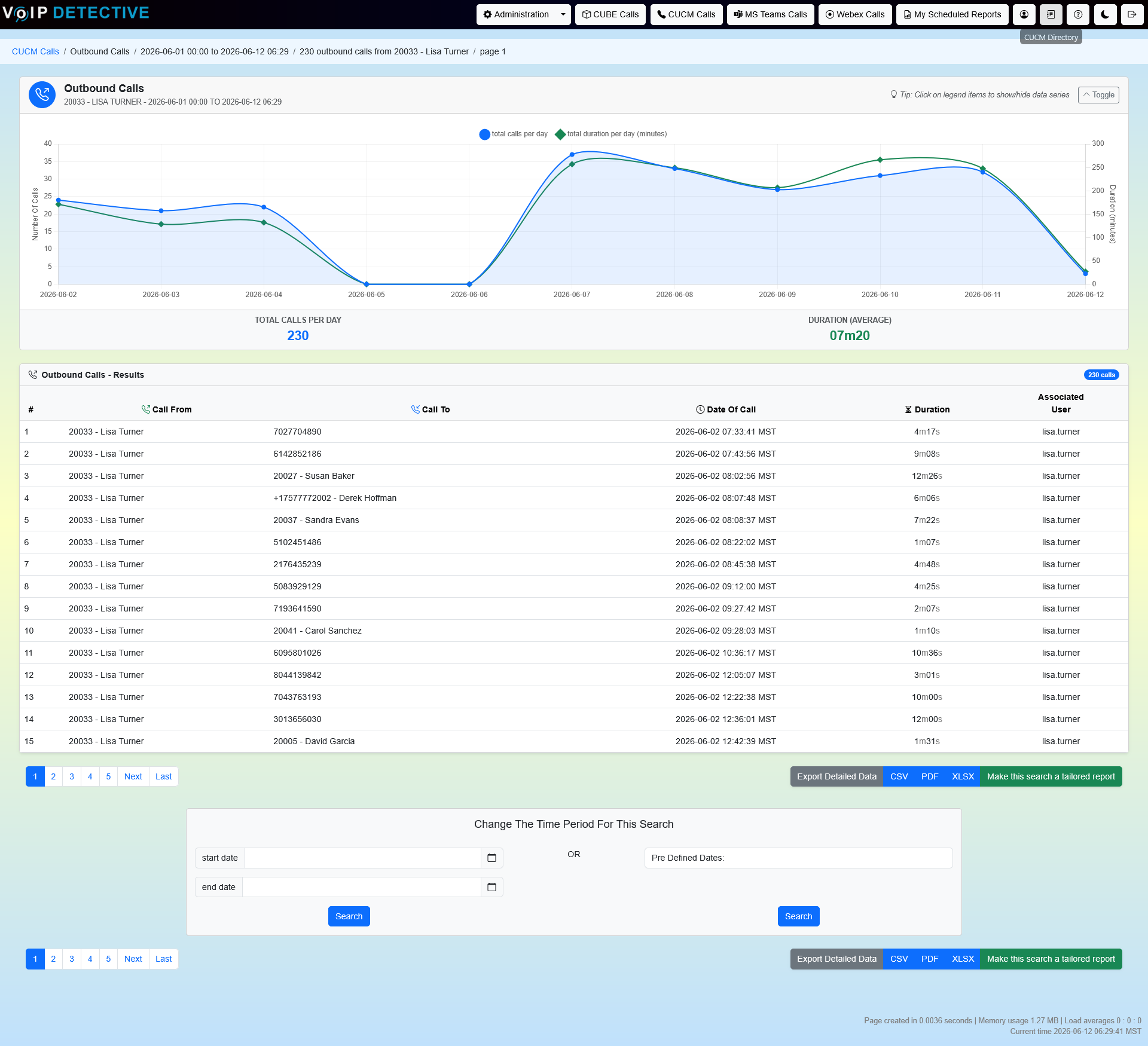
A collapsible chart at the top plots the number of outbound calls and the total talk time in minutes over the period, switching between hourly and daily intervals depending on the date range. A footer shows the total call count and average duration. Click a legend label to hide or show a series.
Results Table
Each row is one outbound call.
Column | Description |
Call From | The extension or device that placed the call. |
Call To | The number that was dialed. |
Remote Location | A geographic lookup of the dialed number. Shown only if the Remote Location feature is enabled. |
Date Of Call | The date and time the call started. |
Duration | How long the call lasted. |
Associated User | The user who placed the call (UserID Calling). Shown only when that option is enabled – useful for shared lines. |
Pagination
Results are split across pages based on your Results Per Page setting, with navigation links above and below the table.
Exporting Results
Scroll to the bottom of the page and choose a format to download the report.
Format | Best For | Row Limit |
Printing and sharing. | 500 rows | |
XLSX | Analysis in Excel or Google Sheets. | 100,000 (PRO) / 1,000 (Free) |
CSV | Importing into other tools. | 100,000 (PRO) / 1,000 (Free) |
PRO: PRO users can schedule an Outbound Search to be generated and emailed automatically on a recurring basis.
Free and PRO Features
VoIP Detective Free includes | VoIP Detective PRO adds |
|
|
Was this article helpful?
That’s Great!
Thank you for your feedback
Sorry! We couldn't be helpful
Thank you for your feedback
Feedback sent
We appreciate your effort and will try to fix the article