The Endpoint Utilization report lists every device configured in Cisco Unified Communications Manager and cross-references each one against VoIP Detective’s call record database to show the date of its most recent call. This makes it simple to identify phones, Jabber clients, analog ports, gateways, and other devices that are no longer actively used – helping you reclaim licenses, clean up CUCM, and keep your inventory accurate.
Overview
Who can use this report: Administrators and Global Managers only.
Data sources: The device list comes from the CucmDevices table, which is populated by the AXL sync between VoIP Detective and CUCM. The “Last Call” date comes from VoIP Detective’s CDR database, where each device’s name is matched against the origDeviceName and destDeviceName fields.
Real-time calculation: This report runs in real time. Each device’s last call date is looked up when the report is generated, so it always reflects the most current data. For large deployments this may take several minutes to complete.
Prerequisites
Requirement | Details |
AXL Sync | CUCM AXL synchronization must be configured and working. This populates the device list. See the “Syncing VoIP Detective with CUCM via AXL” guide. |
Call Data | VoIP Detective needs existing CDR data to determine each device’s last call. New installations should wait for call records to accumulate before running this report. |
The Search Form
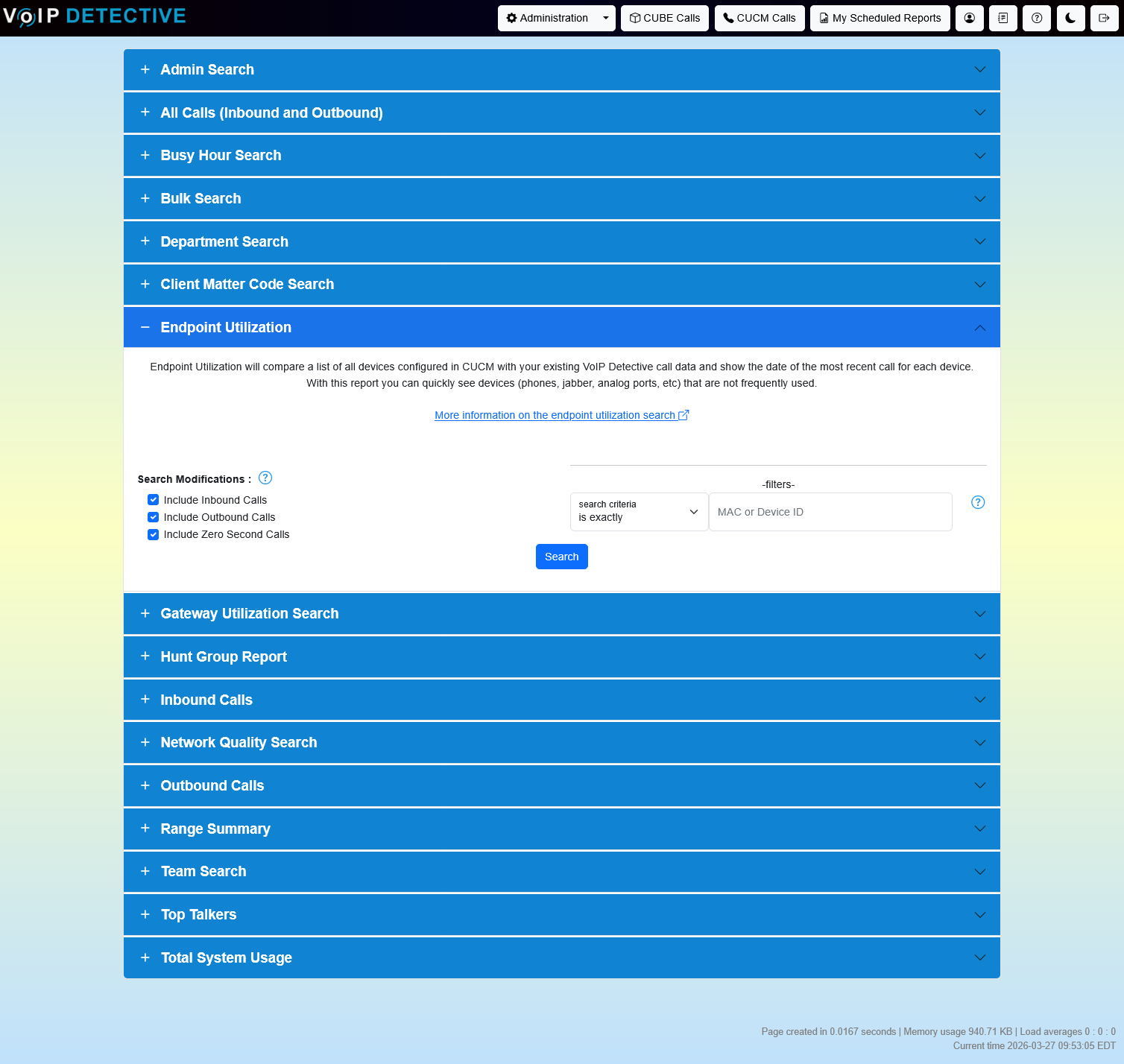
Navigate to the CUCM Calls search page and expand the “Endpoint Utilization” accordion section.
Filters
The following options control how the “Last Call” date is calculated for each device:
Filter | Description | Default |
Include Inbound Calls | When enabled, calls where the device appears as the destination device (destDeviceName) count toward the last call date. | Off |
Include Outbound Calls | When enabled, calls where the device appears as the originating device (origDeviceName) count toward the last call date. | Off |
Zero Second Calls | When enabled, calls with 0-second duration are included in the last-call lookup. Disable to only consider connected calls. | Off |
If both Inbound and Outbound are left unchecked, the search defaults to checking both directions – equivalent to having both checked.
ℹ️ Tip: To find phones that haven’t made or received a real call, uncheck Zero Second Calls. This filters out misdials and ring-no-answer events, giving you a more accurate picture of actual phone usage.
Device Name / MAC Search
Administrators can filter the device list by name or MAC address using a wildcard search. The search criteria dropdown provides four match modes:
Criteria | Behavior |
Contains (default) | Matches devices whose name includes the search string anywhere. |
Begins With | Matches device names starting with the string. |
Ends With | Matches device names ending with the string. |
Is Exactly | Matches only the exact device name. |
ℹ️ Tip: Use this to narrow results to a specific device type (e.g., search “SEP” to see only physical phones, or “CSFP” to see only Jabber soft clients).
Understanding the Results
Two Display Modes
VoIP Detective automatically selects the display mode based on the number of devices in your CUCM deployment:
Mode | Description |
Interactive Table (< 100 devices) | Uses Bootstrap Table with built-in search, column show/hide, pagination controls (10, 50, 100, All), and a direct export button in the table header. You can search within the table, sort any column, and export without leaving the page. |
Standard Table (≥ 100 devices) | Uses a paginated standard table with separate export buttons below the results. Pagination is controlled by the Results Per Page setting. Export options are provided via the standard VoIP Detective export panel. |
Columns
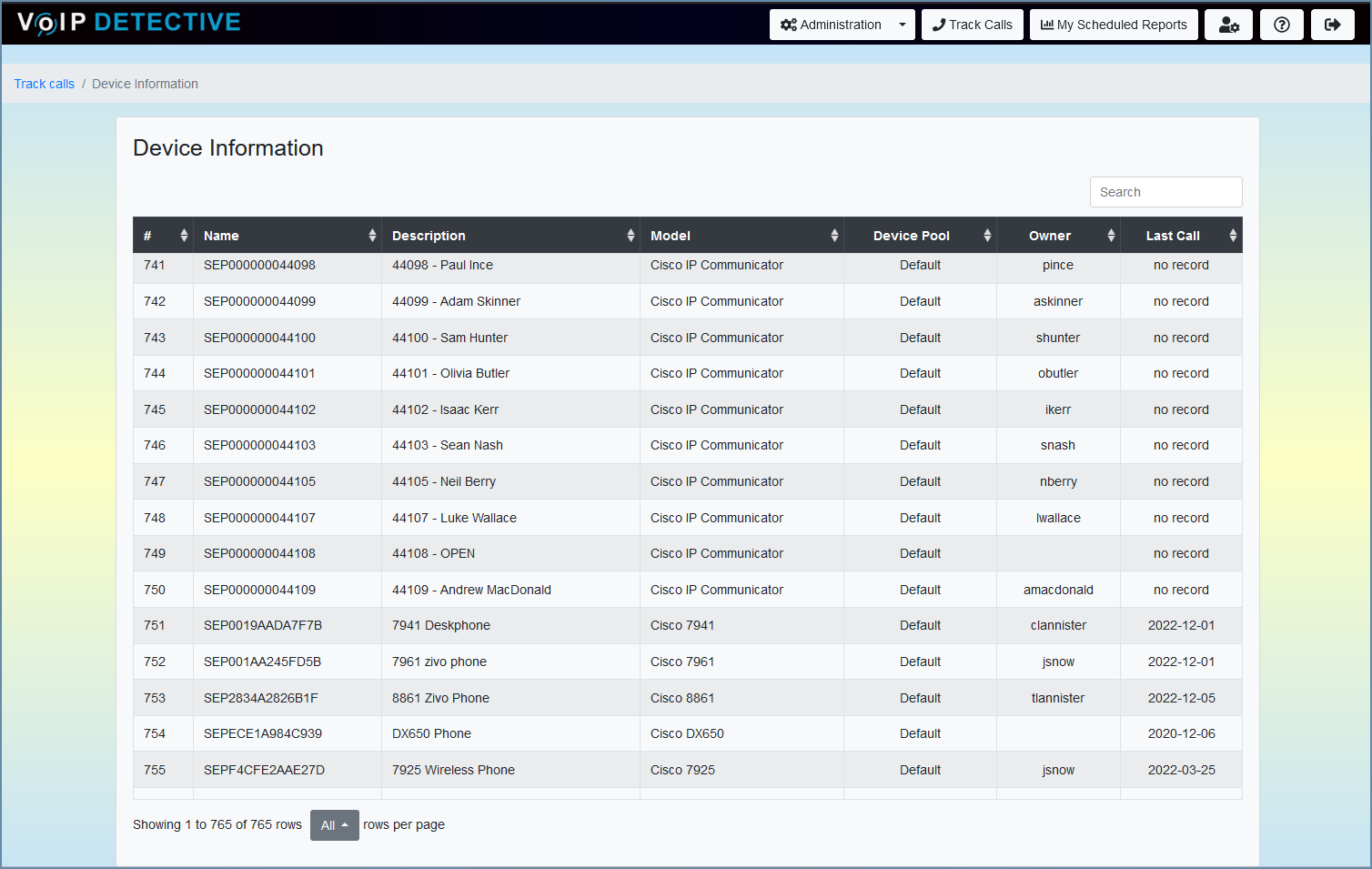
Column | Description |
# | Sequential row number. |
Device Name | The CUCM device name (typically a MAC address prefixed with SEP for phones, CSF for Jabber clients, or a descriptive name for gateways and trunks). |
Description | The description field from CUCM – usually contains the user’s name or the device’s purpose. |
Model | The CUCM device model/type (e.g., Cisco 8845, Cisco IP Communicator, Analog Phone, CTI Port). |
Device Pool | The CUCM device pool the device belongs to. Useful for identifying which site or region the device is in. |
Owner | The CUCM end user associated with this device. |
Last Call | The date of the most recent inbound or outbound call involving this device, based on VoIP Detective’s CDR data. Shows “No Record” if no calls were found. |
ℹ️ Tip: Sort by the Last Call column to quickly see which devices haven’t been used recently. Devices showing “No Record” or very old dates are strong candidates for decommissioning.
Exporting Results
Interactive Table Mode (< 100 Devices)
Click the download icon in the upper-right corner of the table. The following formats are available directly from the table export:
Format | Description |
CSV | Comma-separated values. |
TXT | Tab-separated plain text. |
XLSX | Excel workbook. |
Formatted PDF document. | |
XML | Structured XML data. |
Exports include all rows (not just the current page) regardless of the pagination setting.
Standard Table Mode (≥ 100 Devices)
Export buttons appear below the results table, providing PDF, XLSX, and CSV options via VoIP Detective’s standard export system.
Format | Details | Row Limit |
Landscape A4 with headers showing total device count. Includes all columns. | 2,000 devices | |
XLSX | Excel workbook with styled headers. Sheet name shows device count. | 100,000 devices |
CSV | Raw data for import into other tools. | 100,000 devices |
Exported columns: Device Name, Description, Model, Device Pool, Owner, and Last Call date.
Common Use Cases
Finding Unused Phones for License Reclamation
Run the report with Zero Second Calls unchecked, then sort by Last Call ascending. Devices with “No Record” or dates older than 90 days are strong candidates for removal. Export the list to XLSX and share it with your CUCM administrator for cleanup.
Auditing Device Inventory
Compare the total device count in the breadcrumb bar against your CUCM license count. If VoIP Detective shows significantly fewer devices than your CUCM reports, verify that AXL sync is running correctly and pulling all device types.
Finding Devices by Type
Use the Device Name search to filter by prefix: SEP for hardware phones, CSF for Jabber desktop clients, BOT for Jabber mobile, TCT for tablet clients, or AN for analog ports. This helps you audit specific device categories.
Validating a Site Migration
After migrating users from one site to another, filter by the old site’s Device Pool name. Any devices still showing recent calls may not have been migrated yet.
Frequently Asked Questions
Why does the report take so long to load?
The Last Call date is calculated in real time for every device by querying the CDR database. In large deployments with thousands of devices, this requires thousands of individual database queries. The loading spinner is displayed while this runs. For very large environments, the report may take 2–5 minutes.
Why does a device show “No Record”?
This means VoIP Detective has no CDR records where this device appears as either the originating or destination device. Possible reasons: the device has never been used, the device was added to CUCM after VoIP Detective was installed but before any calls were made, or call records for that device have aged out of the database.
Why are some devices missing from the list?
The device list comes from CUCM via AXL sync. If a device was recently added to CUCM, it will appear after the next AXL sync (which runs nightly by default). You can force a manual sync from Administration → Troubleshooting.
Does this report show soft clients like Jabber?
Yes. Any device registered in CUCM is included: hardware phones, Jabber (CSF/BOT/TCT), CTI ports, analog ports, conference bridges, voicemail ports, and gateways. The Model column identifies the device type.
Can I filter by Device Pool or Owner?
In the Interactive Table mode (< 100 devices), you can use the built-in search box to filter by any column including Device Pool and Owner. In the Standard Table mode, the Device Name/MAC search is the only filter, but you can export to XLSX and filter in Excel.
How far back does the Last Call lookup go?
It searches through all CDR data stored in VoIP Detective. The retention period depends on your system configuration and disk space. There is no artificial time limit on the lookup – it finds the single most recent call regardless of how old it is.
Was this article helpful?
That’s Great!
Thank you for your feedback
Sorry! We couldn't be helpful
Thank you for your feedback
Feedback sent
We appreciate your effort and will try to fix the article