The Admin Search is designed for administrators who need unrestricted access to all Microsoft Teams call records. Unlike standard user searches, it returns every call type — inbound, outbound, internal, external, PSTN, and failed calls — making it an essential tool for both day-to-day reporting and troubleshooting.
You can access the Admin Search from the Microsoft Teams Calls page. It is available to users in the Administrator or MS Teams Admin groups.
Tip: You can hover over most items in VoIP Detective for a description tooltip.
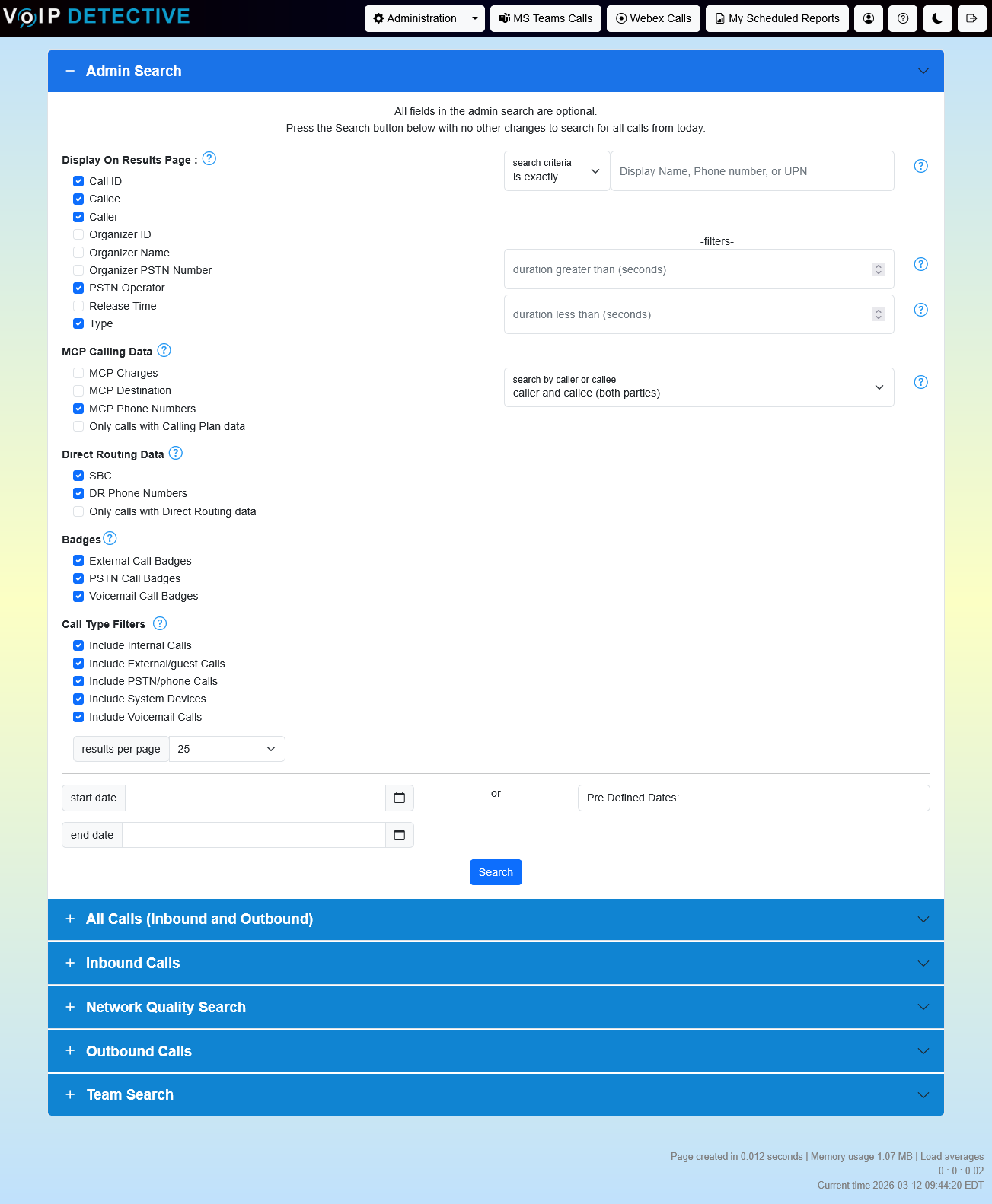
Search Form
All fields on the search form are optional. If you submit the form without entering a search term, it will return all calls within the selected date range.
Search Field and Match Type
The search field accepts names, phone numbers, or Microsoft Teams user IDs. A dropdown to the left of the search field controls how your search term is matched:
- Contains — matches any record where the search term appears anywhere in the field (e.g., searching for “911” will also return results like “9911” or “12349110”)
- Begins With — matches records where the field starts with your search term
- Ends With — matches records where the field ends with your search term
- Is Exactly — matches only records where the field is an exact match (this is the default)
Search Direction
The Search Direction filter controls which party is searched:
- Caller or Callee — searches both sides of the call (default)
- Caller Only — limits results to calls where the search term matches the caller
- Callee Only — limits results to calls where the search term matches the callee
Date Range
Use the Start Date and End Date pickers to define the time range for your search. If no dates are specified, the search defaults to today (midnight to now). Dates are interpreted using your configured timezone.
Note: VoIP Detective Free limits searches to the last 7 days.
Duration Filters
You can filter results by call duration (in seconds):
- Duration Greater Than — only returns calls longer than the specified number of seconds
- Duration Less Than — only returns calls shorter than the specified number of seconds
These can be combined. For example, setting “greater than 60” and “less than 300” returns calls between one and five minutes.
Results Per Page
Choose how many results to display per page: 25, 50, 100, 250, or 500.
Display Options
The left side of the search form contains checkboxes that control which columns appear in your search results. This lets you customize the results table to show only the data you care about.
Result Columns
| Option | Description | Default |
|---|---|---|
| Call ID | The unique identifier assigned by Microsoft Teams to the call | On |
| Callee | The display name (or PSTN number if no display name exists) of the person receiving the call | On |
| Caller | The display name (or PSTN number if no display name exists) of the person making the call | On |
| Organizer ID | The Microsoft Teams user ID of the call organizer | Off |
| Organizer Name | The display name of the call organizer in Microsoft Teams | Off |
| Organizer PSTN Number | The PSTN phone number of the call organizer | Off |
| Billing Source | Shows whether a PSTN call was routed through Microsoft Calling Plan or Direct Routing | On |
| Release Time | The timestamp when the call ended | Off |
| Type | The call type — peerToPeer (one-to-one call) or groupCall (three or more parties) | On |
The following columns always appear and cannot be toggled off: row number (#), time of call, duration, and status.
Status Badges
The Status column displays badges indicating special call attributes:
- External — the call involved a participant outside your organization
- PSTN — the call was placed to or received from the public telephone network
- Voicemail — the call was sent to voicemail
You can control which of these badge indicators are shown using the checkboxes: Show External Indicator, Show PSTN Indicator, and Show Voicemail Indicator.
Call Type Filters
These checkboxes filter which types of calls are included in your results:
| Filter | Description | Default |
|---|---|---|
| Include Internal Calls | Calls between users within your organization | On |
| Include External Calls | Calls involving participants outside your organization | On |
| Include PSTN Calls | Calls to or from the public telephone network | On |
| Include System Devices | Include system-generated endpoints in participant lists | On |
| Include Voicemail Calls | Include calls that went to voicemail | On |
Quality Highlighting
Poor quality calls are highlighted automatically. Calls with poor network metrics are highlighted in red, while calls with fair quality are highlighted in yellow. This is controlled by the “Highlight Poor Quality” setting, which is enabled by default.
PSTN Calling Plan Data
If PSTN Calling Plan import is enabled in your VoIP Detective configuration, additional columns and filters become available:
| Option | Description | Default |
|---|---|---|
| PSTN Phone Numbers | Displays the caller and callee PSTN phone numbers | On |
| PSTN Destination | Shows the destination country or region of the PSTN call | Off |
| PSTN Charges | Displays the call charge and connection charge | Off |
| Show Only Calls with PSTN Data | Filters results to only show calls that have associated PSTN billing records | Off |
Direct Routing Data
If Direct Routing import is enabled in your VoIP Detective configuration, additional columns and filters become available:
| Option | Description | Default |
|---|---|---|
| DR SBC | Shows the Session Border Controller (trunk FQDN) used for the call | On |
| DR Phone Numbers | Displays the caller and callee phone numbers from Direct Routing records | On |
| Show Only Calls with DR Data | Filters results to only show calls that have associated Direct Routing records | Off |
Search Results
Results Overview
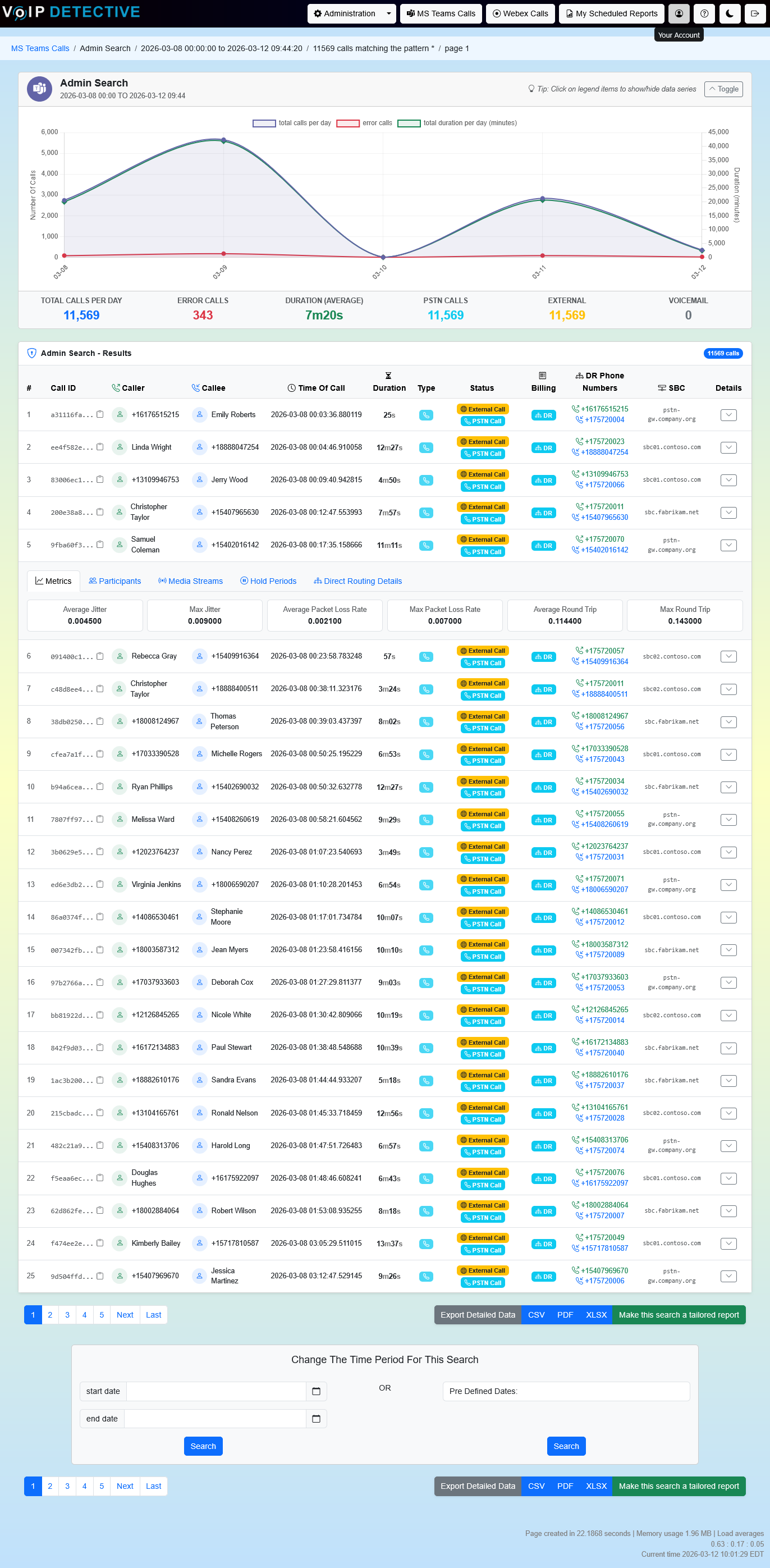
After running a search, a breadcrumb bar at the top displays your search parameters: the search type, date range, number of matching calls, and current page number.
If the search returns more than 2,000,000 records, a warning will appear indicating that the result limit has been reached and some records may not be displayed.
Call Volume Chart
When results span more than one data point, a collapsible chart appears at the top of the results page. This chart displays three data series:
- Total Calls — plotted on the left axis, showing call volume over time
- Error Calls — plotted on the left axis, showing calls with failure reasons
- Total Duration (minutes) — plotted on the right axis, showing aggregate call duration
The chart automatically switches between daily and hourly intervals depending on the date range — if the search spans one day or less, hourly intervals are used.
Below the chart, summary statistics are displayed: total calls, error calls, average duration, PSTN call count, total PSTN charges (if applicable), external call count, and voicemail call count.
Tip: Click on items in the chart legend to show or hide individual data series.
Expandable Call Details
Each row in the results table has a details button (chevron icon) on the right side. Clicking it expands a panel with tabbed sections containing detailed information about that call.
Metrics Tab
Displays network quality metrics for the call:

- Average Jitter / Maximum Jitter
- Average Packet Loss Rate / Maximum Packet Loss Rate
- Average Round Trip Time / Maximum Round Trip Time
Participants Tab
Shows every endpoint associated with the call, including:

- Display Name
- Phone ID
- Role (Caller, Callee, or System Device)
- Device Name
- Product Family
System devices can be hidden using the “Include System Devices” checkbox on the search form.
Media Streams Tab
Lists every media stream within the call. Each stream shows:

- Stream ID
- Start Time / End Time
- Direction (caller-to-callee or callee-to-caller)
- Media Type (audio or video)
- Jitter (average / max)
- Packet Loss (average / max)
- Round Trip Time (average / max)
- Audio Codec
Every leg or portion of a call is placed into its own media stream. This means that actions like placing a call on hold and then resuming will create several different media streams.
Hold Periods Tab
Available only for peer-to-peer calls. This tab displays:
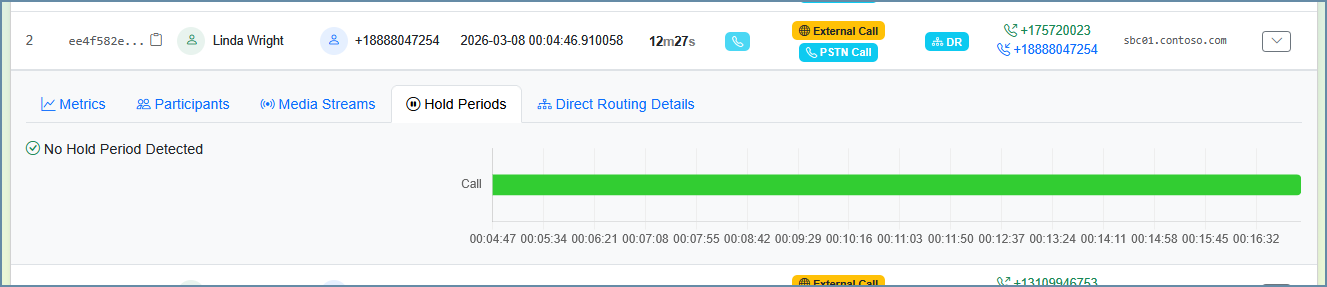
- A list of hold events with their start times and durations
- A total hold time summary
- A visual timeline chart showing talk segments (green) and hold periods (orange) across the life of the call
MCP Details Tab
Appears when a call has associated PSTN Calling Plan data. Displays detailed billing and routing information:
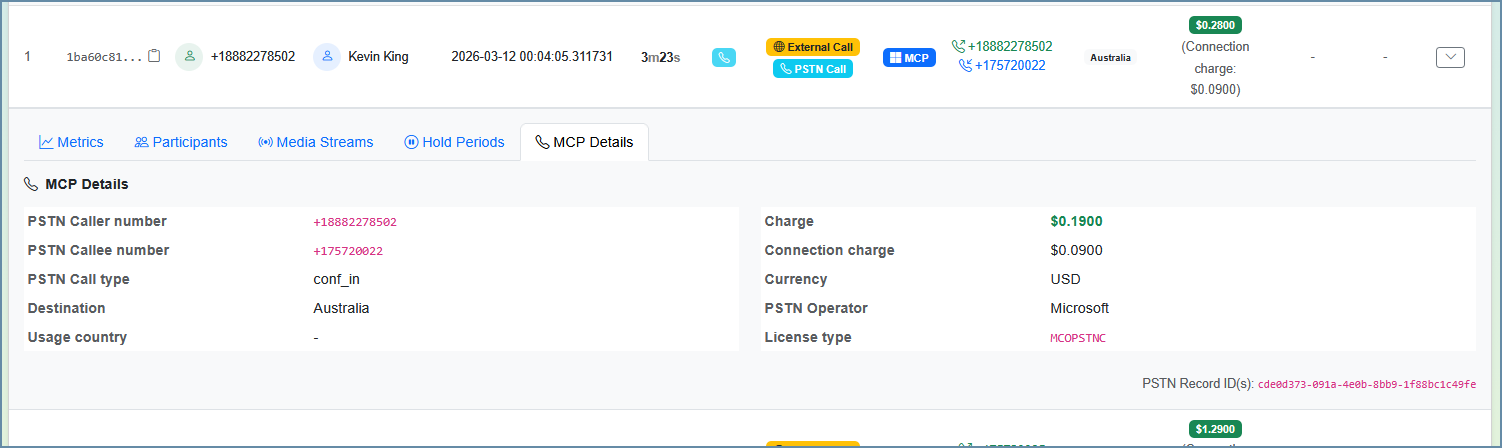
| Field | Description |
|---|---|
| Caller Number | The PSTN phone number of the calling party |
| Callee Number(s) | The PSTN phone number(s) of the receiving party |
| Call Type | The type of PSTN call |
| Destination | The destination country or region, with destination context if available |
| Usage Country | The country code where the call was placed |
| Charge | The cost of the call |
| Connection Charge | Any additional connection fees |
| Currency | The currency used for billing |
| Operator | The PSTN operator that handled the call |
| License Capability | The Teams license type used for the call |
If a call has multiple PSTN legs, they are displayed in a sub-table with per-leg details including callee number, destination, duration, and charge.
Direct Routing Details Tab
Appears when a call has associated Direct Routing data. Displays technical routing and SBC information:
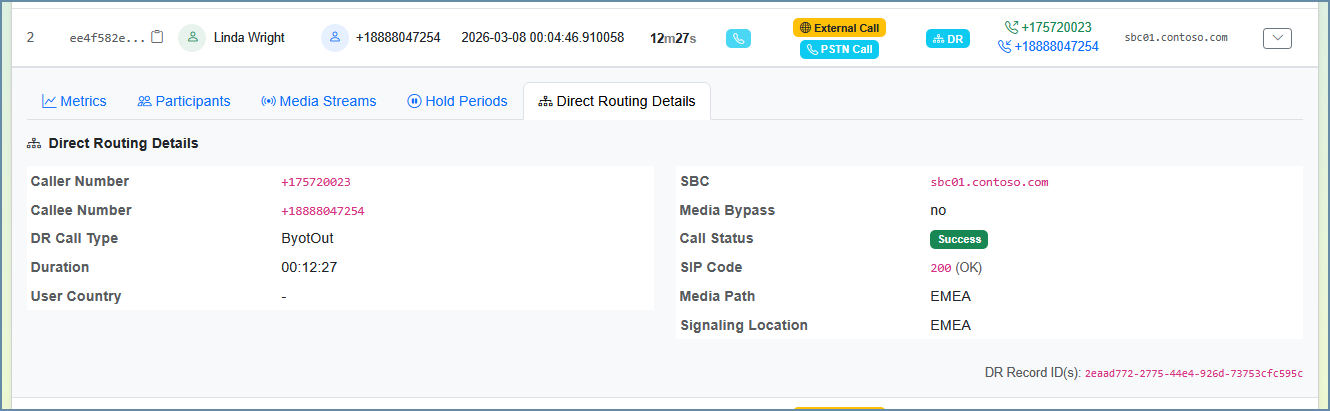
| Field | Description |
|---|---|
| Caller Number | The phone number of the calling party |
| Callee Number(s) | The phone number(s) of the receiving party |
| Call Type | The type of Direct Routing call |
| Duration | Total call duration |
| User Country | The country code of the user |
| SBC (Trunk FQDN) | The Session Border Controller that handled the call |
| Media Bypass | Whether media bypass was enabled for the call |
| Call Status | Whether the call was successful or failed |
| Final SIP Code | The SIP response code and phrase |
| Media Path Location | The location where the media was processed |
| Signaling Location | The location where call signaling was processed |
If a call has multiple Direct Routing legs, they are displayed in a sub-table with per-leg details including callee number, SBC, duration, SIP code, and status.
Exporting Results
An export button appears at both the top and bottom of the search results. You can download the results as a CSV, PDF, or XLSX file.
The export respects whatever display columns you selected on the search form, so your exported file will match what you see on screen.
Note: Participants and Media Streams are not included in the export. These can only be viewed through the web interface.
Tailored Reports
You can save your current search parameters (including column selections and filters) as a Tailored Report for repeated use. This is useful for recurring reporting needs where you want the same column layout and filter configuration each time.
Was this article helpful?
That’s Great!
Thank you for your feedback
Sorry! We couldn't be helpful
Thank you for your feedback
Feedback sent
We appreciate your effort and will try to fix the article