The Department Search provides a combined view of all inbound and outbound calls for every member of a specific department. Departments are imported from Cisco Unified Communications Manager (CUCM) via AXL sync. Results include the calling number, called number, call direction, time, and duration of each call — aggregated across every extension that belongs to the selected department.
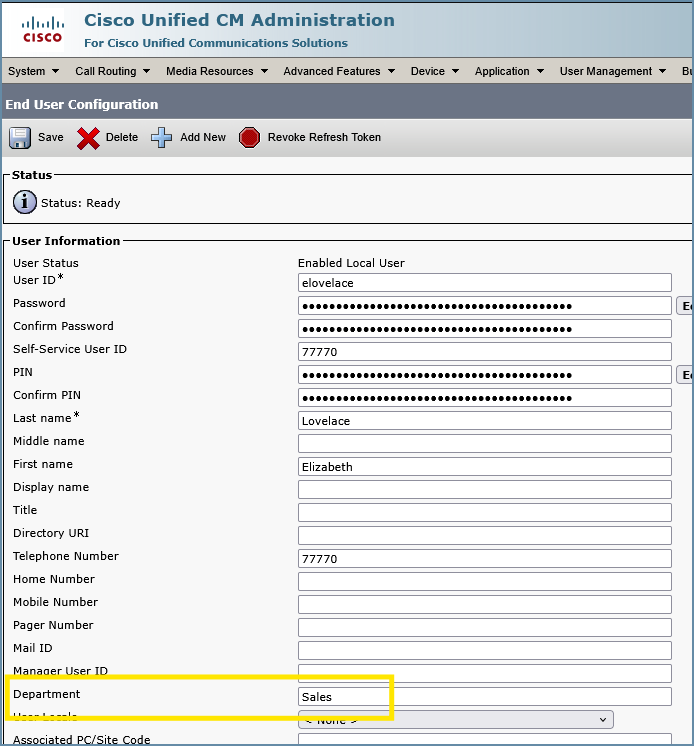
Data is pulled from the CUCM "End User" page - the Department field
Overview
This report answers the question: “How is an entire department using the phone system?” Rather than searching extension by extension, administrators can select a department and instantly see all call activity for every member, along with a chart showing call volume and duration trends over the selected date range.
Who Can Use This Report
User Role | Behavior |
Administrator | Full access. Can search any department. |
Global Manager | Full access. Can search any department. |
Manager | Not available. Managers should use the Team Search report. |
Standard User | Not available. |
Prerequisites
The Department Search requires AXL sync to be enabled and working. VoIP Detective imports department assignments from CUCM End Users during AXL sync. If AXL sync is not enabled, a warning message is displayed on the search form and no departments will be available to select.
To enable AXL sync, go to Administration → CUCM Synchronization and configure at least one CUCM publisher.
The Search Form
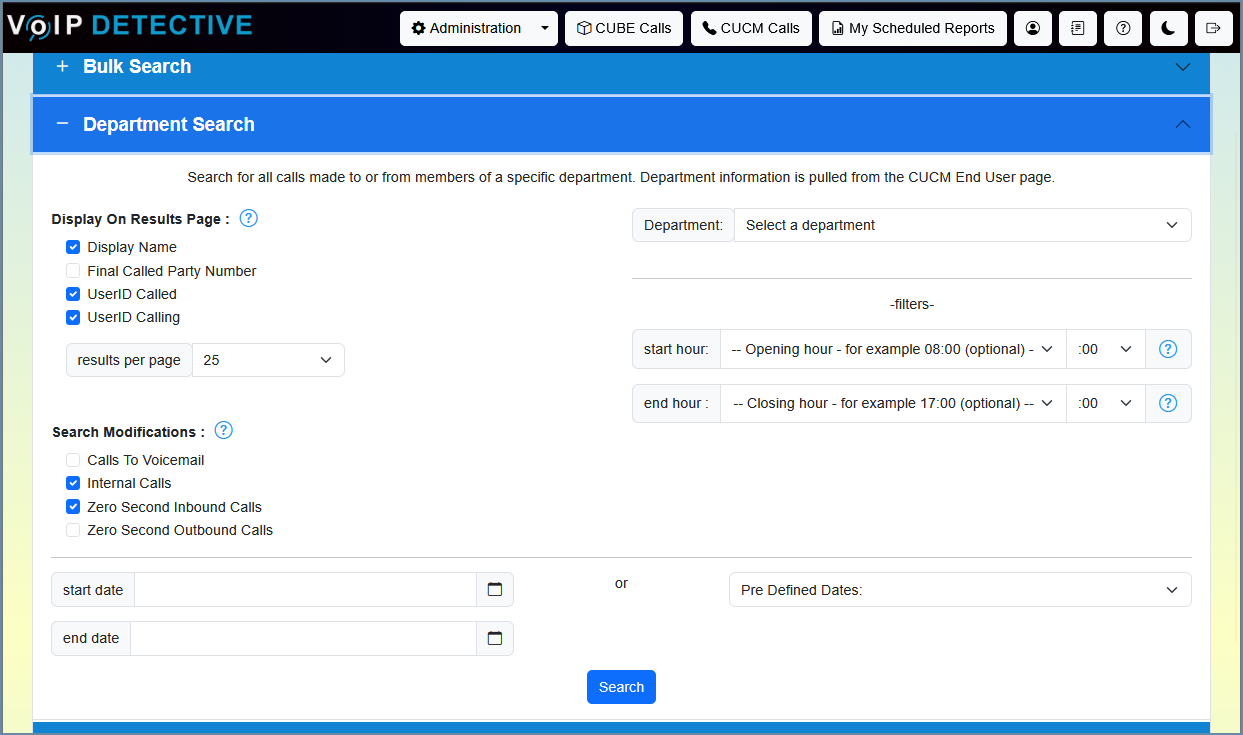
The Department Search panel is an accordion section on the main CUCM Search page. Expand it to reveal the search options described below.
Department Selection
Depending on how many departments exist in your system, this field appears in one of two ways:
Department Count | Input Type | Behavior |
250 or fewer | Dropdown | A standard dropdown list. Scroll or use your browser’s built-in search to find a department. |
More than 250 | Text input with autocomplete | Start typing a department name and matching options appear. This prevents an unusably long dropdown. |
Both input types submit the same value — the results page handles them identically.
Display On Results Page
These checkboxes control which optional columns appear in the results table. They do not filter data — they add or remove columns.
Option | Description | Default |
Display Name | Shows the end-user name associated with each extension (looked up from the CUCM End User table). | Checked |
Final Called Party Number | The number or extension where the call ultimately terminated. Useful when calls are forwarded. | Unchecked |
UserID Called | The User ID of the person who ultimately answered the call. | Checked |
UserID Calling | The User ID of the person who originated the call. | Checked |
Results Per Page
A dropdown below the display options lets you control how many rows appear on each page of results. Available values are 25, 50, 100, 250, and 500. The default is determined by your system configuration.
Search Modifications
These checkboxes filter which calls are included in or excluded from the results.
Option | Description | Default |
Calls to Voicemail | When checked, calls where a department member dialed the voicemail pilot number are included. | Unchecked |
Internal Calls | When checked, extension-to-extension calls are included. Uncheck to see only external calls. | Checked |
Zero Second Inbound Calls | Include inbound calls with a duration of 0 seconds (ring-no-answer). | Checked |
Zero Second Outbound Calls | Include outbound calls with a duration of 0 seconds (misdials, quick hang-ups). | Unchecked |
Time-of-Day Filter (Start Hour / End Hour)
Optional Start Hour and End Hour dropdowns allow you to restrict results to calls that occurred during a specific window of the day. For example, setting Start Hour to 8:00 AM and End Hour to 5:00 PM will only return calls that originated during business hours.
If you leave these blank, all hours are included.
ℹ️ Tip: This filter is applied after the database query, so it works in combination with all other filters. It is especially useful for analyzing business-hours traffic.
Date Range
Custom Start & End Date
Use the date-time pickers to select a specific start and end date/time. If you leave the start date blank, it defaults to today at 00:00. If you leave the end date blank, it defaults to today at 23:59.
Predefined Date Range
Alternatively, select a predefined range from the dropdown (e.g., Today, Yesterday, This Week, Last 7 Days, This Month, etc.). Predefined ranges are calculated based on your configured time zone.
Free License Limit: On a free (unpaid) license, the start date is capped at 14 days in the past. Any start date older than two weeks is automatically moved forward.
Understanding the Results
Breadcrumb Bar
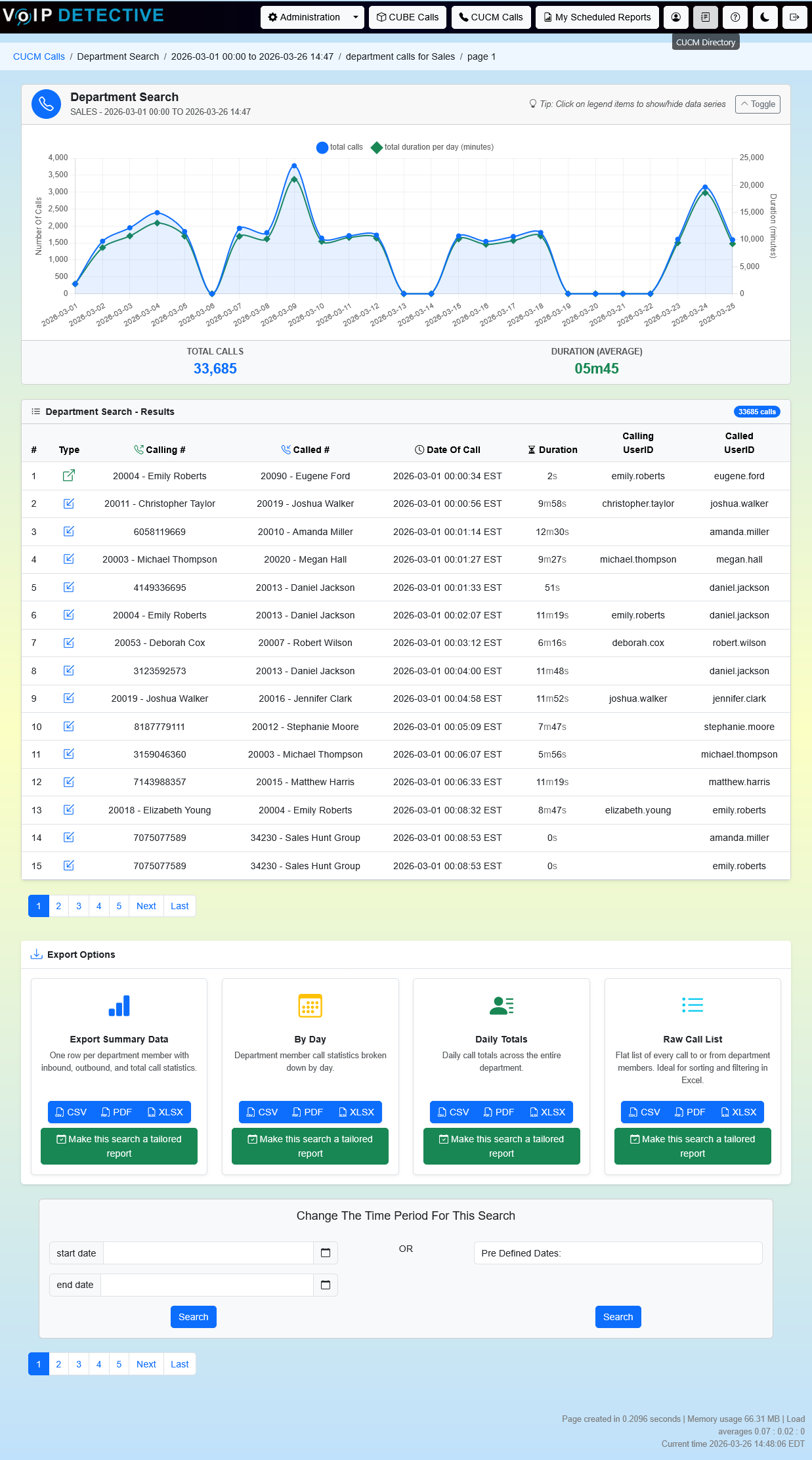
At the top of the results page, a breadcrumb trail shows the search context: the report type, department name, date range, total number of matching calls, and the current page number. If the internal result limit is reached, a warning badge appears indicating that results have been capped.
Call Activity Chart
When results span at least two time intervals, a collapsible line chart appears above the results table. It plots two data series:
- Total Calls (blue, left axis) – the number of unique calls per interval.
- Total Duration in Minutes (green, right axis) – the combined talk time per interval.
The chart automatically switches between daily intervals (for multi-day searches) and hourly intervals (for single-day searches). A footer row below the chart shows the grand total call count and the average call duration.
ℹ️ Tip: Click a legend label to hide or show that data series. You can also collapse the entire chart panel using the Toggle button.
Results Table
The results table is sortable — click any column header to sort ascending or descending.
Standard Columns (Always Shown)
Column | Description |
# | A sequential row number for the current page. |
Type | A direction icon indicating the call type (see Call Direction Icons below). |
Calling # | The number that originated the call. If Display Name is enabled, the user’s name is shown alongside. |
Called # | The number that was originally dialed. |
Date of Call | The date and time the call was initiated, displayed in your configured time zone. |
Duration | The length of the connected portion of the call, formatted as hours:minutes:seconds. |
Optional Columns
Column | Description |
Final Called Party # | The number where the call actually terminated (after forwards, transfers, or hunt group distribution). |
UserID Calling | The CUCM User ID of the person who originated the call. |
UserID Called | The CUCM User ID of the person who answered the call — the “Answered By” user. |
Call Direction Icons
Icon | Direction | Meaning |
↗️ Green arrow | Outbound | A department member placed this call to a number outside the department. |
↙️ Blue arrow | Inbound | A call was received by a department member. Includes intra-department calls. |
↔️ Yellow arrow | Transfer / Forward | The call was forwarded, transferred, or part of a conference. |
ℹ️ Tip: Hover over any direction icon to see the call’s disconnect time and internal Call ID / Leg ID.
How Intra-Department Calls Are Handled
When both the calling party and the called party are members of the same department, the call appears once (as inbound to the called party), not twice. This prevents double-counting and keeps totals accurate.
Pagination
Results are split across multiple pages based on the Results Per Page value you selected. Navigation links appear both above and below the results table.
Record Limit
To protect system performance and prevent memory exhaustion, the Department Search enforces a combined record limit of 50,000 CDR rows. The inbound query runs first (sorted chronologically, oldest first). If there is remaining capacity, the outbound query runs with the balance of the limit.
When the limit is reached:
- A Search Limit Reached warning appears in the breadcrumb bar on the results page.
- All exported files include a red warning row noting the limit.
- The results represent the oldest calls first within the selected date range.
To see complete results for large departments, narrow the date range or apply filters (such as removing zero-second calls or excluding internal calls).
Exporting Results
Below the results table, an Export Options section presents four export types, each available in CSV, PDF, and XLSX format.
Export Types
Summary
One row per department member showing aggregated statistics.
Column | Description |
Extension | The member’s extension and display name. |
Inbound Calls | Total number of inbound calls received. |
Inbound Duration | Total talk time for inbound calls. |
Unanswered Calls | Inbound calls with 0 seconds of connected time. |
Outbound Calls | Total number of outbound calls placed. |
Outbound Duration | Total talk time for outbound calls. |
Total Calls | Inbound + Outbound combined. |
Total Duration | Combined talk time for all calls. |
By Day
One row per department member per day — the same columns as the Summary report, but broken down by date. Days with zero calls for a member are omitted. This is useful for spotting daily trends per individual.
Daily Totals
One row per day showing aggregate statistics for the entire department (not broken down by member). Includes a totals row at the bottom. Columns include Date, Total Calls, Inbound Calls, Outbound Calls, Unanswered Calls, Total Duration, and Average Duration.
Raw Call List
A flat, chronological list of every individual call to or from a department member. Each row includes the Department Member, Direction (Inbound/Outbound), Calling Number, Called Number, Date/Time, Duration in seconds, and Duration in h:m:s format. This export has no grouping — it is designed for custom sorting and filtering in Excel.
Available Formats
Format | Best For | Row Limit |
Printing, sharing with stakeholders. Landscape A4 layout. | 500 rows | |
XLSX | Further analysis in Excel or Google Sheets. | 100,000 |
CSV | Raw data import into other tools or databases. | 100,000 |
When the record limit is reached during export, a warning row is included at the top of the file noting that results have been truncated.
Tailored Reports
PRO users can set up Tailored Reports (scheduled reports) for any of the four export types. Click the green “Make this a tailored report” button below any export card. When a report runs on a schedule, it is generated automatically and delivered via email. Tailored reports also generate chart images (pie charts for calls per member and talk time per member, plus a daily bar chart) that are included alongside the data file.
Free vs. PRO License
Capability | PRO |
Date range limit | Unlimited |
Display Name column | Available (checked by default) |
Final Called Party Number | Full data |
UserID Called / Calling | Full data |
XLSX / CSV export limit | 100,000 rows |
PDF export limit | 500 rows |
Predefined date options | Full set |
Tailored / Scheduled reports | Available |
Tips & Frequently Asked Questions
How are departments populated?
Departments are imported from CUCM End Users via AXL sync. Each end user in CUCM has an optional Department field. When AXL sync runs, VoIP Detective stores the department assignment in its local database. If a user’s department changes in CUCM, the change will be reflected after the next AXL sync.
I selected a department but see “no calls matching the pattern.” Why?
This can happen if the department members only have extensions that are not present in the CDR data for the selected date range — for example, if the department was recently created, or if the members haven’t made or received any calls during the selected period.
Why don’t I see any outbound calls?
Outbound calls are only shown for calls where the calling party is in the selected department AND the called party is NOT in the same department. Calls between two members of the same department are classified as inbound (to the called party) to prevent double-counting. If a department’s members primarily receive calls rather than place them, the outbound count may be low or zero.
What does the “Search Limit Reached” warning mean?
VoIP Detective caps the number of CDR rows processed for department searches at 50,000 to protect system performance. If you see this warning, your date range contains more calls than the limit. The results show the oldest calls first. Narrow the date range or apply filters to reduce the result set.
Why is the Duration different from what I expect?
The Duration column shows the connected (talk) time only, not ring time. The call starts timing when it is answered and stops when it disconnects. If a call was forwarded or transferred, each leg may show its own duration.
I have more than 250 departments and the dropdown changed to a text field. How does that work?
When VoIP Detective detects more than 250 departments, it switches from a standard dropdown to a text input with autocomplete. Start typing the department name and matching options will appear. The form works identically either way.
Can managers use this report?
No. The Department Search is restricted to Administrators and Global Managers. Managers should use the Team Search report, which shows call activity for their assigned team members.
Was this article helpful?
That’s Great!
Thank you for your feedback
Sorry! We couldn't be helpful
Thank you for your feedback
Feedback sent
We appreciate your effort and will try to fix the article