The All Calls search provides a combined view of inbound and outbound calls for a single extension, a range of extensions (using a wildcard mask), or – for administrators – a flexible pattern match across the entire system. Results include the calling number, called number, call direction, time, and duration of each call.
Overview
This report is the most commonly used search in VoIP Detective. It answers the fundamental question: “Who called whom, when, and for how long?”
Who Can Use This Report
User Role | Behavior |
Administrator | Searches any extension or pattern. Sees the Search Criteria dropdown (Contains, Begins With, Ends With, Is Exactly) and a free-text input field. |
Manager | Sees a dropdown list of their assigned employees, plus their own extension. Can only search within their team. |
Standard User | Sees only their own extension – locked and pre-selected. Cannot search other numbers. |
Global Manager | Functions like an Administrator for extensions that fall within their assigned range. |
The Search Form
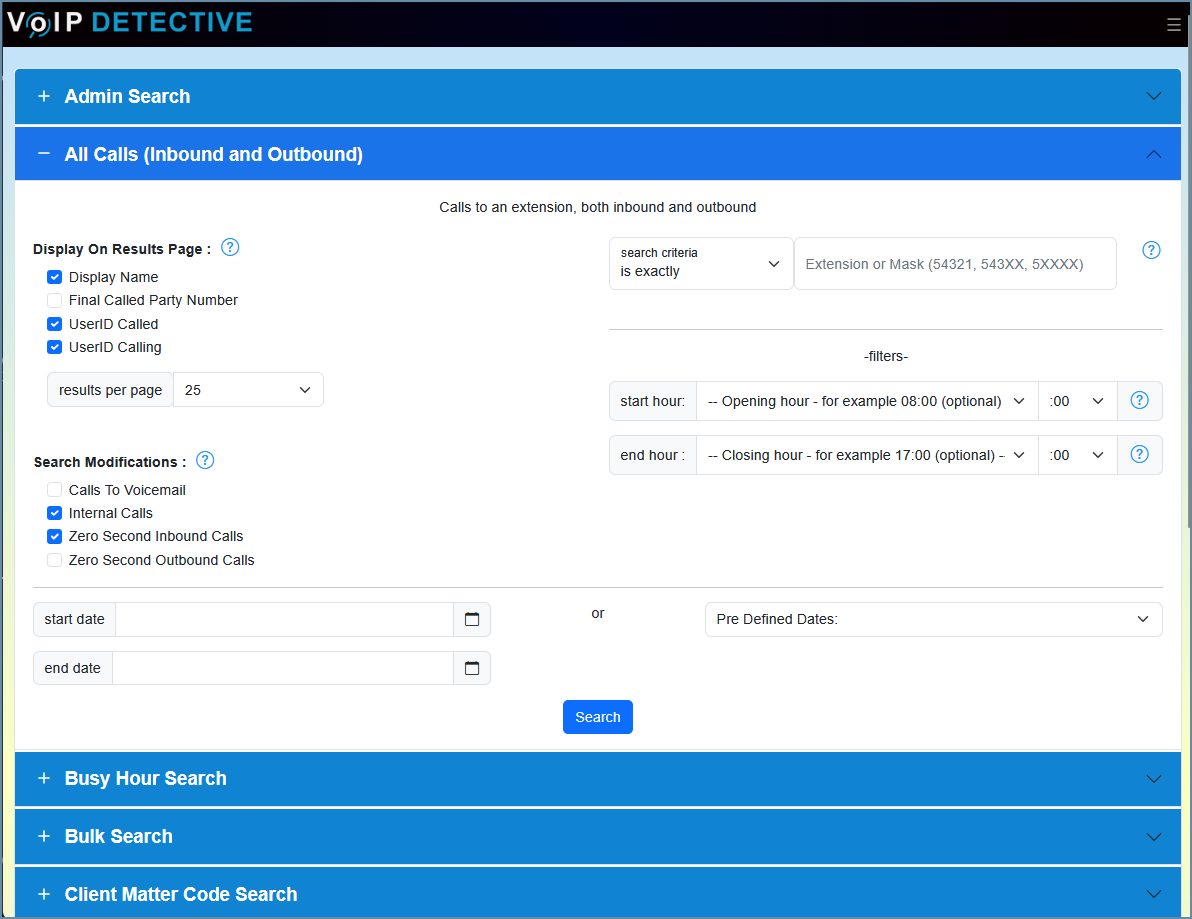
The All Calls panel is one of several accordion sections on the main CUCM Search page. Expand it to reveal the search options described below.
Display On Results Page
These checkboxes control which optional columns appear in the results table. They do not filter data – they add or remove columns.
Option | Description | Default |
Display Name | Shows the end-user name associated with each extension (looked up from the CUCM End User table). | Checked [PRO] |
Final Called Party Number | The number or extension where the call ultimately terminated. Useful when calls are forwarded or sent to a hunt group. | Unchecked [PRO] |
UserID Called | The User ID of the person who ultimately answered the call. Helpful for identifying who picked up a hunt group or forwarded call. | Checked [PRO] |
UserID Calling | The User ID of the person who originated the call. | Checked [PRO] |
PRO Feature: Options marked [PRO] require a VoIP Detective PRO license. On a free license these checkboxes are disabled or show a placeholder icon in the results.
Results Per Page
A dropdown below the display options lets you control how many rows appear on each page of results. Available values are 25, 50, 100, 250, and 500. The default is determined by your system configuration.
Search Modifications
These checkboxes filter which calls are included in or excluded from the results.
Option | Description | Default |
Calls to Voicemail | When checked, calls where the user dialed the voicemail pilot number (e.g., checking messages) are included. | Unchecked |
Internal Calls | When checked, extension-to-extension calls are included. Uncheck to see only external calls. Only appears if an extension length is configured. | Checked |
Local Calls | Include local calls (based on NANP digit-length rules). Only appears when NANP mode is enabled. | Checked |
Long Distance Calls | Include long-distance calls (based on NANP digit-length rules). Only appears when NANP mode is enabled. | Checked |
Zero Second Inbound Calls | Include inbound calls with a duration of 0 seconds. These are typically calls where the caller hung up before the phone was answered (ring-no-answer). | Checked |
Zero Second Outbound Calls | Include outbound calls with a duration of 0 seconds. These are typically misdials, quick hang-ups, or calls that failed to connect. | Unchecked |
Search Input (Extension or Pattern)
What you see in this section depends on your user role:
Administrators & Global Managers
Search Criteria dropdown – controls how the value you enter is matched against calling and called party numbers:
Criteria | Behavior |
Contains | Matches any number that includes the digits you enter anywhere in the string. |
Begins With | Matches numbers that start with the digits you enter. |
Ends With | Matches numbers that end with the digits you enter. |
Is Exactly (default) | Matches only the exact number you enter. This is the default and fastest option. |
Extension or Mask field – enter the extension number or a wildcard mask. Use the letter X (uppercase) as a single-digit wildcard. For example, 1XXX matches all four-digit extensions starting with 1 (1000–1999).
ℹ️ Tip: When a mask containing X is used, the search looks across both calling and called numbers in a single pass rather than separating inbound/outbound queries. This can return a higher result limit (500,000 vs 250,000 rows).
Managers
You will see a dropdown menu listing your own extension plus the extensions of all users assigned to you. Select one to search.
Standard Users
Your own extension is pre-selected and locked. You can only run reports on your own calls.
Time-of-Day Filter (Start Hour / End Hour)
Below the main search input, optional Start Hour and End Hour dropdowns allow you to restrict results to calls that occurred during a specific window of the day. For example, setting Start Hour to 8:00 AM and End Hour to 5:00 PM will only return calls that originated during business hours.
If you leave these blank, all hours are included.
ℹ️ Tip: This filter is applied after the database query, so it works in combination with all other filters. It is especially useful for analyzing business-hours traffic without needing to run separate date-range searches.
Date Range
You can specify a date range in one of two ways:
Custom Start & End Date
Use the date-time pickers to select a specific start and end date/time. If you leave the start date blank, it defaults to today at 00:00. If you leave the end date blank, it defaults to today at 23:59.
Predefined Date Range
Alternatively, select a predefined range from the dropdown (e.g., Today, Yesterday, This Week, Last 7 Days, This Month, etc.). Predefined ranges are calculated based on your configured time zone.
Free License Limit: On a free (unpaid) license, the start date is capped at 14 days in the past. Any start date older than two weeks is automatically moved forward.
Understanding the Results
Breadcrumb Bar
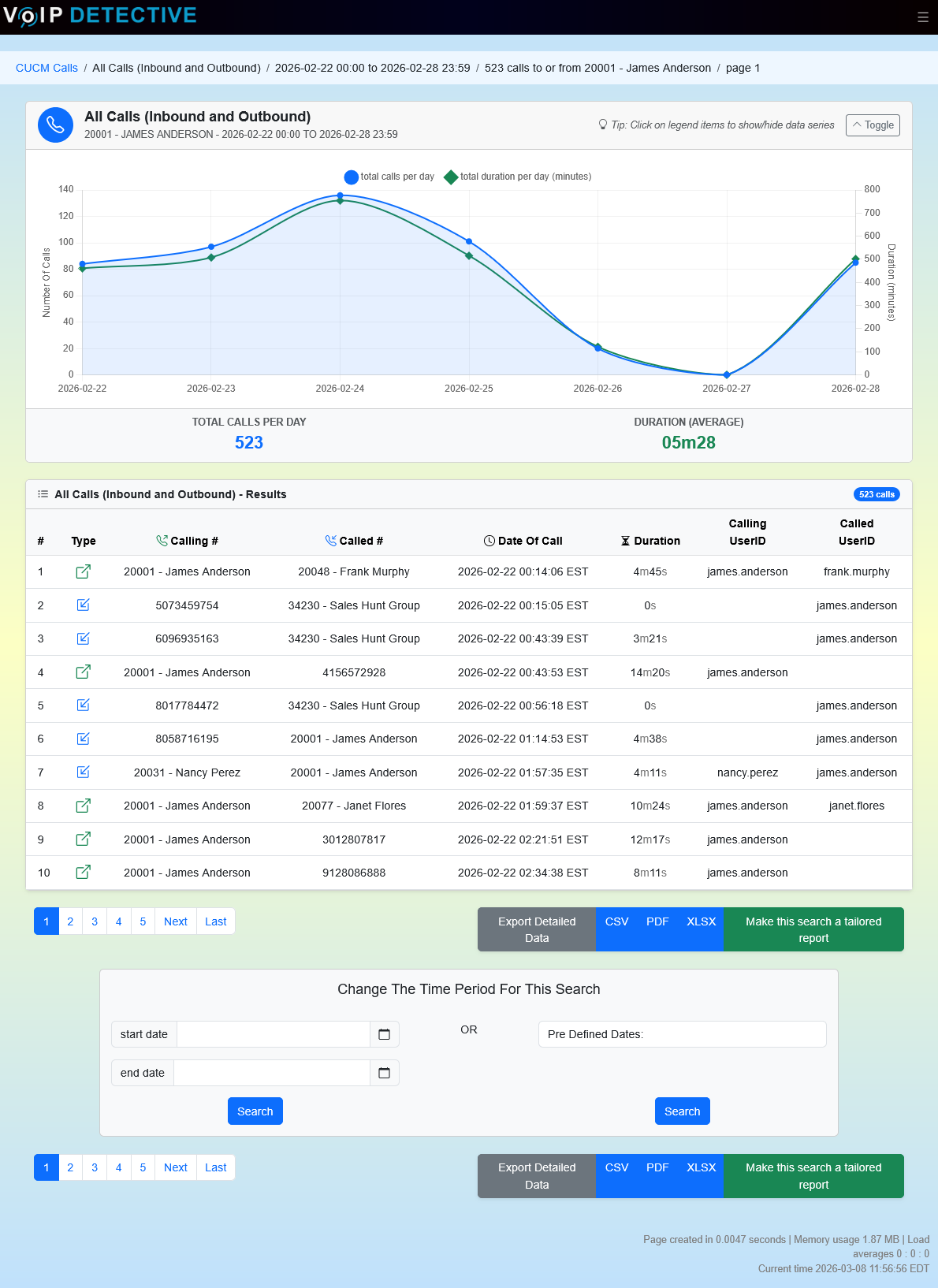
At the top of the results page, a breadcrumb trail shows the search context: the report type, date range, total number of matching calls, and the current page number. If the internal result limit is reached, a warning badge appears indicating that results have been capped.
Call Activity Chart
When results span at least two time intervals, a collapsible line chart appears above the results table. It plots two data series:
Total Calls (blue, left axis) – the number of unique calls per interval.
Total Duration in Minutes (green, right axis) – the combined talk time per interval.
The chart automatically switches between daily intervals (for multi-day searches) and hourly intervals (for single-day searches). A footer row below the chart shows the grand total call count and the average call duration.
ℹ️ Tip: Click a legend label to hide or show that data series. You can also collapse the entire chart panel using the Toggle button if you prefer to focus on the table.
Results Table
The results table is sortable – click any column header to sort ascending or descending.
Standard Columns (Always Shown)
Column | Description |
# | A sequential row number for the current page. |
Type | A direction icon indicating the call type (see Call Direction Icons below). |
Calling # | The number that originated the call. If Display Name is enabled, the user’s name is shown alongside the number. |
Called # | The number that was originally dialed. |
Date of Call | The date and time the call was initiated, displayed in your configured time zone. |
Duration | The length of the connected portion of the call, formatted as hours:minutes:seconds. |
Optional Columns
These columns appear only if the corresponding checkbox was enabled on the search form:
Column | Description |
Final Called Party # [PRO] | The number where the call actually terminated (after forwards, transfers, or hunt group distribution). |
UserID Calling [PRO] | The CUCM User ID of the person who originated the call. |
UserID Called [PRO] | The CUCM User ID of the person who answered the call – the “Answered By” user. |
Call Direction Icons
The Type column uses color-coded icons to show the direction and nature of each call:
Icon | Direction | Meaning |
↗️ Green arrow | Outbound | The searched extension placed this call. Tooltip shows the disconnect time and Call ID. |
↙️ Blue arrow | Inbound | The searched extension received this call. Tooltip shows the disconnect time and Call ID. |
↔️ Yellow arrow | Transfer / Forward | The call was forwarded, transferred, or part of a conference involving the searched extension. |
❓ Gray circle | Unknown (Mask) | The call was returned by a wildcard mask search and could not be classified as inbound or outbound. |
ℹ️ Tip: Hover over any direction icon to see a tooltip containing the call’s disconnect time and the internal Call ID / Leg ID, which is useful for troubleshooting.
Pagination
Results are split across multiple pages based on the Results Per Page value you selected. Navigation links appear both above and below the results table. The breadcrumb bar shows the current page number.
Exporting Results
At the bottom of the results page (both above and below the table), you will find export buttons for downloading the report data.
Available Formats
Format | Best For | Row Limit |
Printing, sharing with stakeholders. Landscape A4 layout with headers, footers, and page numbers. | 500 rows | |
XLSX | Further analysis in Excel or Google Sheets. Includes styled headers. | 50,000 rows (PRO) / 1,000 rows (Free) |
CSV | Raw data import into other tools or databases. | 50,000 rows (PRO) / 1,000 rows (Free) |
Exported Columns
The export file includes the same columns you see on screen: Type (as text: Inbound, Outbound, etc.), Calling Number, Called Number, Time of Call (in your time zone), and Duration. Optional columns like Final Called Party Number, UserID Calling, and UserID Called are included if they were enabled in your search.
Tailored Reports
PRO users can set up Tailored Reports that automatically generate exports on a schedule and deliver them via email. When a report runs on a schedule, all optional columns (UserID Calling, UserID Called, Final Called Party Number) are automatically included, and voicemail/zero-second/internal filters are removed so the report captures the complete picture.
Tailored reports also generate a bar chart image (daily or hourly, depending on the date range) that is included alongside the data file.
Free vs. PRO License
VoIP Detective operates on a freemium model. The All Calls search is available on both license tiers, but with differences:
Capability | Free | PRO |
Date range limit | Last 14 days | Unlimited |
Display Name column | Disabled | Available (checked by default) |
Final Called Party Number | Placeholder icon shown | Full data |
UserID Called / Calling | Placeholder icon shown | Full data |
XLSX / CSV export limit | 1,000 rows | 50,000 rows |
PDF export limit | 500 rows | 500 rows |
Predefined date options | Limited set | Full set |
Tailored / Scheduled reports | Not available | Available |
Tips & Frequently Asked Questions
How do I search for all extensions in a range?
Use a wildcard mask with X as the placeholder. For example, entering 5XXX with the “Is Exactly” criteria will return all calls to or from any four-digit extension beginning with 5. Administrators and Global Managers can also use the Contains, Begins With, and Ends With criteria for even more flexible pattern matching.
Why do I see 0-second calls?
A 0-second call means the call was initiated but never connected. For inbound calls, this usually means the caller hung up while the phone was ringing. For outbound calls, it could be a misdial, a quick hang-up, or a system error. You can exclude these using the Zero Second Inbound/Outbound checkboxes on the search form.
What does the “Search Limit Reached” warning mean?
VoIP Detective caps the number of raw CDR rows processed per search (250,000 for standard searches, 500,000 for mask searches) to protect system performance. If you see this warning, your date range likely contains more calls than the limit. Narrow the date range or add filters to reduce the result set.
Why is the Duration different from what I expect?
The Duration column shows the connected (talk) time only, not ring time. The call starts timing when it is answered and stops when it disconnects. If a call was forwarded or transferred, each leg may show its own duration. The Total Duration column (when visible) sums all legs of the same call.
Can I change the time zone of the results?
Yes. VoIP Detective displays all times in the time zone set in your user session. If your session time zone differs from the system default, dates and times are automatically converted.
The "All Calls" search is designed to provide a list of calls to and from a single extension. It will show the called number, calling number, time and duration of the call.
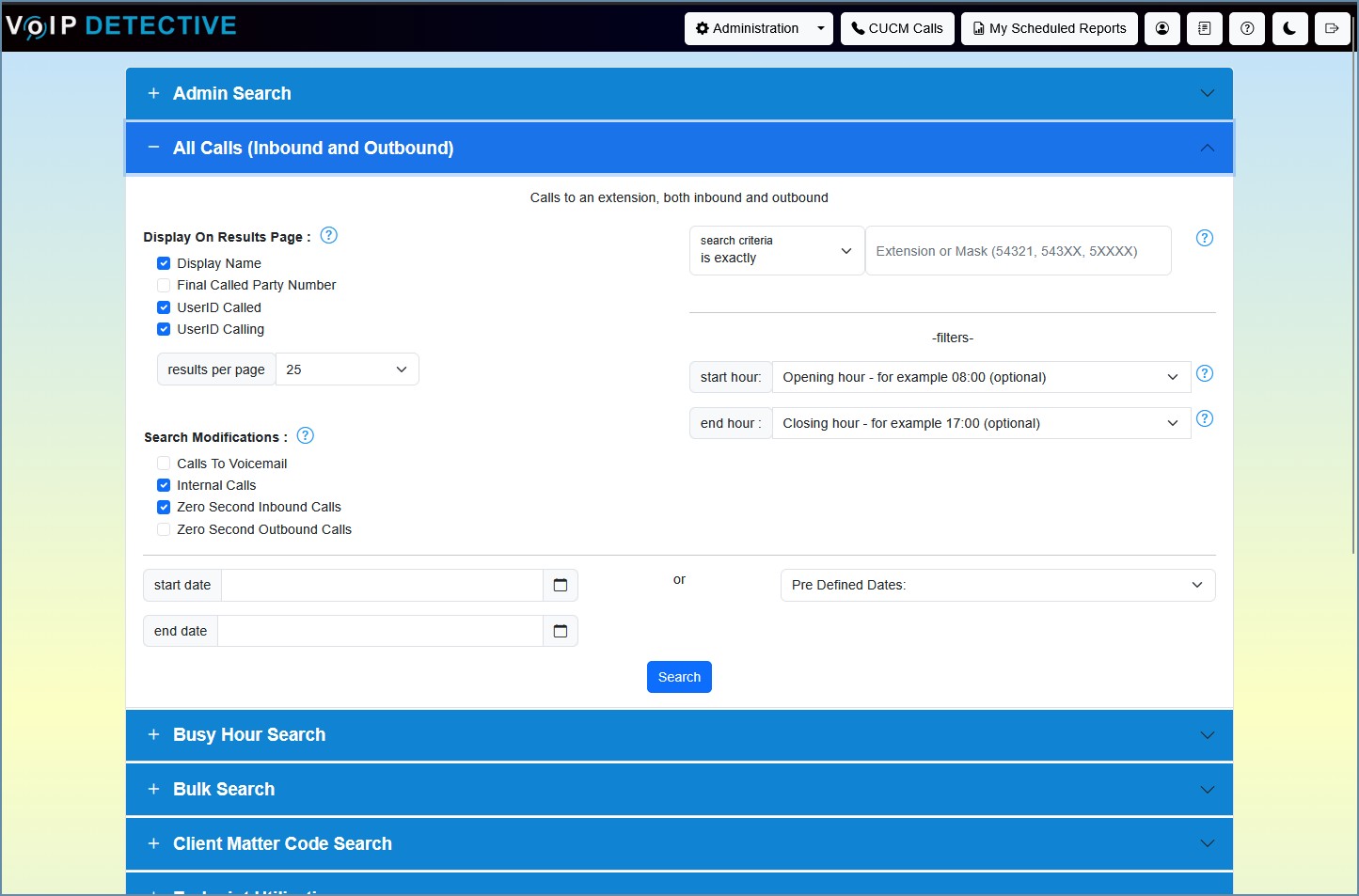
Display On Results Page :
- Display Name - VoIP Detective PRO users have the option to show the end user associated with that extension.
- Final Called Party Number - the number or extension that the call ended with.
- UserID Called- this will show the User ID of the person who ultimately answered the call. Useful for determining who answered a call to a hunt group, or if the extension was forwarded.
- UserID Calling - this will show the User ID of the person who originated the call.
Search Modifications :
- Calls To Voicemail - include calls where the user called voicemail (i.e. checking their messages).
- Internal Calls - include calls from one extension to another.
- Zero Second Inbound Calls - these are calls that are 0 seconds. In most situations, these are calls that never connected. For example, a caller hangs up while the phone is ringing.
- Zero Second Outbound Calls - these are calls that are 0 seconds. In most situations, these are calls that never connected, i.e. you simply take the phone offhook, then hang up again. These would also include misdials and errors.
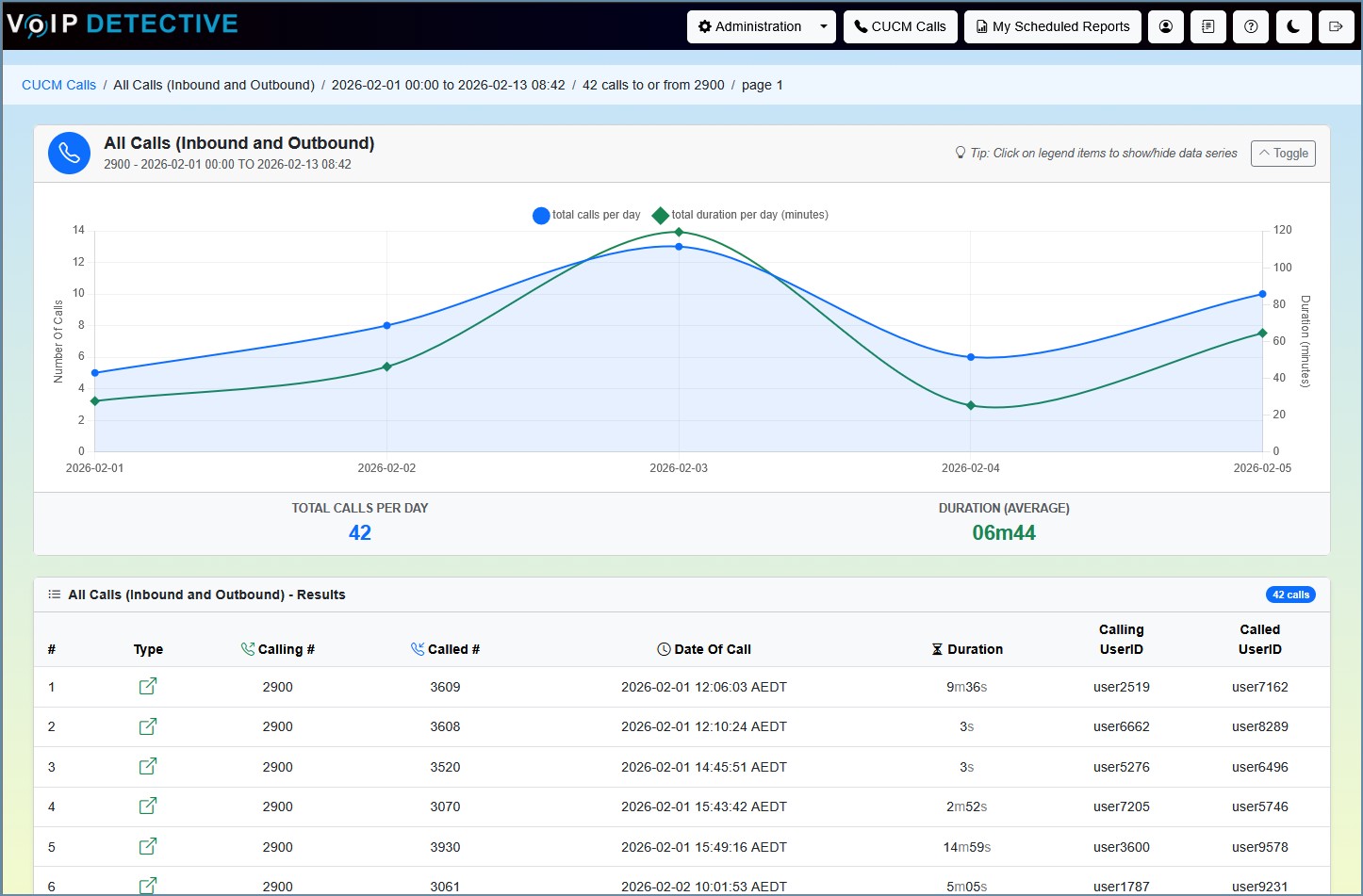
Below you can see the output of this search.
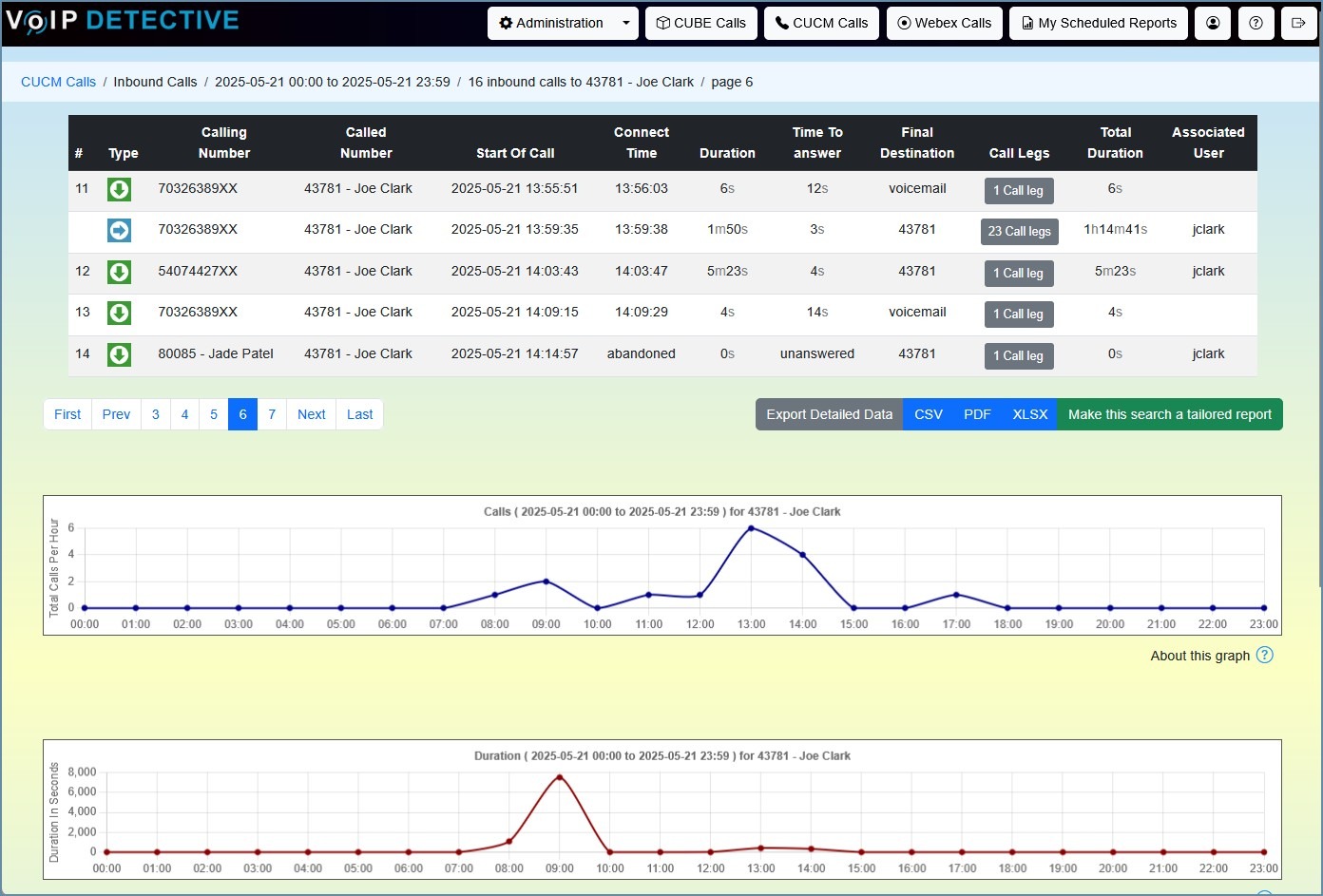
If you scroll to the bottom of the page, you'll see options to export this report to PDF, XLSX, or CSV

Was this article helpful?
That’s Great!
Thank you for your feedback
Sorry! We couldn't be helpful
Thank you for your feedback
Feedback sent
We appreciate your effort and will try to fix the article