The Busy Hour Search groups a single extension’s calls into hourly increments so you can see when call volume peaks and dips across the day. For each hour it shows how many calls came in and went out, how long they lasted, and how many went to voicemail or were abandoned – making it the report to reach for when planning staffing or understanding call patterns.
PRO Feature: The Busy Hour Search requires a VoIP Detective PRO subscription.
What the Report Shows
VoIP Detective takes every call for the extension during your chosen date range and sorts it into the hour it occurred (for example, 9:00–10:00). Each hour becomes one row, and within that hour every call is classified:
Classification | Meaning |
Inbound | Calls the extension received. |
Outbound | Calls the extension placed. |
Other | Calls that are neither a straightforward inbound nor outbound call for the extension – for example internal, forwarded, or transferred legs. |
Within each hour the report also tracks calls that went to voicemail, calls that were abandoned before being answered, and the average time it took to answer inbound calls.
ℹ️ Tip: Because each hour of each day is its own row, a multi-day search lets you compare the same hour across days – for example to see whether Monday mornings are consistently your busiest period.
Who Can Use This Report
You can run a Busy Hour Search if you are an administrator or global manager, or a manager for an extension that an administrator has assigned to your team. Administrators and global managers can search any extension; managers choose from the extensions assigned to them.
Performing a Busy Hour Search
- Click Track Calls on the menu bar.
- Select the Busy Hour Search heading to expand that section.
- Enter or choose the extension to report on.
- Set any time-of-day window and filters you would like.
- Select the date range, then press the Search button.
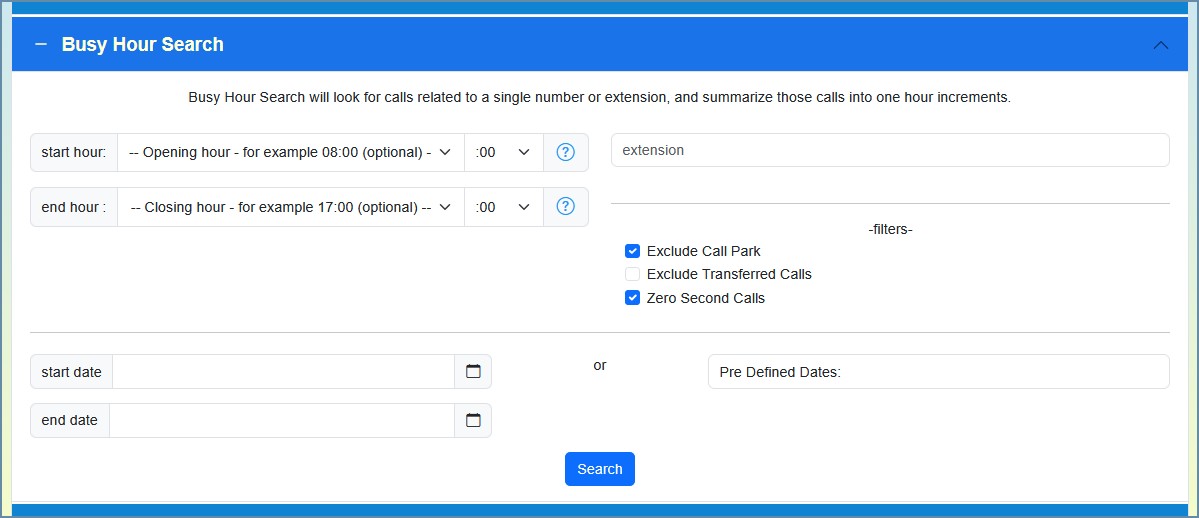
The Search Form
Choosing the Extension
Administrators and global managers type an extension into the search box. Managers select an extension from a drop-down list of the team members assigned to them.
Time-of-Day Window (Start / End Hour)
Optional Start Hour and End Hour selectors – each with hour and minute – limit the report to a window within the day. For example, set the window to 08:00–18:00 to focus on business hours and ignore overnight activity. Leave them blank to include the full day.
Filters
Three filters fine-tune which calls are counted:
Filter | Description | Default |
Exclude Call Park | Leave out call-park legs (when a call is parked and later retrieved) so a single call isn’t counted twice. | On |
Exclude Transfers | Leave out the transfer legs of calls, counting only the original call. | Off |
Zero Second Calls | Include calls with a 0-second duration (typically calls that never connected). | On |
Date Range
Custom dates: Click the calendar icon to choose a start and end date.
Predefined dates: Choose a preset range such as Today, Yesterday, This Week, or Last 7 Days.
Once everything is set, click Search.
Understanding the Results
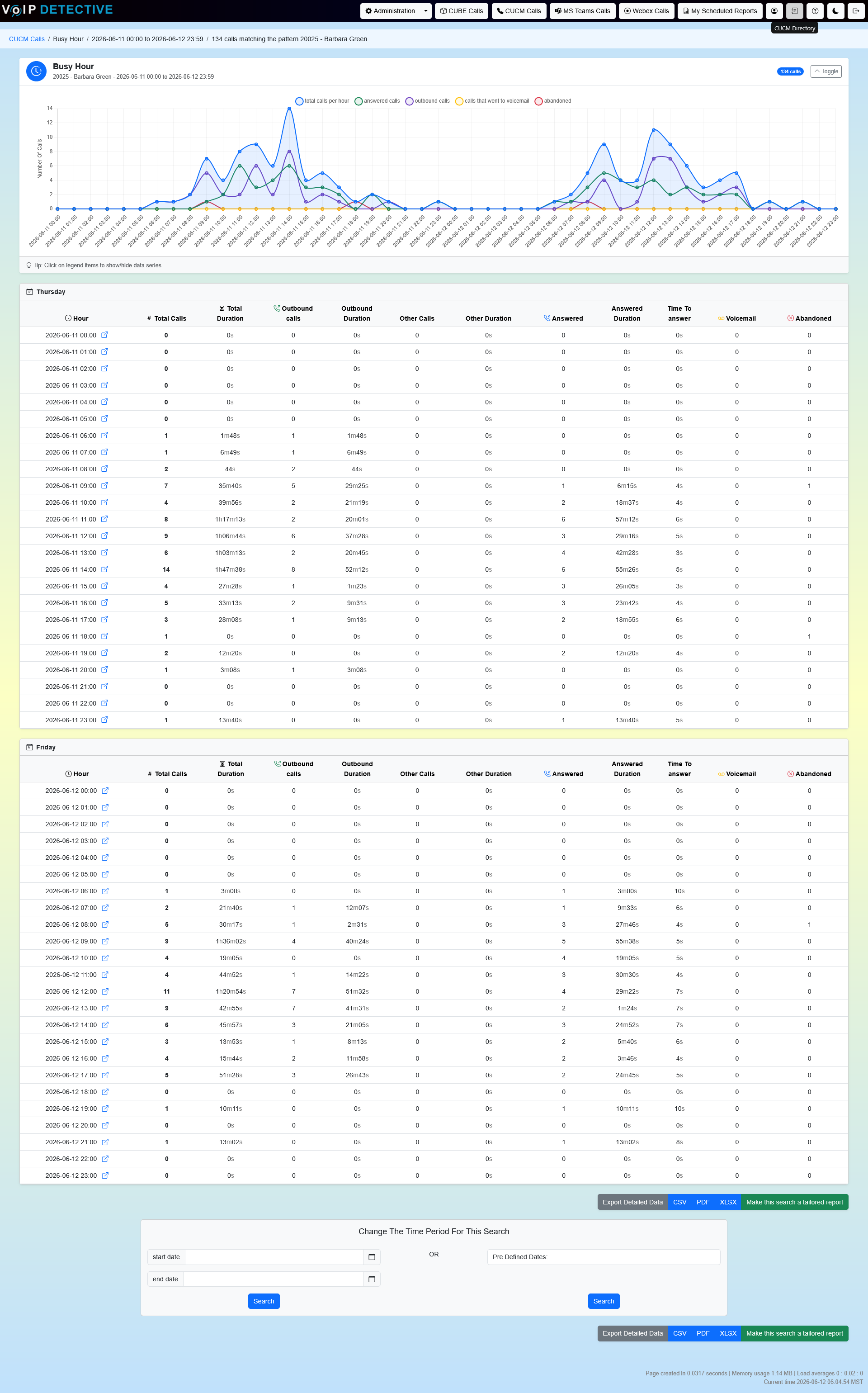
Busy Hour Chart
A collapsible chart at the top plots each hour’s activity, with separate series for total, inbound, outbound, voicemail, and abandoned calls. The title shows the extension and the total number of calls in the range. The shape of the chart makes peaks and quiet periods easy to spot at a glance.
Results Table
Below the chart, each row is one hour.
Column | Description |
Hour | The day and clock hour the calls fall into (for example, Monday 14:00). |
Total Calls | All calls in that hour. |
Total Duration | Combined talk time for that hour. |
Outbound Calls | Calls the extension placed in that hour. |
Outbound Duration | Talk time for outbound calls. |
Other Calls | Calls classified as “other” (internal, forwarded, transferred legs). |
Other Duration | Talk time for “other” calls. |
Inbound Calls | Calls the extension received in that hour. |
Inbound Duration | Talk time for inbound calls. |
Time to Answer | The average number of seconds before inbound calls were answered. |
Voicemail | Calls in that hour that ended in voicemail. |
Abandoned | Calls abandoned before they were answered. |
Exporting Results
Export buttons appear with the results. The export contains the same per-hour breakdown shown on screen.
Format | Best For | Row Limit |
Printing and sharing. | 500 rows | |
XLSX | Analysis in Excel or Google Sheets. | 100,000 rows |
CSV | Importing into other tools. | 100,000 rows |
Putting It to Use
Staffing. Identify the hours with the highest inbound volume and schedule more people during those windows, and fewer during consistently quiet hours.
Capacity planning. Use the busiest hour as your reference point when sizing trunks, queues, or teams – the classic “busy hour” measure that telecom capacity planning is built around.
Service quality. Watch the Abandoned and Time to Answer columns during peak hours – rising values are a sign that callers are waiting too long and you may be understaffed at those times.
Was this article helpful?
That’s Great!
Thank you for your feedback
Sorry! We couldn't be helpful
Thank you for your feedback
Feedback sent
We appreciate your effort and will try to fix the article