Overview
The Webex Call Queue Wallboard provides a real-time display of your Webex Calling call queue performance. Designed to be displayed on a monitor or TV in your office, it gives supervisors and team leads instant visibility into how their queues are performing throughout the day.
The wallboard automatically retrieves call queue definitions from Webex, then computes live statistics from your imported call detail records (CDRs). All metrics reset at midnight in your configured local timezone and accumulate throughout the business day.
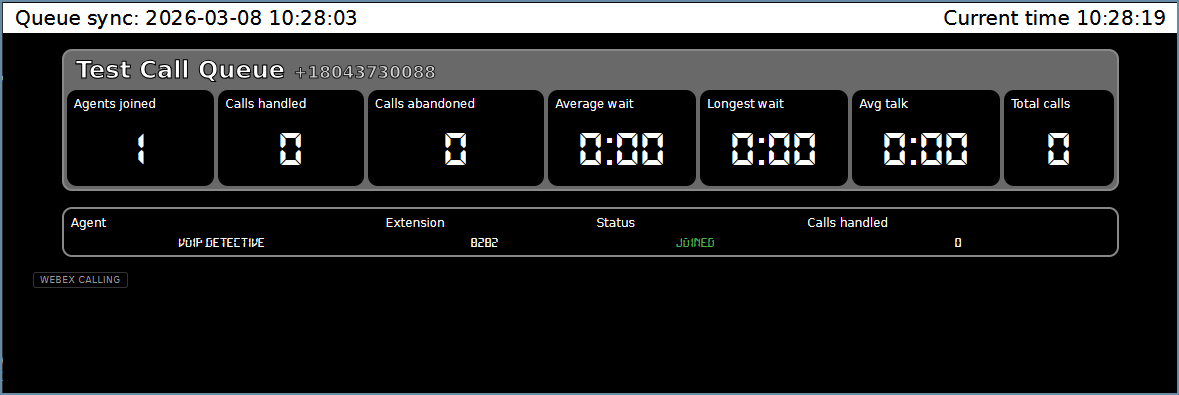
What the Wallboard Displays
The wallboard shows two sections for each call queue: a queue statistics panel and an agent roster.
Queue Statistics
The top panel for each queue displays the following metrics:
Metric | Description |
Agents Joined | The number of agents currently joined (signed in) to the queue. This is pulled from the Webex API on an hourly schedule. |
Calls Handled | The total number of calls that were answered by an agent today. A call is counted as handled when the CDR record shows it was answered. |
Calls Abandoned | The total number of calls where the caller hung up before reaching an agent. These are CDR records that entered the queue but were not answered. |
Average Wait | The average time callers spent ringing (waiting) before being connected to an agent or abandoning. Calculated from the ring duration field across all queue calls today. |
Longest Wait | The longest ring duration of any single call in the queue today. This represents the worst-case caller experience for the day. |
Avg Talk | The average duration of answered calls today. Only calls that were actually connected to an agent are included in this calculation. |
Total Calls | The total number of calls that entered the queue today, regardless of outcome. This includes handled calls, abandoned calls, and any other disposition. |
Agent Roster
Below the queue statistics, an agent table displays each agent assigned to the queue:
Column | Description |
Agent | The agent's first and last name as configured in Webex. |
Extension | The agent's phone extension or phone number. |
Status | Whether the agent has joined or unjoined the queue. Displayed in green (Joined) or gray (Unjoined). Updated hourly. |
Calls Handled | The number of queue calls this agent personally answered today. |
How Statistics Are Calculated
Understanding how the wallboard computes its metrics will help you interpret the data correctly.
Data Source
All call statistics are derived from Webex Calling Call Detail Records (CDRs) that are already being imported into your VoIP Detective database. The wallboard does not import any additional call data. It queries your existing WebexCDR table and filters for calls that were routed through a call queue.
Queue Call Identification
A CDR record is identified as a queue call when two conditions are met: the Original Reason field is set to "CallQueue", and the Redirecting Number field matches the queue's phone number. Webex generates one CDR record per agent attempt, so if a call rings three agents before being answered, three CDR records are created sharing the same Correlation ID.
Daily Reset
All statistics reset to zero at midnight in your configured timezone (the vdTimezone setting). Since CDR records are stored in UTC, the wallboard converts your local midnight to UTC when querying the database. For example, if your timezone is America/Detroit (Eastern Time), the wallboard resets at 5:00 AM UTC during standard time or 4:00 AM UTC during daylight saving time.
Tip: The daily reset is based on your VoIP Detective timezone setting, not the Webex site timezone or the server's system clock. |
Understanding Data Delay
The wallboard is not truly real-time. There is a delay between when a call ends and when it appears on the wallboard. This is an inherent limitation of the Webex Calling platform for the standard Call Queue feature.
Where the Delay Comes From
The delay has three components:
Stage | Delay | Explanation |
CDR Availability | 1–5 minutes | After a call ends, Webex takes 1 to 5 minutes to make the CDR record available through the API. |
CDR Import | 5–10 minutes | VoIP Detective polls the Webex API on a schedule (typically every 5 minutes) with a safety buffer to ensure records are available. |
Wallboard Refresh | 5–60 seconds | The wallboard page refreshes on a configurable interval (default 15 seconds) to pick up newly imported records. |
Important: In total, you should expect approximately 10 to 15 minutes between when a call ends and when it appears on the wallboard. This is normal behavior and is not an indication of a problem. |
What Is Real-Time
The agent join/unjoin status is pulled from the Webex configuration API on an hourly schedule. If an agent joins or leaves a queue, it may take up to one hour to reflect on the wallboard. You can force an immediate sync from the admin configuration page.
Comparison with UCCX
If you are familiar with the UCCX wallboard, it is important to understand a key architectural difference. The UCCX wallboard connects directly to the UCCX real-time database, which provides instantaneous statistics including calls currently waiting and live agent states. The Webex wallboard relies on CDR records that are only available after a call has ended. As a result, the Webex wallboard cannot show calls currently waiting in the queue or whether an agent is currently on a call.
Visual Alerts
The wallboard uses color changes on the queue border to draw attention to conditions that may need supervisor action:
Border Color | Condition |
Default (gray) | Normal operation. Agents are joined and no alerts have been triggered. |
Warning (orange) | One or more calls have been abandoned today. This is a soft alert that indicates callers may be waiting too long. |
Alert (red) | No agents are joined to the queue. Calls entering this queue will not be answered. This requires immediate attention. |
Configuration
The wallboard is managed through the Webex Wallboard Configuration page, accessible from Administration in the navigation bar.
Enabling the Wallboard
The wallboard is disabled by default. To enable it, navigate to Administration -> Webex Call Queue Wallboard and set the Wallboard Enable setting to Enabled. Once enabled, the queue sync will run automatically on the next hourly cron cycle, and the wallboard page will begin displaying data.
Refresh Rate
The refresh rate controls how often the wallboard page reloads its data from the server. The default is 15 seconds. Available options are 5, 10, 15, 30, and 60 seconds. A lower value means the wallboard updates more frequently, but since the underlying CDR data only changes every few minutes, setting this below 10 seconds provides little practical benefit.
Queue Sync
Queue definitions and agent rosters are pulled from the Webex API once per hour. This sync retrieves the list of call queues, their phone numbers and extensions, and the agents assigned to each queue along with their join/unjoin status. If you make changes to your queues in Webex Control Hub (such as adding a new queue or changing agent assignments), you can click the Sync Queues Now button on the configuration page to force an immediate update.
Required API Scope
The queue sync requires the spark-admin:telephony_config_read scope on your Webex integration. This is in addition to the existing CDR scopes (spark-admin:calling_cdr_read and spark-admin:locations_read) that are already configured for call data import. If this scope is not present on your integration, the queue sync will fail with an authentication error. You will need to add the scope to your integration in the Webex Developer Portal and re-authorize.
Wallboard URLs
Each wallboard can be accessed directly by URL, making it easy to display on a dedicated monitor or TV.
URL | Description |
/webex/wallboard.php | Displays all enabled queues on a single page. |
/webex/wallboard.php?queueId=... | Displays a single specific queue. The queueId value is shown on the configuration page. |
Tip: The wallboard URLs are listed on the Webex Wallboard Configuration page. Click the link icon next to any queue to open its wallboard in a new window. |
Troubleshooting
No queues appear on the wallboard
If the wallboard shows a "no queues found" message, check the following: ensure the wallboard is enabled in the configuration page, verify that the queue sync has run at least once (check the sync timestamp), and confirm that your Webex integration has the spark-admin:telephony_config_read scope. You can also click Sync Queues Now to trigger a manual sync and check for errors.
Queues appear but all stats show zero
This typically means the CDR matching is not finding queue calls. Verify that your Webex CDR import is running (check the Webex logs). Make a test call to the queue and wait 15 minutes, then check if the stats update. If they do not, the queue phone number in the database may not match the redirecting number format in the CDR records.
Agent status shows the wrong join state
Agent join/unjoin status is updated hourly. If an agent recently changed their status, wait for the next hourly sync or click Sync Queues Now on the configuration page. Note that this is the agent's configured join status, not whether they are currently available or on a call.
Stats do not reset at midnight
The wallboard resets at midnight based on your "VoIP Detective server timezone" configuration setting. If your timezone is set incorrectly, the reset may happen at the wrong time. Check your timezone setting in VoIP Detective under Administration -> Configuration and verify it matches your local timezone.
Was this article helpful?
That’s Great!
Thank you for your feedback
Sorry! We couldn't be helpful
Thank you for your feedback
Feedback sent
We appreciate your effort and will try to fix the article