The All Calls search provides a combined view of inbound and outbound calls for a single Webex extension, phone number, or – for administrators – a flexible pattern match across the entire Webex tenant. Results include call direction, calling and called numbers, time, duration, and optional Webex-specific fields such as answer indicator, location, ring duration, and redirect reason.
Overview
This is the most commonly used report for investigating individual call activity on Webex Calling. It answers: “What calls were made and received by this user, when, and for how long?”
Who Can Use This Report
User Role | Behavior |
Administrator | Searches any number or pattern. Sees the Search Criteria dropdown (Contains, Begins With, Ends With, Is Exactly) with a free-text input field. |
Global Manager | Same capabilities as an Administrator for numbers within their assigned range. |
Manager | Sees a dropdown listing their own extension plus all assigned team members. Can search any member of their team. |
Standard User | Their own extension is pre-selected and locked. Can only report on their own calls. |
The Search Form
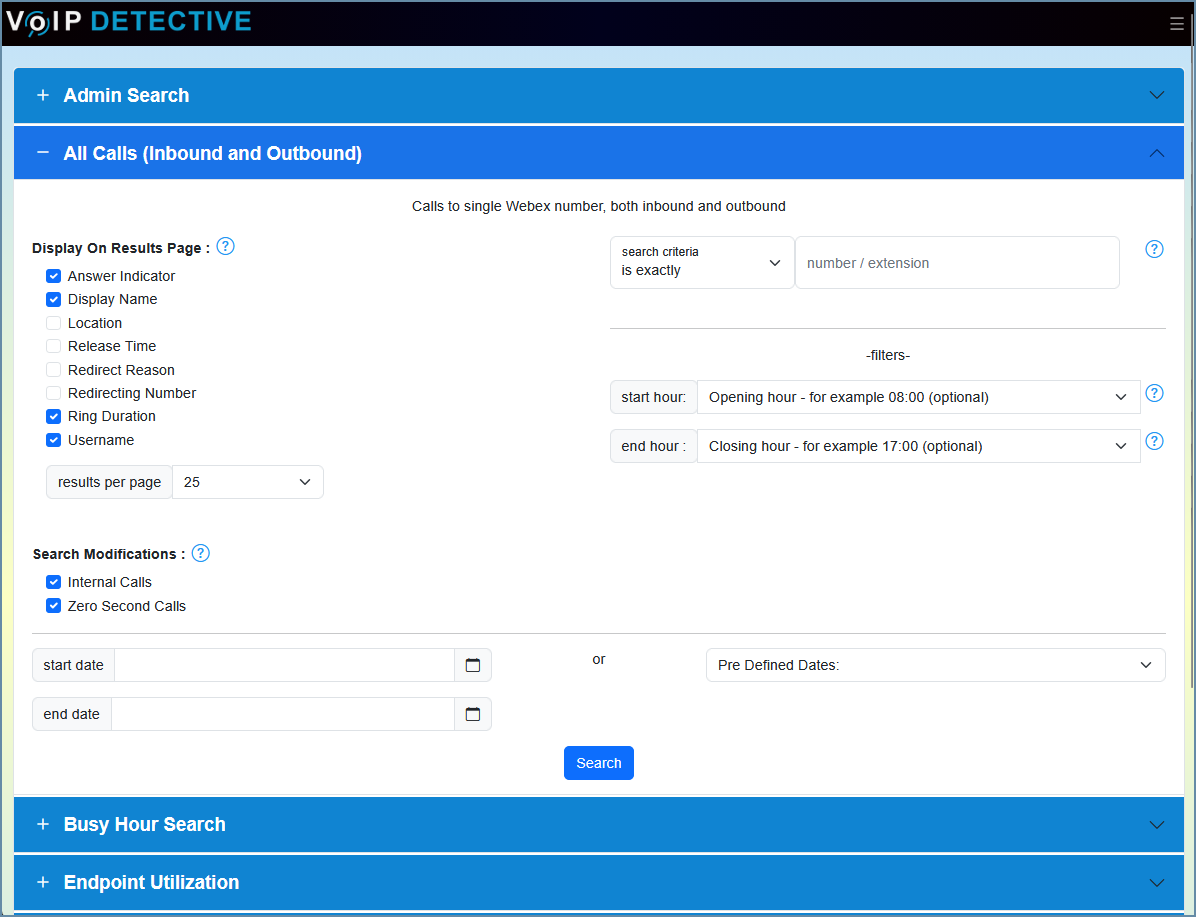
The All Calls panel is one of several accordion sections on the main Webex Calls search page. Expand it to see the options below.
Display On Results Page
These checkboxes add or remove optional columns from the results table. They do not filter data.
Option | Description | Default |
Answer Indicator | Whether the call was answered after a redirection. Values: Yes, No, Yes-PostRedirection. | Checked |
Display Name [PRO] | Shows the Webex user’s display name alongside the extension or phone number. | Checked |
Location | The Webex-defined location (site/building) associated with the call. | Unchecked |
Release Time | The UTC timestamp when the call ended. | Unchecked |
Redirect Reason | Why the call was redirected (e.g., Call Forward Always, Hunt Group, No Answer, DND). See the Redirect Reason Reference section for all possible values. | Unchecked |
Redirecting Number | The number that last redirected the call. Applies to transfers, forwards, simultaneous ring, etc. | Unchecked |
Ring Duration | The number of seconds the call rang before being answered or abandoned. | Checked |
Username | The Webex username (email) associated with this call. | Checked |
Results Per Page
A dropdown lets you control how many rows appear on each page. Options: 25, 50, 100, 250, or 500.
Search Modifications
These checkboxes filter which calls are included in or excluded from the results.
Option | Description | Default |
Internal Calls [PRO] | When checked, extension-to-extension calls within your Webex tenant are included. Uncheck to see only external calls. This filter works by joining against the Webex user directory to identify internal numbers. | Checked |
Zero Second Calls | Include calls with a 0-second duration. These are typically abandoned calls (inbound) or misdials (outbound). | Checked |
Search Input
Administrators & Global Managers
Search Criteria dropdown – controls how your input matches against calling number, called number, redirecting number, and user number:
Criteria | Behavior |
Contains | Matches any number that includes your digits anywhere in the string. |
Begins With | Matches numbers starting with your digits. |
Ends With | Matches numbers ending with your digits. |
Is Exactly (default) | Matches only the exact number you enter. Fastest option. |
Number or Extension field – enter a Webex phone number, extension, or partial string depending on the criteria selected.
Managers
A dropdown lists your own extension plus all team members assigned to you. Select one to search.
Standard Users
Your own extension is pre-selected and locked.
Start Hour / End Hour Filter
Optional dropdowns restrict results to calls that originated within a specific hour window. Values are converted to UTC internally, so they respect your time zone. For example, set Start Hour to 8 and End Hour to 17 for business-hours analysis. Leave both blank to include all hours.
Date Range
Custom dates: Use the calendar pickers to choose a start and end date/time. If left blank, defaults to today (midnight to now).
Predefined dates: Select from the dropdown (Today, Yesterday, This Week, Last 7 Days, This Month, etc.).
Free License Limit: On a free license, the start date is capped at 7 days in the past. Older dates are automatically adjusted forward.
Understanding the Results
Breadcrumb Bar
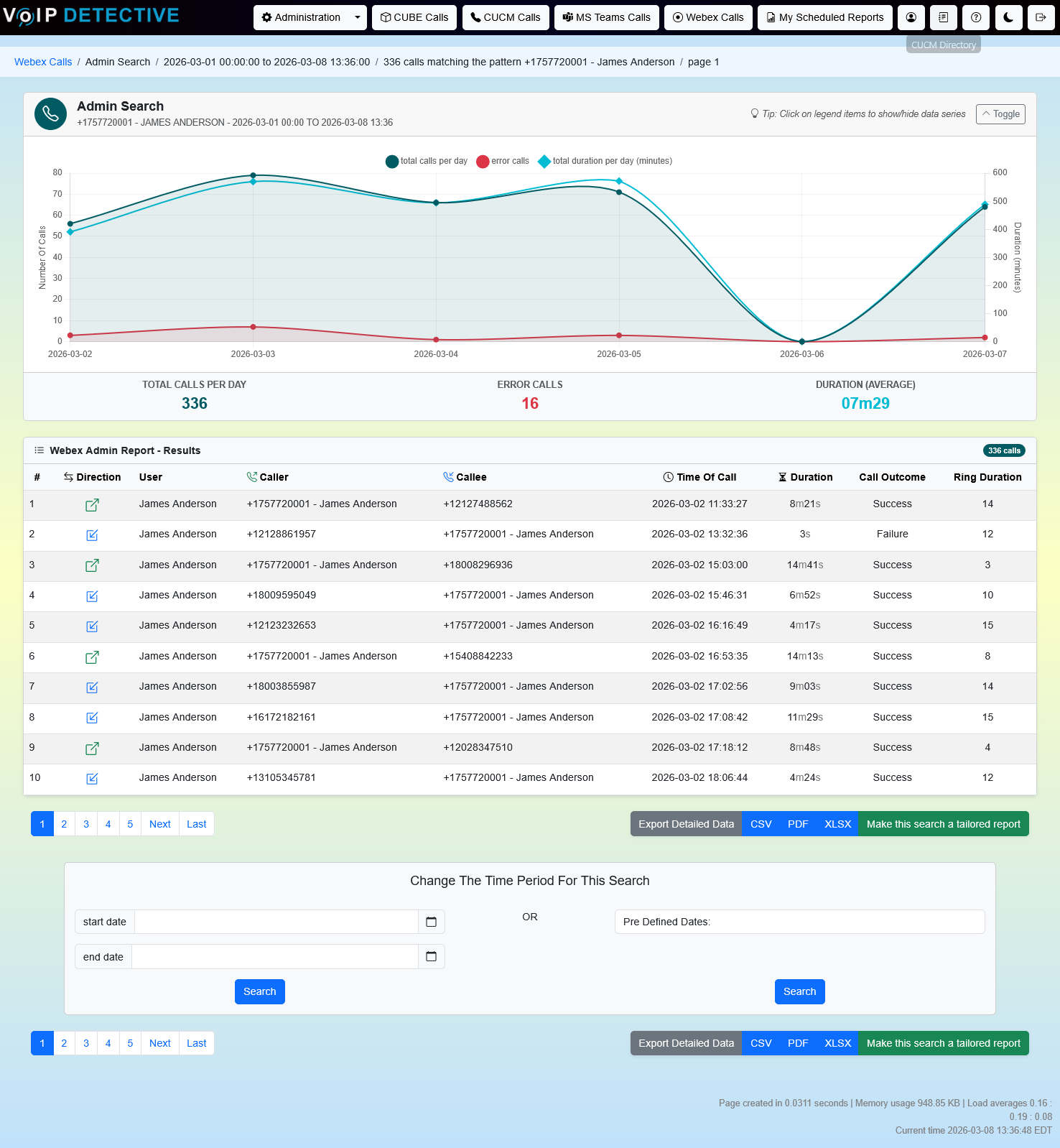
A breadcrumb trail at the top confirms the report context: Webex Calls → All Calls → date range → number of matching calls → current page. If the internal result limit (2,000,000 rows) is reached, a warning badge appears.
Call Activity Chart
When results span at least two time intervals, a collapsible line chart appears above the results table with two data series:
Total Calls (left axis) – the number of calls per interval.
Duration in Minutes (right axis) – combined talk time per interval.
The chart automatically switches between hourly intervals (for single-day searches) and daily intervals (for multi-day searches). A footer shows the grand total call count and the average call duration.
ℹ️ Tip: Click a legend label to hide or show that data series. Use the Toggle button to collapse the chart entirely.
Results Table
The table is sortable – click any column header. Results are paginated based on your Results Per Page setting.
Standard Columns (Always Shown)
Column | Description |
# | Sequential row number for the current page. |
Direction | An icon showing whether the call was outbound (green arrow), inbound (blue arrow), or unknown (gray circle). Hover for a tooltip with the disconnect time and Call ID. |
User | The Webex username associated with this call. Only shown if the Username display option is checked. |
Calling Number | The number that placed the call. If Display Name is enabled, shows the user’s name alongside the number. |
Called Number | The number that was dialed. |
Time of Call | When the call started, displayed in your configured time zone. |
Duration | The connected (talk) time, formatted as hours:minutes:seconds. |
Optional Columns
These appear only when their corresponding checkbox is enabled on the search form:
Column | Description |
Answer Indicator | Whether the call leg was answered, possibly after a redirect. Values: Yes, No, Yes-PostRedirection. |
Location | The Webex location (office/site) associated with the call. |
Release Time | The UTC timestamp when the call ended (disconnected). |
Ring Duration | Seconds the phone rang before being answered or abandoned. |
Redirect Reason | Why the call was redirected. See the reference table below for all possible values. |
Redirecting Number | The last number that redirected the call (e.g., the forwarding extension). |
Call Direction Icons
Icon | Direction | Meaning |
↗️ Green arrow | Outbound (ORIGINATING) | The searched user placed this call. |
↙️ Blue arrow | Inbound (TERMINATING) | The searched user received this call. |
❓ Gray circle | Unknown | Direction could not be determined. |
ℹ️ Tip: Hover over any direction icon to see the call’s release time and the Webex Call ID.
Redirect Reason Reference
When the Redirect Reason column is enabled, the following values may appear. These come directly from the Webex CDR data:
Value | Meaning |
Unconditional | Call Forward Always (CFA) is active on the destination. |
NoAnswer | The party did not answer. Triggers CF/busy or Voicemail/busy. |
Deflection | The call was redirected mid-flow. Causes include blind transfer, auto attendant transfer, or call center transfer. |
TimeOfDay | An automated time-of-day routing rule redirected the call (CF/Selective). |
UserBusy | DND was enabled or the user declined the call. Triggers CF/busy or Voicemail/busy. |
FollowMe | Automated redirection to a personal service such as Simultaneous Ringing, Sequential Ringing, Office Anywhere, or Remote Office. |
CallQueue | The call was routed through a Webex call queue to an agent. |
HuntGroup | The call was routed through a hunt group to a member. |
Unavailable | Sent to voicemail because the user has no registered app or device. |
Unknown | The phone forwarded the call without providing a reason. |
Unrecognized | The system was unable to determine the redirect reason. |
ExplicitIdxxx | Enterprise voice portal redirect. The “xxx” portion is the collected digits identifying the target mailbox (extension or DN). |
ImplicitId | Enterprise voice portal redirect to the user’s home voice portal. |
Exporting Results
Export buttons appear both above and below the results table. The export includes the same columns visible on screen.
Available Formats
Format | Best For | Row Limit |
Printing and sharing. Landscape A4 with headers, footers, and page numbers. | 500 rows | |
XLSX | Analysis in Excel or Google Sheets. Styled headers. | 100,000 rows (PRO) / 1,000 rows (Free) |
CSV | Raw data import into external tools or databases. | 100,000 rows (PRO) / 1,000 rows (Free) |
Tailored & Scheduled Reports
PRO users can set up Tailored Reports that automatically generate exports on a recurring schedule and deliver them by email. Each scheduled run produces a data file along with an accompanying bar chart.
Free vs. PRO License
Capability | Free | PRO |
Date range limit | Last 7 days | Unlimited |
Display Name column | Disabled | Available (checked by default) |
Internal Calls filter | Disabled (always included) | Toggleable |
XLSX / CSV export limit | 1,000 rows | 100,000 rows |
PDF export limit | 500 rows | 500 rows |
Tailored / Scheduled reports | Not available | Available |
Tips & Frequently Asked Questions
How does the Internal Calls filter work on Webex?
When unchecked, VoIP Detective joins each call record against the Webex user directory. If both the calling and called numbers match known internal users, the call is excluded. This means the filter only works reliably when your Webex user directory is fully synchronized.
Why do I see 0-second calls?
A 0-second call means the call was initiated but never connected. For inbound calls, this is usually a ring-no-answer (the caller hung up). For outbound calls, it’s typically a misdial or an immediate hang-up. Use the Zero Second Calls checkbox on the search form to include or exclude them.
What does “Yes-PostRedirection” mean in the Answer Indicator?
It means the call was answered, but only after being redirected at least once. For example, a call that rang Extension A, was forwarded to Extension B, and was answered at Extension B would show “Yes-PostRedirection.”
Can I search by phone number instead of extension?
Yes. Administrators can enter any string in the search field, including full E.164 phone numbers (e.g., +15551234567). The search matches against the calledNumber, callingNumber, redirectingNumber, and userNumber fields in the Webex CDR.
How often is Webex call data updated?
VoIP Detective polls the Webex API every 60 minutes for new call records. Cisco makes call data available approximately 5 minutes after the call ends. So there is a typical delay of 5–65 minutes before a call appears in reports.
Can I change the time zone of the results?
Yes. All times are displayed in your session’s configured time zone. The underlying Webex CDR data is stored in UTC, and VoIP Detective converts it for display and export.
Was this article helpful?
That’s Great!
Thank you for your feedback
Sorry! We couldn't be helpful
Thank you for your feedback
Feedback sent
We appreciate your effort and will try to fix the article