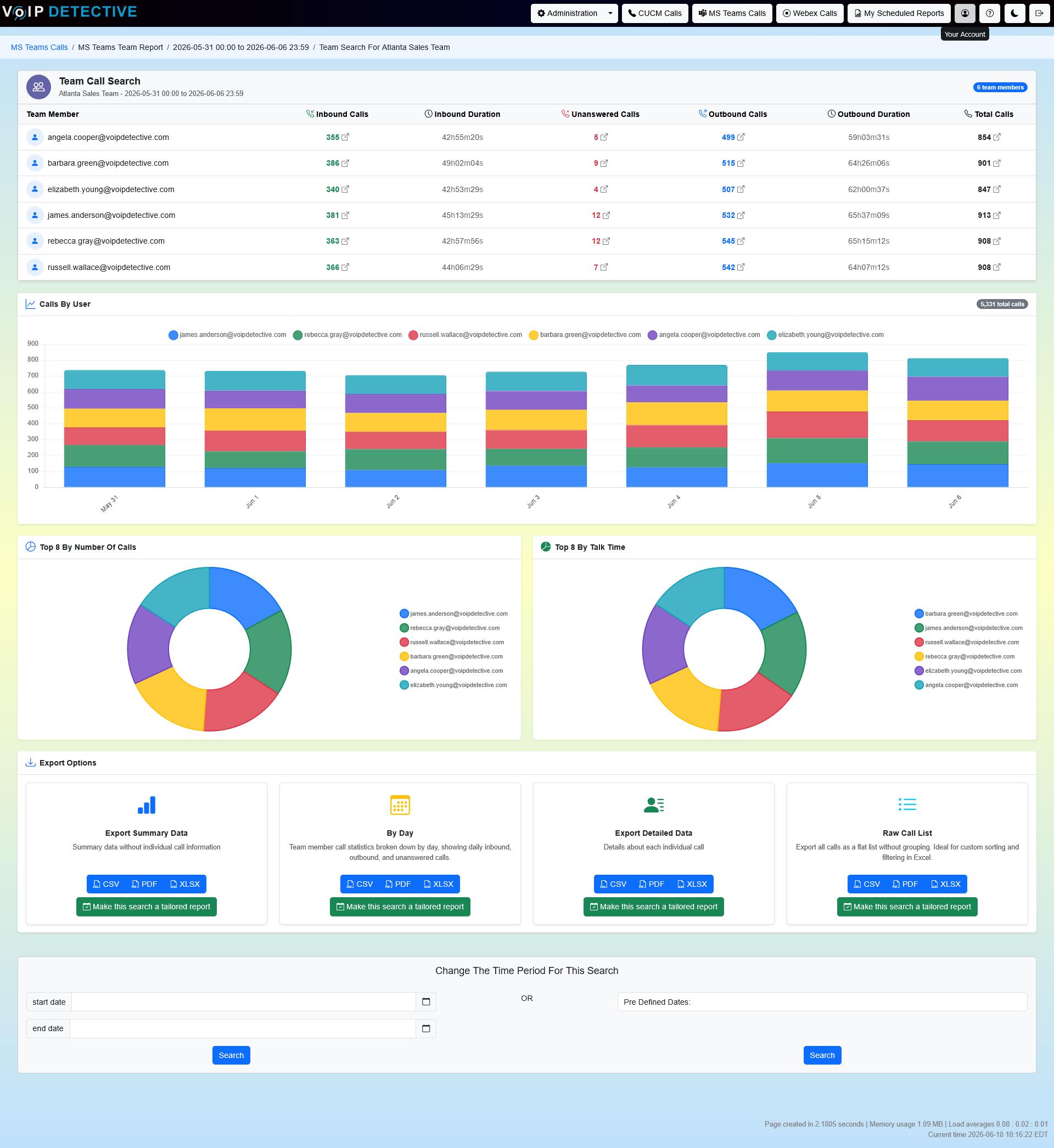
The Team Search shows the Microsoft Teams calls made and received by your team, department, or group – all on one page. For each member you’ll see a summary of their inbound and outbound activity, you can drill into the individual calls behind any number, and you can export the whole report.
In a single report you’ll see, for each team member: inbound and outbound call counts, total talk time, unanswered calls, and a per-member total. Charts above the table give you a quick visual read, and every count is a link to the calls behind it.
Who Can Use the Team Search
The Team Search is designed for managers and administrators. The team you see is based on the Teams users, phone numbers, and resource accounts assigned to your account, so you don’t have to build a list each time.
Administrators can also view another manager’s team, or report on a Reporting Group, by selecting that target before searching. If a team member is missing from the report, an administrator will need to associate that user, number, or resource account with your account.
Performing a Team Search
- Click Microsoft Teams Calls on the menu bar.
- Select the Team Search heading to expand that section.
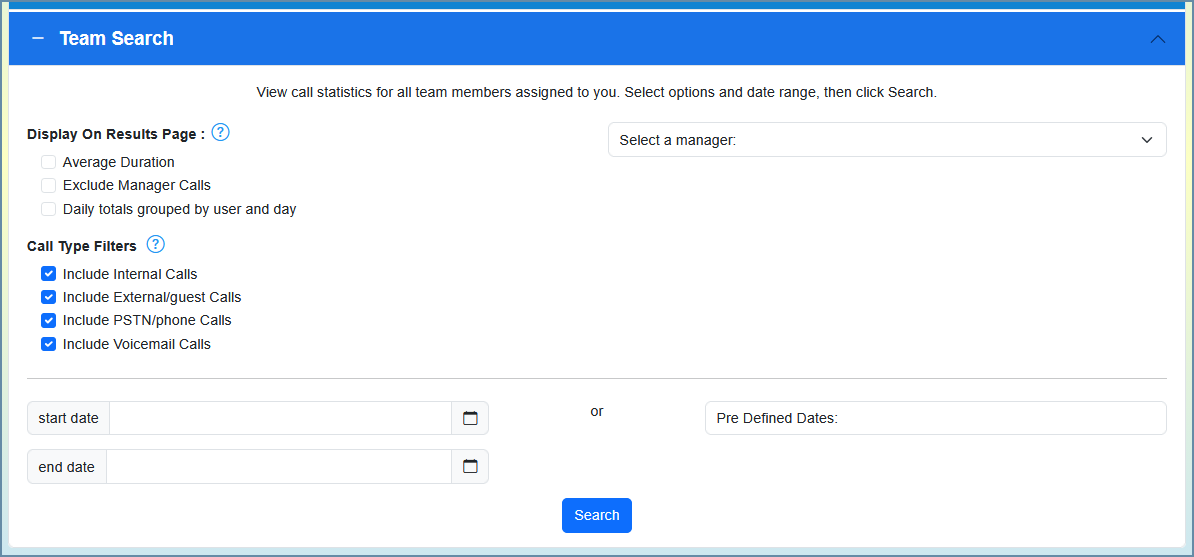
- Choose any filters you would like (if any).
- Select the time period for the search.
- Press the Search button.
Filters and Options
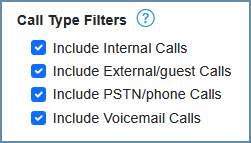
The left side of the screen shows the filters that can be applied. These change what data is included or excluded in the report, and offer different formatting. Hovering over each item will provide an explanation.
Call-Inclusion Filters
Microsoft Teams calls fall into a few types, and you can include or exclude each one:
Filter | Description |
Internal calls | Calls between users inside your organization (Teams-to-Teams). |
External calls | Federated calls with Teams users in other organizations. |
PSTN calls | Calls to or from the public telephone network through Teams Phone (Calling Plans, Operator Connect, or Direct Routing). |
System / resource account calls | Calls involving non-user accounts such as auto attendants and call queues. |
Calls to voicemail | Calls that reached a member’s voicemail. |
Unanswered calls | Inbound calls that were not answered. |
Exclude manager calls | Include or exclude your own calls from the report. |
Call Indicators
Indicators are small badges shown beside a call so you can spot its type at a glance. You can turn each one on or off:
Indicator | Marks a call that… |
External | Involves a federated party in another organization. |
PSTN | Used the public telephone network. |
Voicemail | Reached voicemail. |
Formatting and Optional Columns
Option | Description |
Average duration | Add columns showing the average length of inbound and outbound calls. |
Time to answer (average) [PRO] | Include a column showing the average time it takes to answer an inbound call. |
Show daily totals (grouped by user and day) [PRO] | Break the report up by day, showing each member’s metrics once for each day in the selected time period. |
Your Team Members
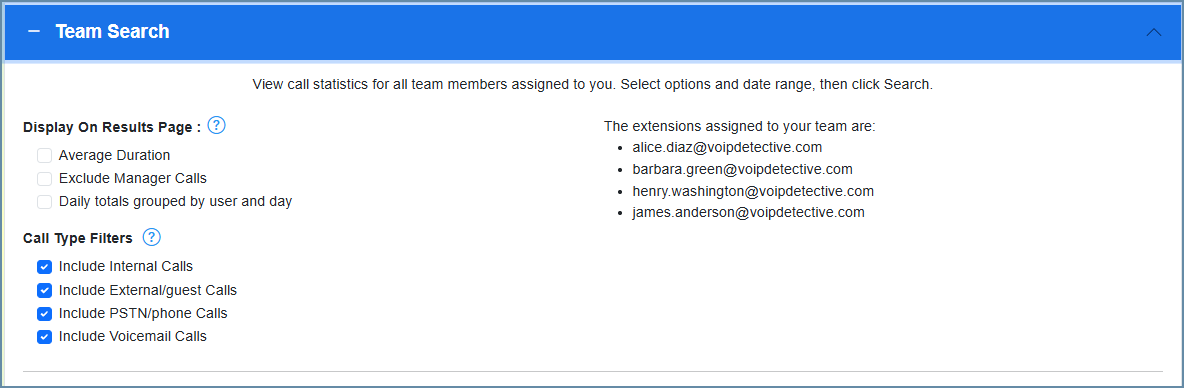
Managers are able to search from only their assigned team members. The right side of the search screen displays the Teams users and resource accounts assigned to you. Should an item be missing from this page, an administrator will need to associate it with your account.
Selecting the Time Period
You can choose a manual time period for the search by clicking the calendar icon and picking both a start date and an end date from the pop-up.
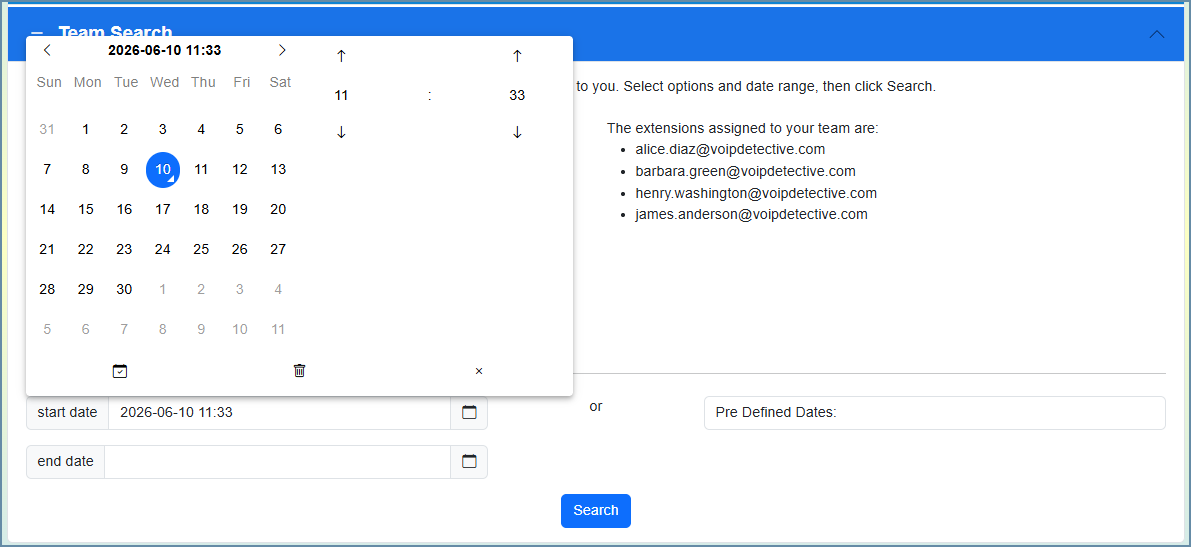
Clicking the clock icon in the date picker lets you select an hour and minute to further narrow down your search time-frame.
If you prefer, you can choose one of the Pre-Defined Dates.
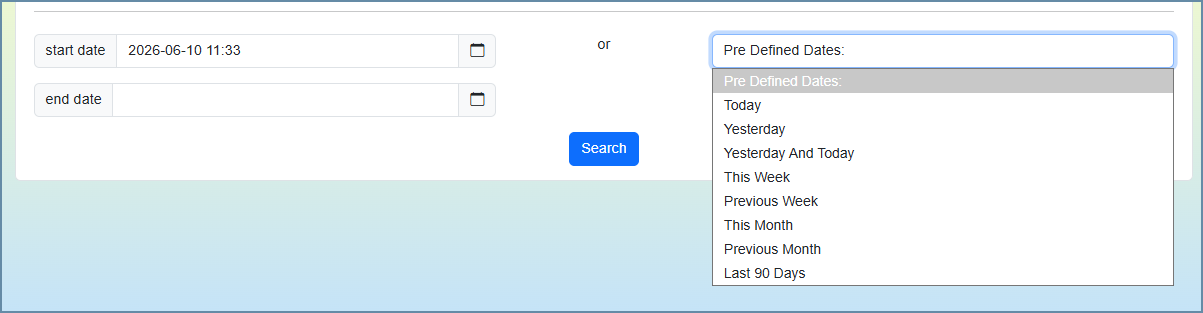
Once your time frame is set, click the Search button.
Reading the Report
Each row in the report is one team member. The following columns appear by default:
Column | Description |
Team Member | The Teams user – their name or number. |
Inbound | The number of answered inbound calls. |
Inbound Duration | Total inbound talk time. |
Unanswered | Inbound calls that were not answered. |
Outbound | The number of outbound calls. |
Outbound Duration | Total outbound talk time. |
Total | The total number of calls for that member. |
Viewing the Details for Each Team Member
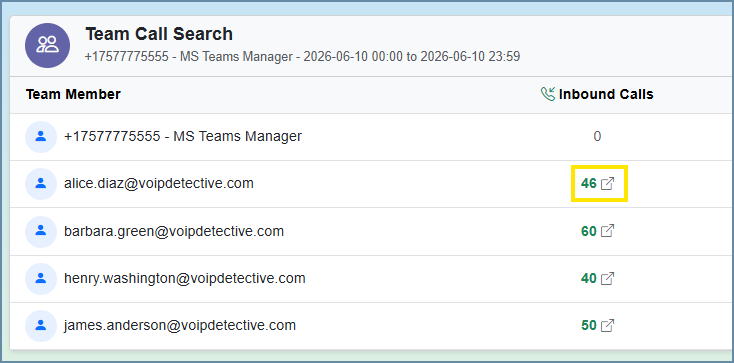
You can quickly access the inbound, outbound, and total call details without building a new search. Click a count, or the arrow next to a column, to open that specific report for the time frame of your current report. From there you can see the time, caller and callee, direction, call type, and duration of each call.
Exporting the Report
VoIP Detective PRO provides the ability to export the report in CSV, PDF, and XLSX (Excel). VoIP Detective Free provides the option to export the report as a CSV file (comma separated value).
To export, click the format you want in the "Export Options" section to download the report currently displayed on the screen.
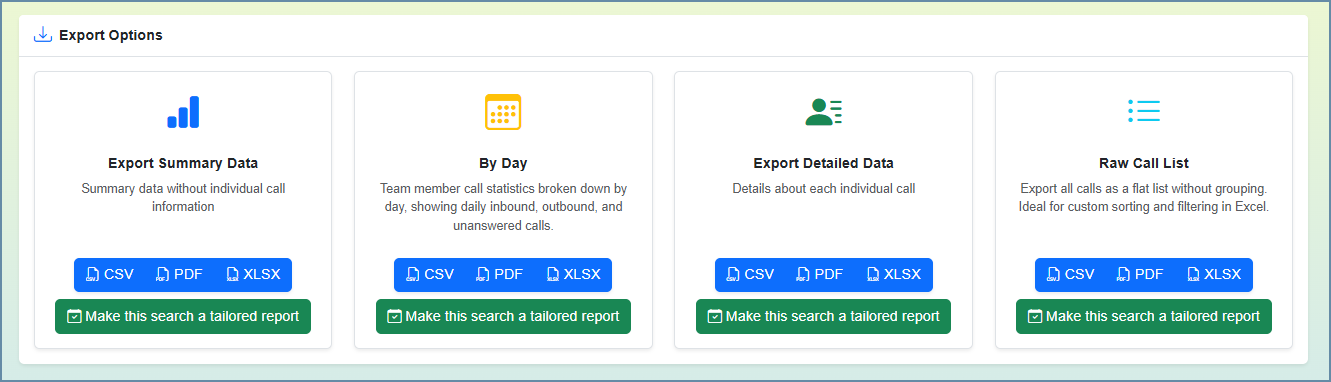
There are four export types available:
Export Type | What It Contains |
Summary | Totals per team member; an export of what you see on the screen. |
By Day | The same totals broken out day by day. |
Details | Each individual call, including the caller, callee, direction, and call type. |
Raw Call List | The full underlying list of calls with no grouping. |
PRO: PRO users can also schedule a Team Search to be emailed automatically on a recurring basis.
Free and PRO Features
VoIP Detective Free includes | VoIP Detective PRO adds |
|
|
Was this article helpful?
That’s Great!
Thank you for your feedback
Sorry! We couldn't be helpful
Thank you for your feedback
Feedback sent
We appreciate your effort and will try to fix the article