The Inbound Search lists the Microsoft Teams calls that a user, number, or resource account received during a chosen time period. For each call you can see who called, when, how long it lasted, whether it was answered, and what type of call it was. It is the report to reach for when you want to focus on the calls coming in to a single person or number.
Who Can Use This Report
What you can search depends on your role:
Role | What they can search |
Administrator / Global Manager | Any user, number, or pattern. A Search Criteria dropdown (Contains, Begins With, Ends With, Is Exactly) controls how the entry is matched. |
Manager | A drop-down list of the team members assigned to them, plus their own number. |
Standard user | Their own number only – pre-selected and locked. |
Performing an Inbound Search
- Click Microsoft Teams Calls on the menu bar.
- Select the Inbound heading to expand that section.
- Choose who to search for, and set any display options or filters you would like.
- Select the time period for the search.
- Press the Search button.
The Search Form
Who to Search For
Administrators and Global Managers type a number or name into the search box and choose how it should be matched with the Search Criteria dropdown:
Search Criteria | Behavior |
Contains | Matches any number or name that includes the text anywhere. |
Begins With | Matches entries that start with the text. |
Ends With | Matches entries that end with the text. |
Is Exactly (default) | Matches only the exact value entered. |
Managers select a team member from a drop-down list; standard users see only their own number.
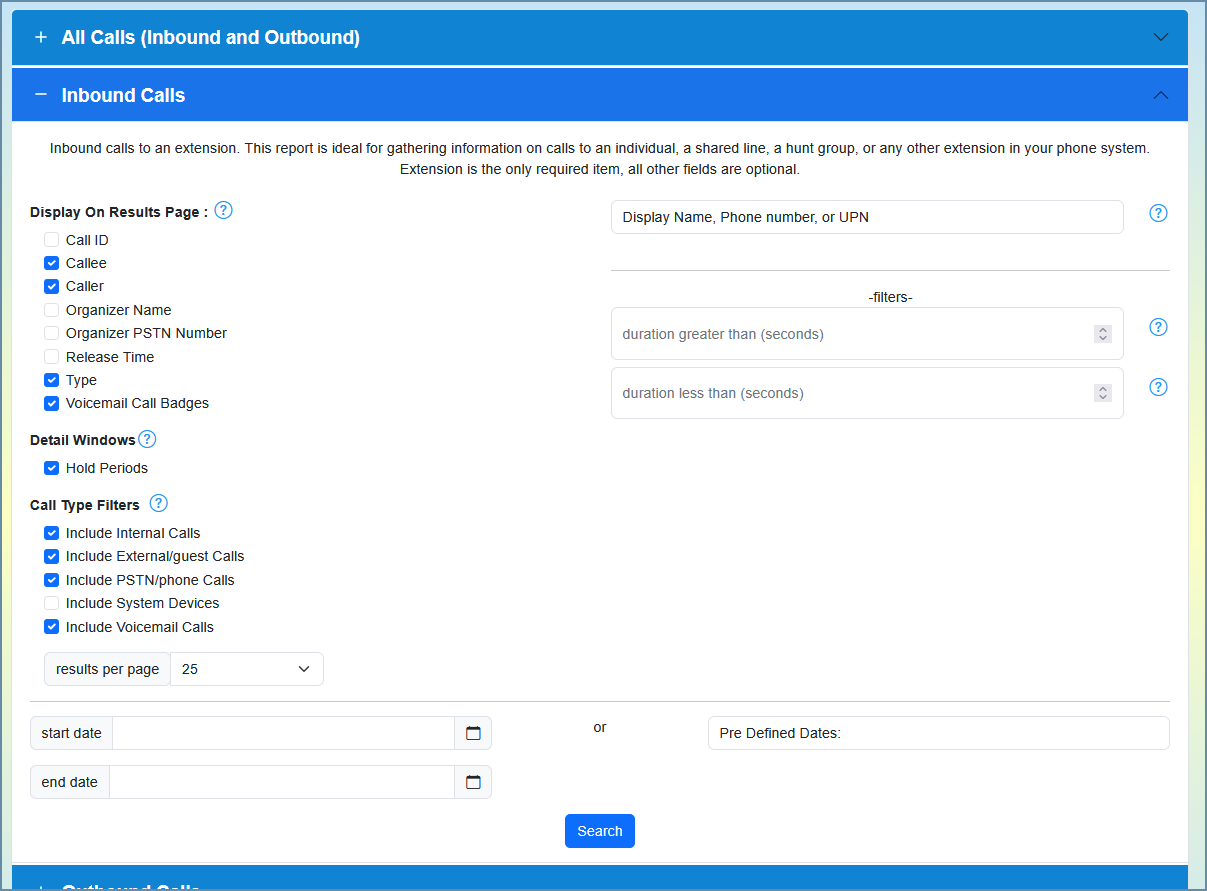
Display On Results Page
These checkboxes add or remove columns and badges. They change how the report looks – they do not filter the data.
Option | Description | Default |
Call ID | Show the unique Microsoft Teams call identifier (useful for cross-referencing with Microsoft). | Off |
Callee | Show the party that received the call (the team member being searched). | On |
Caller | Show the party that placed the call. | On |
Organizer Name | For group calls and meetings, show the name of the organizer. | Off |
Organizer PSTN Number | For group calls and meetings, show the organizer’s phone number where available. | Off |
Release Time | Show the time the call ended (disconnected). | Off |
Type | Show the call type – for example peer-to-peer or group call. | On |
Voicemail Indicator | Show a badge on calls that reached voicemail. | On |
Call Details
An additional detail can be shown for each call:
Option | Description |
Hold Times | Show the hold periods that occurred during each call, so you can see when and for how long a caller was placed on hold. |
Call Type Filters
These checkboxes decide which kinds of Teams calls are included in the results:
Filter | Description | Default |
Internal calls | Calls from another user inside your organization (Teams-to-Teams). | On |
External calls | Federated calls from Teams users in other organizations. | On |
PSTN calls | Calls arriving from the public telephone network through Teams Phone. | On |
System devices | Calls involving non-user accounts such as auto attendants and call queues. | Off |
Voicemail calls | Calls that reached the member’s voicemail. | On |
Duration Filters
Two optional fields restrict results by call length: Duration Greater Than and Duration Less Than, both entered in seconds. For example, set Duration Greater Than to 60 to show only calls that lasted at least a minute. Leave them blank to include calls of any length.
Results Per Page
A drop-down sets how many calls appear on each page: 25, 50, 100, 250, or 500.
Date Range
Custom dates: Click the calendar icon to choose a start and end date and time. If left blank, the search defaults to today.
Predefined dates: Choose a preset range such as Today, Yesterday, or Last 7 Days.
Free License Limit: On a free license, the start date is capped at 7 days in the past. Older dates are automatically adjusted forward.
Once your time frame is set, click Search.
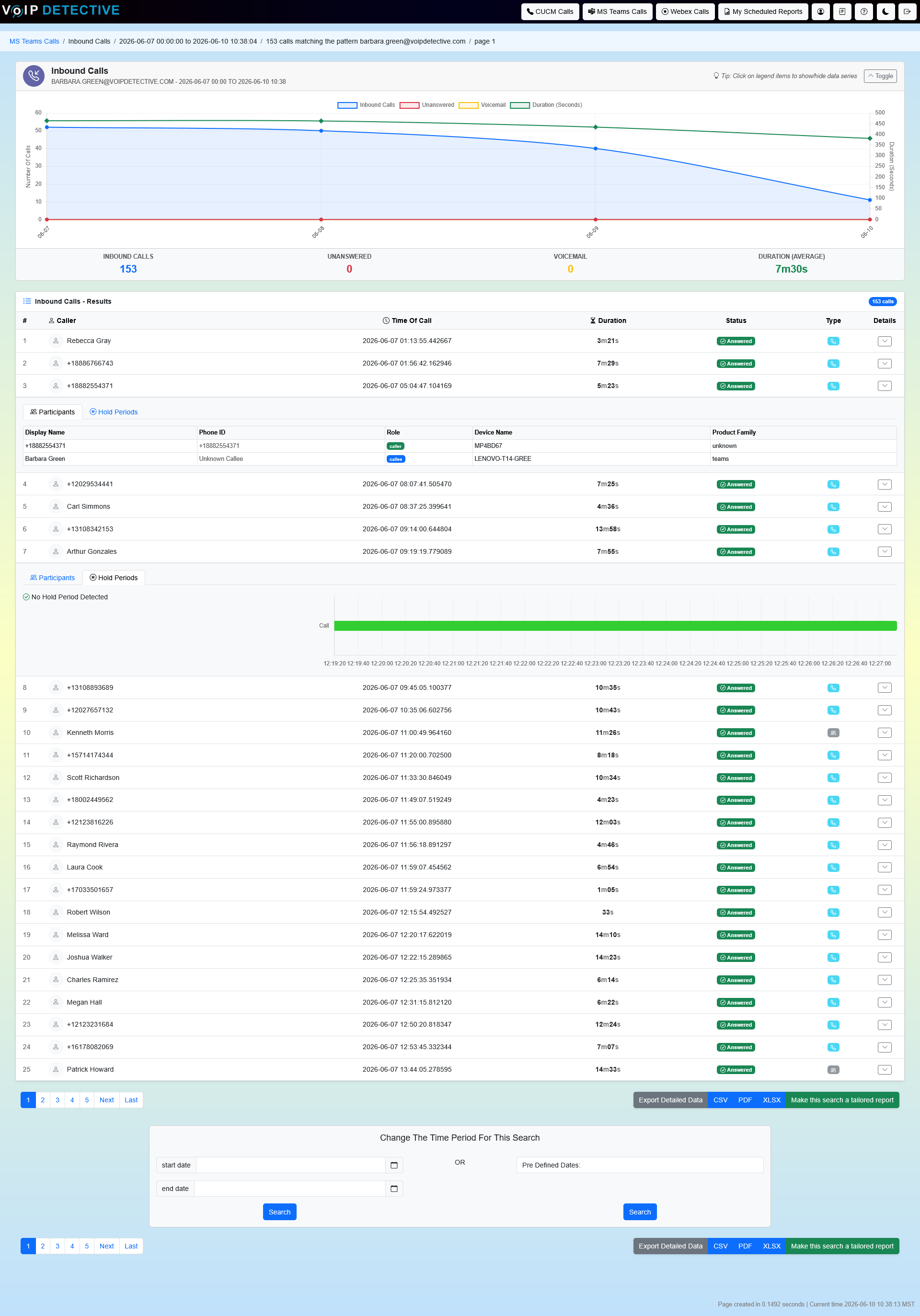
Understanding the Results
Inbound Calls Chart
A collapsible chart at the top plots the number of inbound calls over time, with the total inbound count shown alongside it. It gives you a quick read on busy and quiet periods before you scroll the table.
Results Table
The following columns can appear, depending on the display options you selected:
Column | Description |
# | A sequential row number. |
Call ID | The Microsoft Teams call identifier. Shown only if enabled. |
Organizer Name / PSTN Number | The organizer of a group call or meeting. Shown only if enabled. |
Caller | The party that placed the call. |
Callee | The team member that received the call. |
Time of Call | When the call started, in your configured time zone. |
Release Time | When the call ended. Shown only if enabled. |
Duration | How long the call lasted. |
Type | The call type, such as peer-to-peer or group call. Shown only if enabled. |
Answered / Unanswered | Whether the call was answered or not. |
Call Indicators
Small badges beside a call mark its nature at a glance – External (a federated party in another organization), PSTN (a call over the public phone network), and Voicemail (a call that reached voicemail). You control which badges appear from the display options.
Hold Periods
When Hold Times is enabled, each call can be expanded to reveal its hold periods – the points during the call when the caller was placed on hold, and for how long. Calls with no holds show a brief “no hold periods” note.

Pagination
Results are split across pages based on your Results Per Page setting, with navigation links above and below the table.
Exporting Results
Export buttons appear with the results. The export contains the same columns you chose to display on screen.
Format | Best For | Row Limit |
Printing and sharing. | 500 rows | |
XLSX | Analysis in Excel or Google Sheets. | 100,000 (PRO) / 1,000 (Free) |
CSV | Importing into other tools. | 100,000 (PRO) / 1,000 (Free) |
PRO: PRO users can schedule an Inbound Search to be generated and emailed automatically on a recurring basis.
Free and PRO Features
VoIP Detective Free includes | VoIP Detective PRO adds |
|
|
Was this article helpful?
That’s Great!
Thank you for your feedback
Sorry! We couldn't be helpful
Thank you for your feedback
Feedback sent
We appreciate your effort and will try to fix the article