The Inbound Call Search lists everything that came in to a Cisco Unified Communications Manager (CUCM) extension or number. For each call you can see who called, when the call was placed, when it was answered, how long it lasted, how long it took to answer, where it ended up, and – when phones are linked to users in CUCM – who answered. It is especially useful for hunt groups and shared lines, where you need to know which member actually picked up.
Who Can Use This Report
What you can search depends on your role:
Role | What they can search |
Administrator / Global Manager | Any extension, number, or pattern. A Search Criteria dropdown (Contains, Begins With, Ends With, Is Exactly) controls how the entry is matched. |
Manager | A drop-down list of the extensions assigned to them, plus their own number. |
Standard user | Their own number only – pre-selected and locked. |
Performing an Inbound Search
- Click Track Calls on the menu bar.
- Select the Inbound heading to expand that section.
- Choose who to search for, and set any display options or filters you would like.
- Select the time period for the search.
- Press the Search button.
The Search Form
Who to Search For
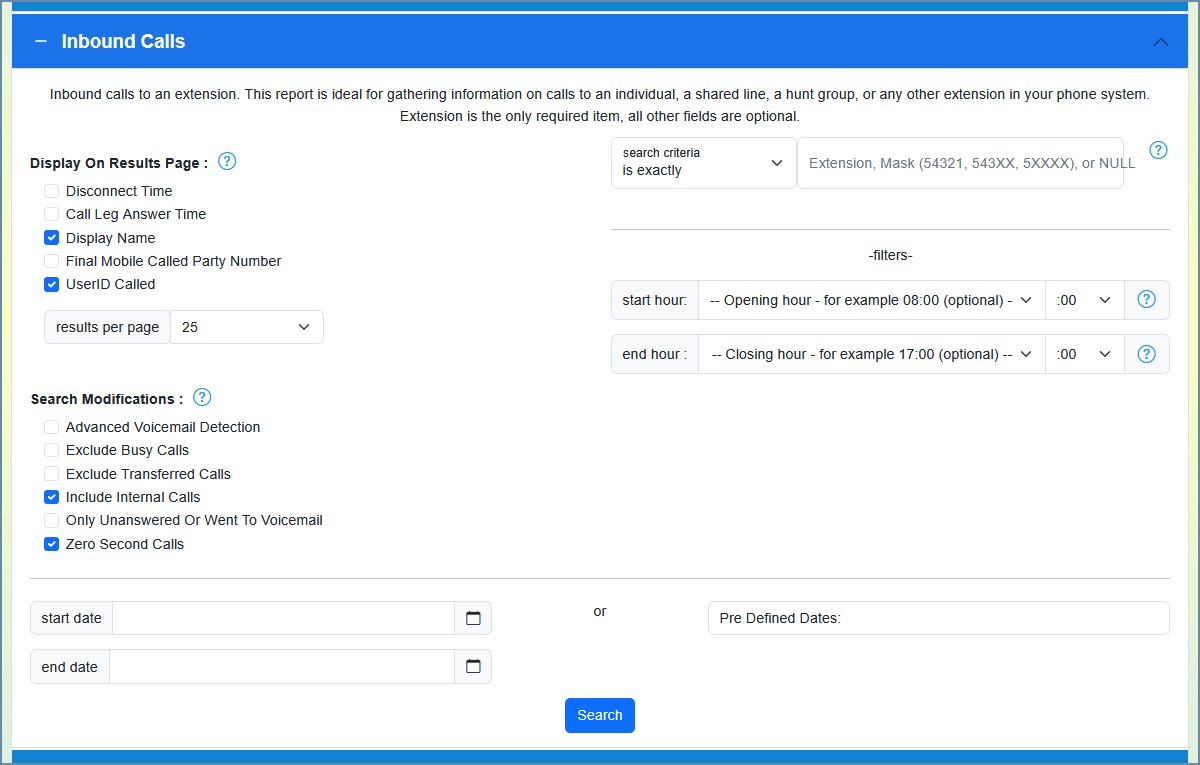
Administrators and global managers type an extension or number into the search box and choose how it should be matched with the Search Criteria dropdown (Contains, Begins With, Ends With, or Is Exactly). Managers select an extension from a drop-down list; standard users see only their own number.
Display On Results Page
These checkboxes add optional columns to the results table:
Option | Description |
Disconnect Time | The time the call ended. |
Call Leg Answer Time | The time it took to answer each leg (portion) of a call. |
Display Name [PRO] | Show the end-user name associated with the extension instead of just the number. |
Final Called Party Number | The extension that ultimately handled the call after any forward or transfer. |
Final Mobile Called Party Number [PRO] | The remote mobile number the call was sent to (for Single Number Reach). |
UserID Called | The User ID of the person who ultimately answered – useful for hunt groups or forwarded calls. |
UserID Calling | The User ID associated with the calling party (for internal callers). |
Search Modifications
These checkboxes change which inbound calls are included:
Filter | Description |
Advanced Voicemail Detection | Adds extra queries per call to better determine whether it was answered or went to voicemail. Useful for complex call flows (for example, calls that hit a call handler, move to other devices, then return to voicemail). Not needed for most scenarios. |
Exclude Busy Calls | Hide calls rejected because the target was busy (cause code 17). |
Exclude Transferred Calls | Hide transferred calls. In some call flows transfers can look like a doubling of call volume. |
Include Internal Calls | Include calls from one internal extension to another. |
Only Unanswered Or Went To Voicemail | Show only calls that were not answered – ideal for finding missed calls. |
Zero Second Calls | Include 0-second calls (typically calls that never connected – misdials, quick hang-ups, errors). |
Time-of-Day Filter (Start / End Hour)
Optional Start Hour and End Hour selectors restrict the report to a window within the day – for example 08:00–18:00 for business hours. Leave them blank to include all hours.
Results Per Page
A drop-down sets how many calls appear on each page: 25, 50, 100, 250, or 500.
Date Range
Custom dates: Click the calendar icon to choose a start and end date and time. If left blank, the search defaults to today.
Predefined dates: Choose a preset range such as Today, Yesterday, This Week, or Last 7 Days.
Once your time frame is set, click Search.
Understanding the Results
Call Activity Chart
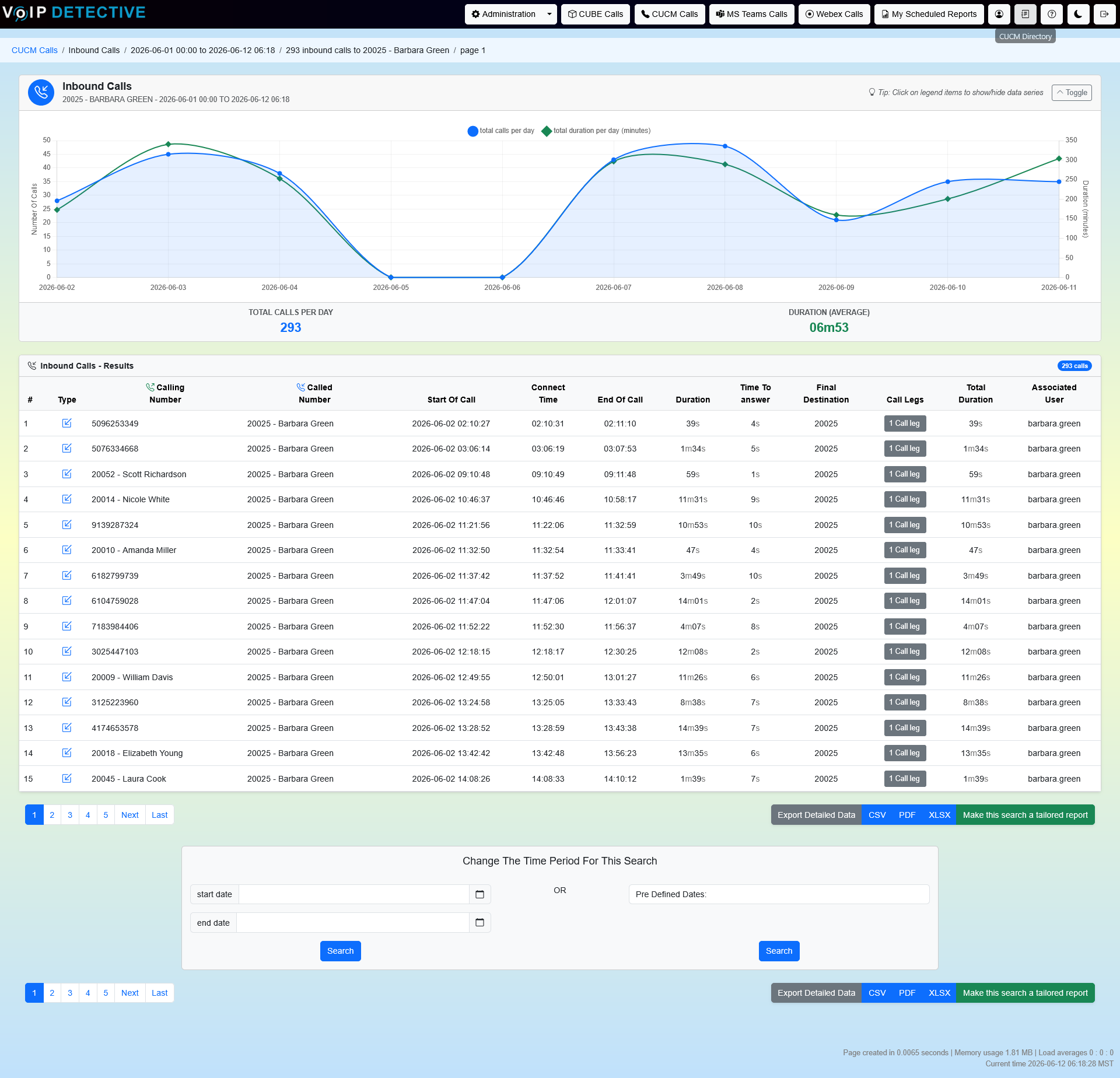
A collapsible chart at the top plots the number of inbound calls and the total talk time in minutes over the period, switching between hourly and daily intervals depending on the date range. A footer shows the total call count and average duration.
Results Table
Each row is one inbound call. The standard columns are:
Column | Description |
Calling Number | The phone number that originated the call. |
Time Of Call | The date and time the call started. |
Connect Time | When the call was answered or went to voicemail. |
Duration | How long the call lasted. |
Time to Answer | The time between the caller dialing and the call being answered. May also read Answered Elsewhere, Unanswered, or Abandoned. |
Final Destination | The extension that handled the call – the answering extension, the forwarding extension, or Voicemail. |
Answered By | The User ID associated with the device that answered – most useful for identifying which hunt-group member picked up. |
Any optional columns you enabled (Disconnect Time, Call Leg Answer Time, Final Mobile Called Party Number, UserID Calling, Display Name) appear alongside these.
“Answered By” and Associated Users
The Answered By column relies on each phone being linked to a CUCM end user. In CUCM, set the device’s Owner User ID (Device → Phone). Once that is in place, the call records sent to VoIP Detective include the user who answered, which is what lets this report show who picked up a call to a hunt group or shared line. See the “Associated Users in CUCM call reports” article for the full setup.
Pagination
Results are split across pages based on your Results Per Page setting, with navigation links above and below the table.
Exporting Results
Scroll to the bottom of the page and choose a format. The export contains even more detail than the on-screen table – including the original Called Number, Final Called Party Number, the answering UserID, the Hunt Pilot (when the call was answered through a hunt group), and the Last Redirecting Number.
Format | Best For | Row Limit |
Printing and sharing. | 500 rows | |
XLSX | Analysis in Excel or Google Sheets. | 100,000 (PRO) / 1,000 (Free) |
CSV | Importing into other tools. | 100,000 (PRO) / 1,000 (Free) |
A Note on Translation Patterns
Many phone systems use a translation pattern that converts the number a caller dials (for example 7572225555) into an internal number (for example 25555) before the call is processed. When that happens, the dialed external number never appears in the call records – VoIP Detective only ever sees the translated internal number. Search and report on the internal number (25555 in this example), not the external one.
Free and PRO Features
VoIP Detective Free includes | VoIP Detective PRO adds |
|
|
Was this article helpful?
That’s Great!
Thank you for your feedback
Sorry! We couldn't be helpful
Thank you for your feedback
Feedback sent
We appreciate your effort and will try to fix the article