The Top Talkers report identifies the extensions or devices making and receiving the most phone calls over a given time period. It answers the question: “Who are our highest-volume callers, and how much time are they spending on the phone?”
Results are ranked by total call count and include inbound calls, outbound calls, total duration, and average duration for each extension or device.
Overview
Top Talkers is designed for administrators and global managers who need to quickly identify calling patterns across the organization. Common use cases include:
- Identifying the busiest extensions or devices for capacity planning
- Spotting unusual call volumes that may indicate misuse or toll fraud
- Comparing inbound vs outbound call ratios across the team
- Understanding device utilization across conference rooms, lobbies, or shared spaces
Who Can Use This Report
User Role | Behavior | Access |
Administrator | Full access to all extensions and devices. | Yes |
Global Manager | Full access to all extensions and devices. | Yes |
Manager | Not available. Use the Team Search report instead. | No |
Standard User | Not available. | No |
The Search Form
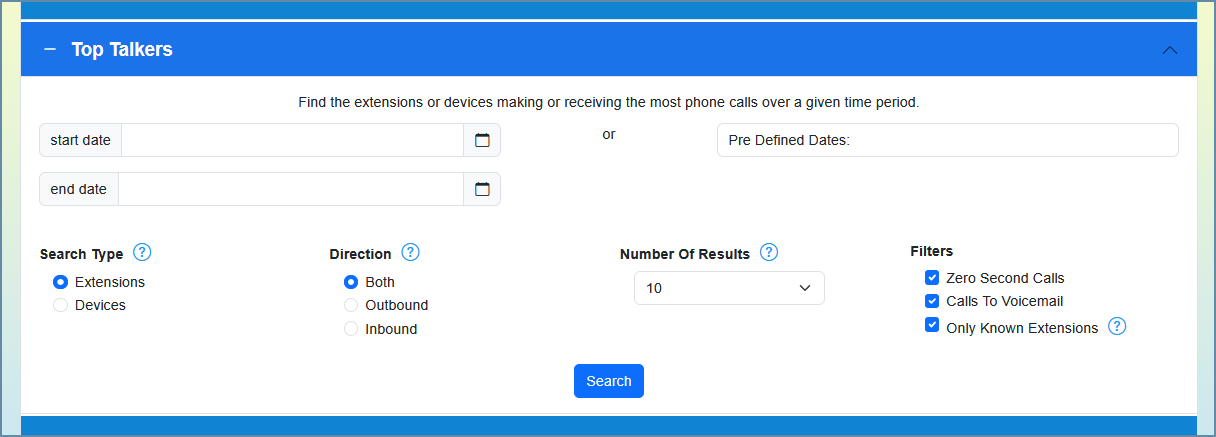
The Top Talkers panel is one of several accordion sections on the main CUCM Search page. Expand it to reveal the search options described below.
Search Type
Choose whether to group results by phone number/extension or by device name.
Option | Description |
Extensions | Groups results by callingPartyNumber and/or originalCalledPartyNumber. Shows which phone numbers are making or receiving the most calls. |
Devices | Groups results by origDeviceName and/or destDeviceName. Shows which physical phones, gateways, or trunks are handling the most traffic. |
Direction
Choose which call direction to include in the count. The labels change dynamically based on the selected search type.
Option | Extensions Mode | Devices Mode |
Both (default) | Counts calls where the number appears as either the caller or the called party. | Counts calls where the device appears as either the originating or destination device. |
Outbound / Originating | Counts only calls placed by the extension (callingPartyNumber). | Counts only calls where the device originated the call (origDeviceName). |
Inbound / Destination | Counts only calls received by the extension (originalCalledPartyNumber). | Counts only calls where the device was the destination (destDeviceName). |
ℹ️ Tip: When “Both” is selected, an extension that placed 30 calls and received 50 calls will show a total of 80. The Inbound Calls and Outbound Calls columns in the results table break this down.
Number of Results
Select the maximum number of top talkers to return. Available values are 10, 25, 50, 100, 250, 500, and 1,000. The default is 10.
Filters
These checkboxes control which calls are included in or excluded from the aggregation.
Filter | Description | Default |
Zero Second Calls | When checked, calls with a duration of 0 seconds are included. These are typically unanswered calls, misdials, or calls that failed to connect. | Checked |
Calls to Voicemail | When checked, calls where the user dialed the voicemail pilot number (e.g., checking messages) are included. | Checked |
Only Known Extensions | When checked, only extensions that exist in the Display Names table are shown. This filters out external phone numbers from the results. Only appears when searching by extension. | Checked |
ℹ️ Tip: The “Only Known Extensions” filter is the best way to exclude external phone numbers from your results. If you need to see external numbers (e.g., to identify which outside numbers call you most), uncheck this box.
Date Range
You can specify a date range in one of two ways:
Custom Start & End Date – Use the date-time pickers to select a specific start and end date/time. If you leave the start date blank, it defaults to today at 00:00. If you leave the end date blank, it defaults to today at 23:59.
Predefined Date Range – Alternatively, select a predefined range from the dropdown (e.g., Today, Yesterday, This Week, Last 7 Days, This Month, etc.). Predefined ranges are calculated based on your configured time zone.
Free License Limit: On a free (unpaid) license, the start date is capped at 14 days in the past. Any start date older than two weeks is automatically moved forward.
Understanding the Results
Breadcrumb Bar
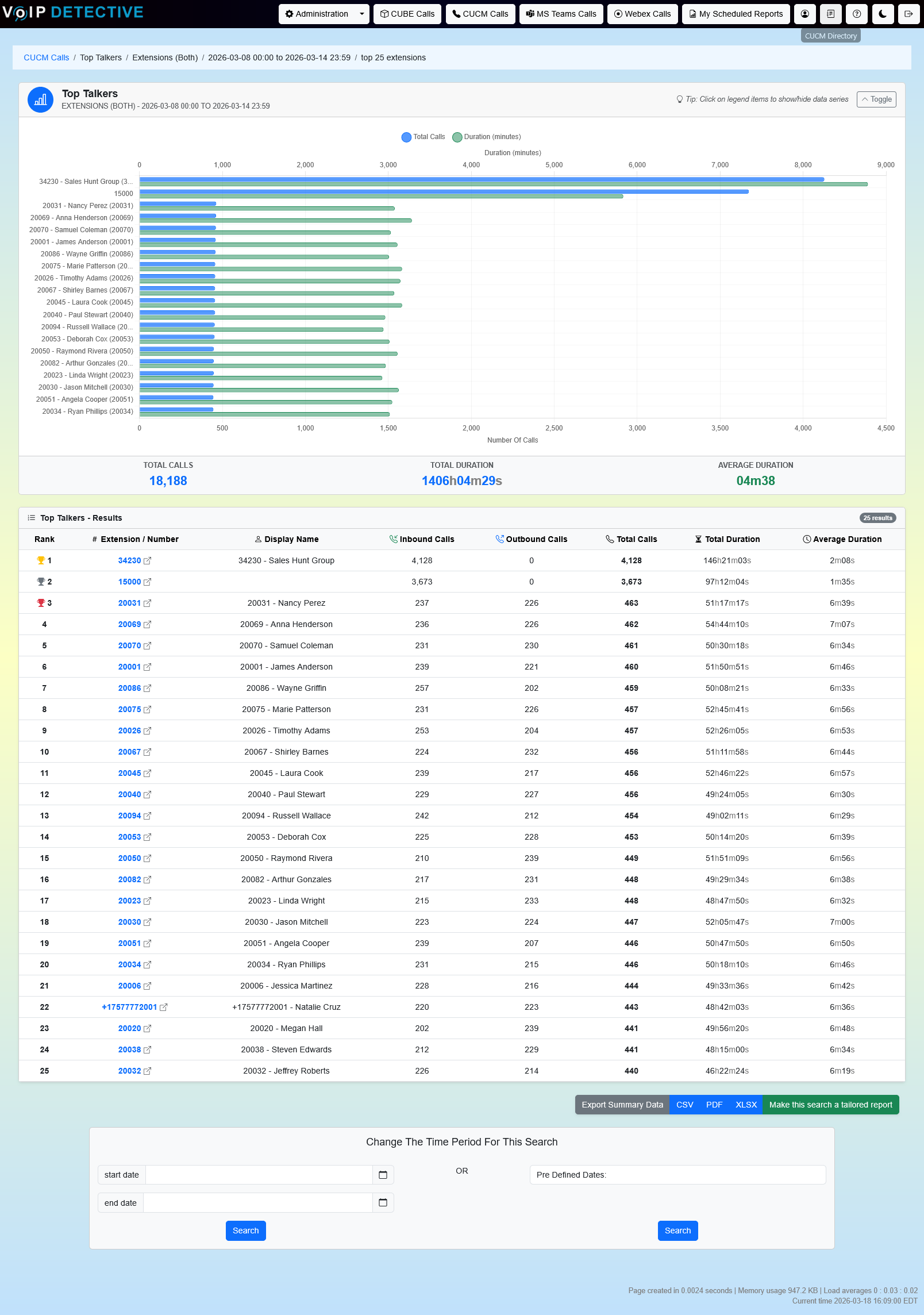
At the top of the results page, a breadcrumb trail shows: the report type (Top Talkers), the search type and direction, the date range, and the number of results requested (e.g., “top 100 extensions”).
Top Talkers Chart
A collapsible horizontal bar chart appears above the results table, visualizing up to the top 20 results. It plots two data series:
Total Calls (blue, bottom axis) – the number of calls for each extension or device.
Duration in Minutes (green, top axis) – the combined talk time for each extension or device.
A footer row below the chart shows three summary statistics: Total Calls (sum across all results), Total Duration, and Average Duration.
ℹ️ Tip: Click a legend label to hide or show that data series. You can also collapse the entire chart panel using the Toggle button.
Results Table
The results table is sortable – click any column header to sort ascending or descending. The table contains the following columns:
Column | Description |
Rank | Position in the ranking, ordered by total call count. The top three results display gold, silver, and bronze trophy icons. |
Extension / Number or Device Name | The phone number, extension, or device name being ranked. For extensions, this is a clickable link that opens the Admin Search for that number in the same date range. |
Display Name or Description | For extensions: the friendly name from the Display Names table (blank if none configured). For devices: the description field from CUCM (synced via AXL). |
Inbound Calls | The number of calls received by this extension or device during the selected time period. Shows 0 when searching outbound only. |
Outbound Calls | The number of calls placed by this extension or device during the selected time period. Shows 0 when searching inbound only. |
Total Calls | The combined count of inbound and outbound calls. This is the column the results are ranked by. |
Total Duration | The sum of all call durations for this extension or device, formatted as hours, minutes, and seconds. |
Average Duration | Total duration divided by total calls. Useful for identifying extensions with unusually short or long call times. |
ℹ️ Tip: Click any extension number in the results table to drill down into the Admin Search, which shows the individual call detail records for that number in the same date range.
Changing the Time Period
At the bottom of the results page, the “Change The Time Period For This Search” panel allows you to re-run the same Top Talkers search with a different date range without returning to the main search page. You can enter custom start/end dates or select a predefined range.
Exporting Results
Below the results table, export buttons allow you to download the report data.
Available Formats
Format | Best For | Notes |
CSV | Raw data import into other tools or databases. | Streams directly to browser. |
XLSX | Further analysis in Excel or Google Sheets. Includes styled headers. | PRO: unlimited. Free: 1,000 rows. |
Printing and sharing with stakeholders. Landscape A4 with headers and footers. | Limited to 500 rows. |
Exported Columns
The export file includes: Rank, Extension/Device Name, Display Name or Description, Inbound Calls, Outbound Calls, Total Calls, Total Duration (in seconds and formatted), and Average Duration (in seconds and formatted). Both raw seconds and human-readable formats are included so the data is useful for further analysis in Excel.
Tailored Reports
PRO users can set up Tailored Reports that automatically generate exports on a schedule and deliver them via email. Use the “Schedule” button next to the export format buttons to configure.
Tips & Frequently Asked Questions
How does the “Both” direction count calls?
When “Both” is selected, VoIP Detective runs two sub-queries – one counting the number as a caller, one counting it as the called party – and sums them. This means a single call between two internal extensions may be counted once for each participant. This is intentional: the report measures how busy each individual extension is, not the total number of unique calls in the system.
Why are some extensions missing from my results?
If the “Only Known Extensions” filter is checked, only extensions that exist in the Display Names table will appear. Extensions for devices without an assigned display name (such as conference room phones or lobby phones) may be filtered out. Uncheck this filter to see all numbers.
What does the Device Description column show?
When searching by device, the Description column shows the description field from CUCM, synced via AXL into the CucmDevices table. If no description is configured in CUCM for that device, the column will be blank. This is different from the Display Name column shown in extension searches, which pulls from the Display Names table.
Can I see who is making the most calls on a specific hunt group?
The Top Talkers report searches across all calls in the system. For hunt-group-specific analysis, use the Hunt Group report instead, which breaks down calls by individual agents within a hunt pilot.
Why does my total call count seem high?
When using “Both” direction, each call appearance is counted. A call from extension 1000 to extension 2000 counts as one outbound call for 1000 and one inbound call for 2000. The Total Calls column reflects this per-extension perspective. For a system-wide unique call count, use the Total System Usage report instead.
Was this article helpful?
That’s Great!
Thank you for your feedback
Sorry! We couldn't be helpful
Thank you for your feedback
Feedback sent
We appreciate your effort and will try to fix the article