How VoIP Detective imports call records from CUCM and CUBE, how to read the CDR Import Status page, and what the import controls do.
How importing works
Your call platforms send CDR files to VoIP Detective over SFTP, into the /incoming folder. Import workers pick up each file, insert its records into the database, and move the file to /processed (or to /error if the file could not be imported). Records appear in searches within moments of a file arriving.
Setting up CUCM to send CDR files is covered in a separate guide: Enabling CDRs and CMRs in Cisco Call Manager.
The CDR Import Status page
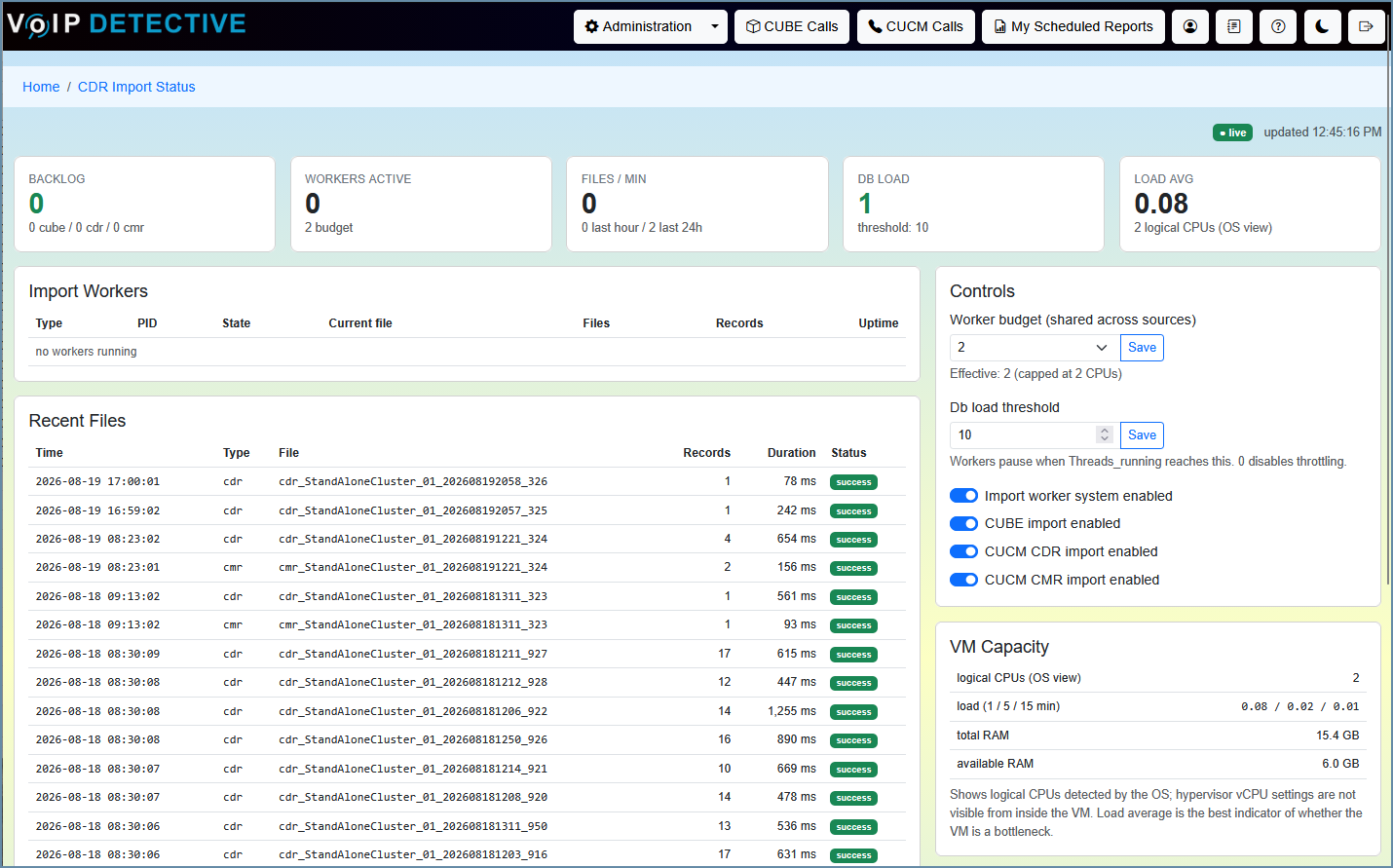
Administration → CDR Import Status shows the entire import pipeline at a glance, updating live.
The summary cards
- Backlog — files waiting in /incoming, split by type (cube / cdr / cmr). A falling backlog means the system is catching up; zero means it is fully caught up.
- Workers Active — how many import workers are running right now, next to the configured budget.
- Files / Min — current import rate, with totals for the last hour and last 24 hours.
- DB Load — database activity against the throttle threshold. When the database gets busy, workers pause between files so searches and the web interface stay responsive.
- Load Avg — overall server load next to the CPU count. A warning appears here when the VM is the bottleneck.
The Import Workers table
Each worker appears with its type, process ID, state, current file, and running totals.
- working — actively importing a file.
- idle — running, waiting for eligible files.
- dead — a worker that finished and exited normally. This is not an error.
- stale — a worker that stopped responding. The system recovers these automatically, returning any in-progress files to the queue. Briefly seeing stale workers after a database restart is normal.
Workers intentionally exit and are replaced about once an hour, so changing process IDs and uptimes are expected.
Recent Files and Recent Errors
Recent Files lists the latest imports with record counts, duration, and status. Recent Errors surfaces any files that failed — failed files are kept in the /error folder for inspection.
VM Capacity
Shows logical CPUs, load average, and memory. Load average is the best indicator of whether the VM itself is a bottleneck; a sustained load above the CPU count triggers a warning on this panel.
The controls
- Import worker system enabled — turns the import workers on or off. To stop importing entirely, use "Enable or Disable Processing" on the Configuration page instead.
- CUBE / CUCM CDR / CUCM CMR import enabled — per-source switches. Turning one off stops that file type from being imported.
- Worker budget — the maximum number of workers shared across all sources, capped at the server’s CPU count. The “Effective” line under the dropdown shows the cap that actually applies.
- Db load threshold — workers pause when database activity (Threads_running) reaches this value, and resume when it falls. 0 disables throttling.
Free licenses run one import worker at a time. Pro runs multiple workers, up to the worker budget. Files are processed continuously as they arrive on both editions.
If CUBE routers send files to this server, leave CUBE import enabled
A CUBE re-uploads each CDR file every minute until the server consumes it. If CUBE import is turned off while CUBEs are still sending, the same files re-upload endlessly and pile up in /incoming, slowing all imports. To stop importing CUBE data, stop the routers from sending — don’t just turn the toggle off.
What’s normal
- Import speed varies with file size and server hardware — compare records and duration in Recent Files, not just the files/min number.
- Large backlogs drain over hours or days. A steadily falling Backlog number is the health signal.
Quick health check
What you see | What to check |
Backlog is 0 and no recent files | Files are not arriving. Verify CUCM is sending CDRs (see the CUCM CDR setup guide) and test SFTP connectivity to the server. |
Backlog above 0, but no workers running | Confirm “Import worker system enabled” is on, processing is not disabled on the Configuration page, and the license validates (Administration → Licensing). |
Workers running, but files/min near 0 | Check DB Load against its threshold (workers pause when the database is busy) and look for a load warning in VM Capacity. |
Backlog growing day after day | Look for a large number of CUBE files with CUBE import turned off (see the CUBE section above), or an undersized VM — the VM Capacity panel will show a load warning. |
Everything green, but searches are empty | Run an Admin Call Search with no filters for today, and validate the license under Administration → Licensing. |
Was this article helpful?
That’s Great!
Thank you for your feedback
Sorry! We couldn't be helpful
Thank you for your feedback
Feedback sent
We appreciate your effort and will try to fix the article