The Team Search provides a single-screen summary of call activity for every member of your team, department, or group. At a glance you can see inbound and outbound call counts, total duration, unanswered calls, and answer-speed metrics – then drill down into individual call details, view daily breakdowns, and export the data in multiple formats.
Overview
Who Can Use This Report
User Role | Behavior |
Manager | Sees a summary for all extensions assigned to them. Can optionally include or exclude their own calls. |
Administrator | Can view any manager’s team by selecting the manager to impersonate. Sees the same report as the manager would. |
Global Manager | Same as Administrator – can impersonate any manager within their assigned range. |
ℹ️ Tip: Standard users (those not assigned as a manager, admin, or global manager) do not have access to the Team Search. They should use the All Calls or Inbound/Outbound searches instead.
Performing a Team Search
To run a Team Search, follow these steps:
1. Click “Webex Calls” in the navigation bar.
2. Expand the “Team Search” accordion section.
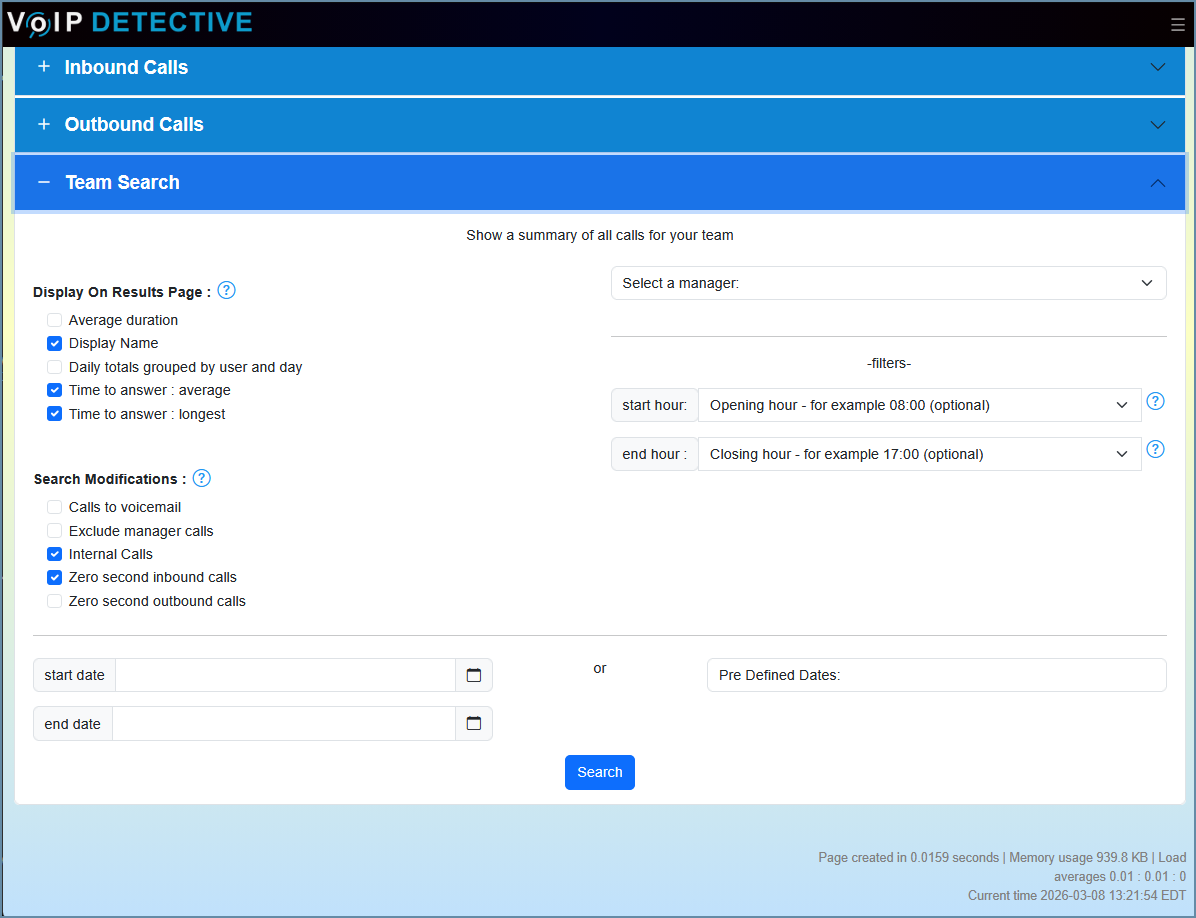
3. Configure your filters on the left side of the form (optional).
4. Verify the team members listed on the right side of the form.
5. Choose a date range – either custom dates or a predefined period.
6. Click “Search.”
Filters (Left Column)
The left column contains checkboxes and options that control what data appears in the report. Hover over any filter label in the application for a tooltip description.
Display Options
These add or remove columns from the results table without filtering data:
Filter | Description | Default |
Average Duration [PRO] | Adds two columns showing the average call length for inbound and outbound calls per team member. | Off |
Display Name | Shows the Webex user’s display name next to their extension or phone number. | Off [PRO] |
Show Daily Totals | Breaks each team member’s row into one sub-row per day, showing daily inbound, outbound, unanswered, and total counts. | Off |
Time to Answer (Average) [PRO] | Adds a column showing the average ring time before an inbound call was answered. | Off |
Time to Answer (Longest) [PRO] | Adds a column showing the longest ring duration before an inbound call was answered. | Off |
Call Filters
These checkboxes include or exclude specific types of calls:
Filter | Description | Default |
Calls to Voicemail | Include calls where the team member dialed the voicemail pilot number (e.g., checking messages). | Off |
Exclude Manager Calls | Remove the manager’s own extension from the report, showing only their direct reports. | Off |
Internal Calls | When enabled, internal extension-to-extension calls are included. Disable to show only external calls. | On |
Zero Second Inbound Calls | Include inbound calls with 0-second duration (abandoned before answer). | Off |
Zero Second Outbound Calls | Include outbound calls with 0-second duration (misdials, quick hang-ups). | Off |
Team Members (Right Column)
The right side of the search form lists every extension, phone number, and hunt pilot currently assigned to you. The report will compute metrics for each member shown here.
If a team member is missing from this list, an administrator needs to associate that extension with your manager account via the User Manager Assignments settings.
Start Hour / End Hour Filter
Optional dropdowns let you restrict results to calls that originated within a specific hour window. For example, set Start Hour to 8 and End Hour to 17 to analyze only business-hours traffic. These values are converted to UTC internally, so they respect your configured time zone.
Leave both blank to include all hours.
Date Range
Custom dates: Click the calendar icon to pick a start and end date/time. Click the clock icon inside the picker to narrow to a specific hour and minute. If left blank, the search defaults to today.
Predefined dates: Select a preset range from the dropdown (Today, Yesterday, This Week, Last 7 Days, This Month, etc.). Ranges are calculated using your configured time zone.
Free License Limit: On a free license, the start date is capped at 7 days in the past. Older dates are automatically adjusted forward.
Understanding the Results
Breadcrumb Bar
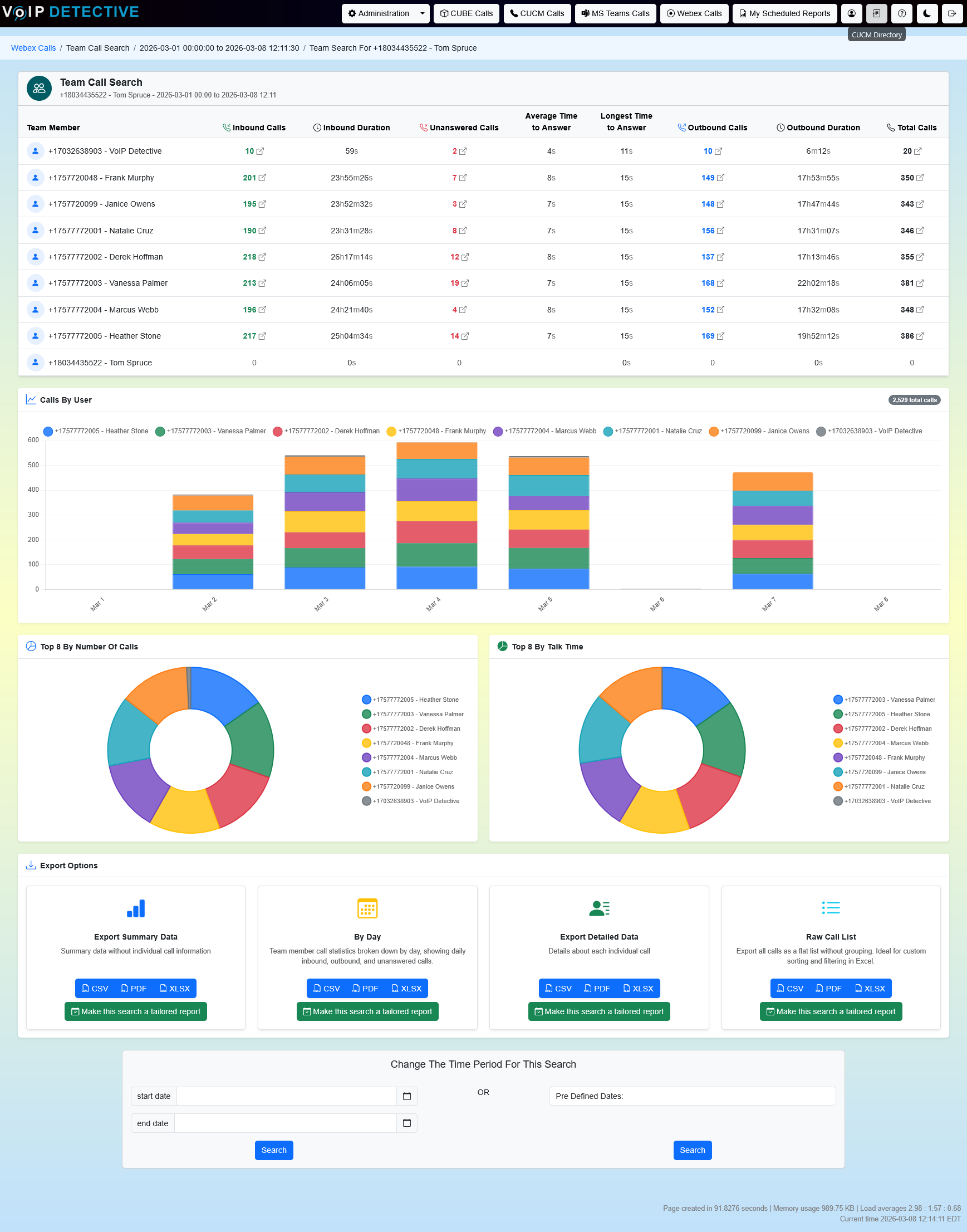
A breadcrumb trail at the top shows the report context: Webex Calls → Team Call Search → date range → manager name. This confirms which team and time period you are viewing.
Results Table
The main results table shows one row per team member (or one row per team member per day if the Daily Totals filter is enabled). The table is sortable – click any column header to sort.
Column | Description |
Team Member | The extension or phone number of the team member. If Display Name is enabled, shows the user’s name. |
Inbound Calls | Total number of inbound calls received by this team member during the selected period. Click the number to drill down into the Inbound Call search. |
Inbound Duration | Total connected time for all inbound calls, formatted as hours:minutes:seconds. |
Avg Duration (In) [PRO] | Average length of inbound calls. Only shown when the Average Duration filter is enabled. |
Unanswered Calls [PRO] | Number of inbound calls that were not answered (ring-no-answer). Click to drill down into a filtered Inbound search showing only unanswered calls. |
Time to Answer (Avg) [PRO] | Average seconds a phone rang before being answered. Only shown when the filter is enabled. |
Time to Answer (Longest) [PRO] | Longest ring time before an answer during the period. Only shown when the filter is enabled. |
Outbound Calls | Total number of outbound calls placed by this team member. Click to drill down into the Outbound Call search. |
Outbound Duration | Total connected time for all outbound calls. |
Avg Duration (Out) [PRO] | Average length of outbound calls. Only shown when the Average Duration filter is enabled. |
Total Calls | Sum of inbound and outbound calls. Click to drill down into the All Calls search. |
Drill-Down Links
Each numeric cell (Inbound Calls, Unanswered Calls, Outbound Calls, and Total Calls) is a clickable link. Clicking it opens the corresponding detail report for that specific team member, using the same date range and filters as the current Team Search. This lets you quickly investigate a particular person’s activity without re-entering search parameters.
When the Daily Totals view is active, each daily sub-row’s numbers also link to that specific day’s detail report.
Daily Totals Breakdown
When the “Show Daily Totals” filter is enabled, each team member’s summary row is followed by one sub-row per day. This provides day-by-day visibility into call patterns, making it easy to spot trends, compare weekdays vs. weekends, or identify days with unusually high or low activity.
ℹ️ Tip: When your date range spans more than 13 days, sticky column headers are re-inserted between team members to help you keep track of which column is which as you scroll.
Charts
When at least one team member has calls, three interactive charts appear below the results table:
Chart | Description |
Daily Calls by User | A stacked bar chart showing each day’s call volume broken out by team member (top 10 by volume). Hover for daily totals. |
Top 8 – Number of Calls | A doughnut chart showing the 8 team members with the most total calls. Hover to see count and percentage. |
Top 8 – Talk Time | A doughnut chart showing the 8 team members with the most combined talk time (in minutes). Hover for minutes and percentage. |
ℹ️ Tip: Click any legend label on a chart to hide or show that team member’s data. This is useful for focusing on specific individuals.
Exporting Results
Below the results table, an Export Options panel presents four export types arranged as cards. Each card offers format buttons (CSV, PDF, XLSX) and a Schedule button for setting up automated recurring exports.
Export Types
Export | What It Contains | Use Case |
Summary | One row per team member with aggregated counts: inbound calls, inbound duration, unanswered, outbound calls, outbound duration, and total calls. Matches what you see on screen. | Quick overview for management or weekly status updates. |
By Day | One row per team member per day. Includes the same metrics as Summary but broken out daily. | Trend analysis, identifying busy/quiet days, or daily check-ins. |
Details | Every individual call record (one row per call) with calling number, called number, time, duration, and direction. Grouped by team member with headers. | Investigating a specific person’s call patterns or auditing activity. |
Raw List | A flat list of every call record with a Team Member column, ungrouped. Includes calling number, called number, time, duration, and direction. | Data import into external tools, pivot tables, or BI dashboards. |
Available Formats
Format | Details | License |
CSV | Comma-separated values. Universal compatibility. | Free & PRO |
Formatted for printing with headers, footers, and page numbers. | PRO only | |
XLSX | Excel workbook with styled headers. Ready for analysis. | PRO only |
Tailored & Scheduled Reports
PRO users with a configured email address will see a “Schedule” button beneath each export card. This opens the Tailored Reports system, where you can set up recurring automated exports that are generated on a schedule and delivered to your inbox. Each export type (Summary, By Day, Details, Raw) can be scheduled independently.
Tailored reports also generate accompanying charts (call distribution, daily trends) that are included with the delivered data file.
Free vs. PRO License
Capability | Free | PRO |
Date range limit | Last 7 days | Unlimited |
Unanswered Calls column | Placeholder icon | Full data with drill-down links |
Display Name | Disabled | Available |
Average Duration columns | Disabled | Available |
Time to Answer columns | Disabled | Available |
CSV export | Available | Available |
PDF / XLSX export | Disabled | Available |
Tailored / Scheduled reports | Disabled | Available |
Administrator Features
Manager Impersonation
Administrators and Global Managers can view any manager’s team report by selecting the manager to impersonate. This is passed as a parameter to the search, and the breadcrumb bar confirms which manager’s team is being displayed. All drill-down links and exports will use the impersonated manager’s team assignments.
ℹ️ Tip: This is useful for spot-checking team performance without asking the manager to generate and share their own report.
Tips & Frequently Asked Questions
A team member is missing from my report. How do I add them?
An administrator needs to create a User Manager Assignment that links the team member’s extension or phone number to your manager account. Once assigned, the member will appear in the right column of the Team Search form and be included in future searches.
Why are my numbers different from the All Calls report?
The Team Search excludes Webex push notification retrieval events (internal system calls) by default. It may also exclude internal calls if that filter is unchecked. Additionally, the Team Search counts calls differently when an extension has both a phone number and an internal extension – the “Include Internal & External Numbers” setting controls whether both are matched.
What counts as an “Unanswered Call”?
An unanswered call is any inbound call where the “answered” field from Webex is false (the call was not picked up). This includes calls that went to voicemail after ringing, calls abandoned by the caller, and calls that exceeded the ring-no-answer timeout.
How is “Time to Answer” calculated?
The Time to Answer metric uses the “ringDuration” field from the Webex CDR. The average divides total ring time by the number of inbound calls. The longest shows the single highest ring duration during the selected period.
Can I see only business-hours calls?
Yes. Use the Start Hour and End Hour dropdowns on the search form. For example, set Start Hour to 8 and End Hour to 17 to include only calls that started between 8:00 AM and 5:00 PM in your local time zone.
How do I compare two different weeks?
Run the Team Search twice with different date ranges, then export each to XLSX or CSV. You can then combine the data in Excel or Google Sheets for a side-by-side comparison. Alternatively, use the By Day export, which already breaks data out per day for easy trend analysis.
Was this article helpful?
That’s Great!
Thank you for your feedback
Sorry! We couldn't be helpful
Thank you for your feedback
Feedback sent
We appreciate your effort and will try to fix the article