Overview
The Hunt Group Report provides visibility into how calls flow through your Cisco Unified Communications Manager (CUCM) hunt pilots. It shows which devices or extensions handled each call, how long callers waited in queue, and whether calls were answered or went unanswered. The report covers a single hunt pilot at a time and lets you choose a date range, grouping mode, and optional display columns before running the search.
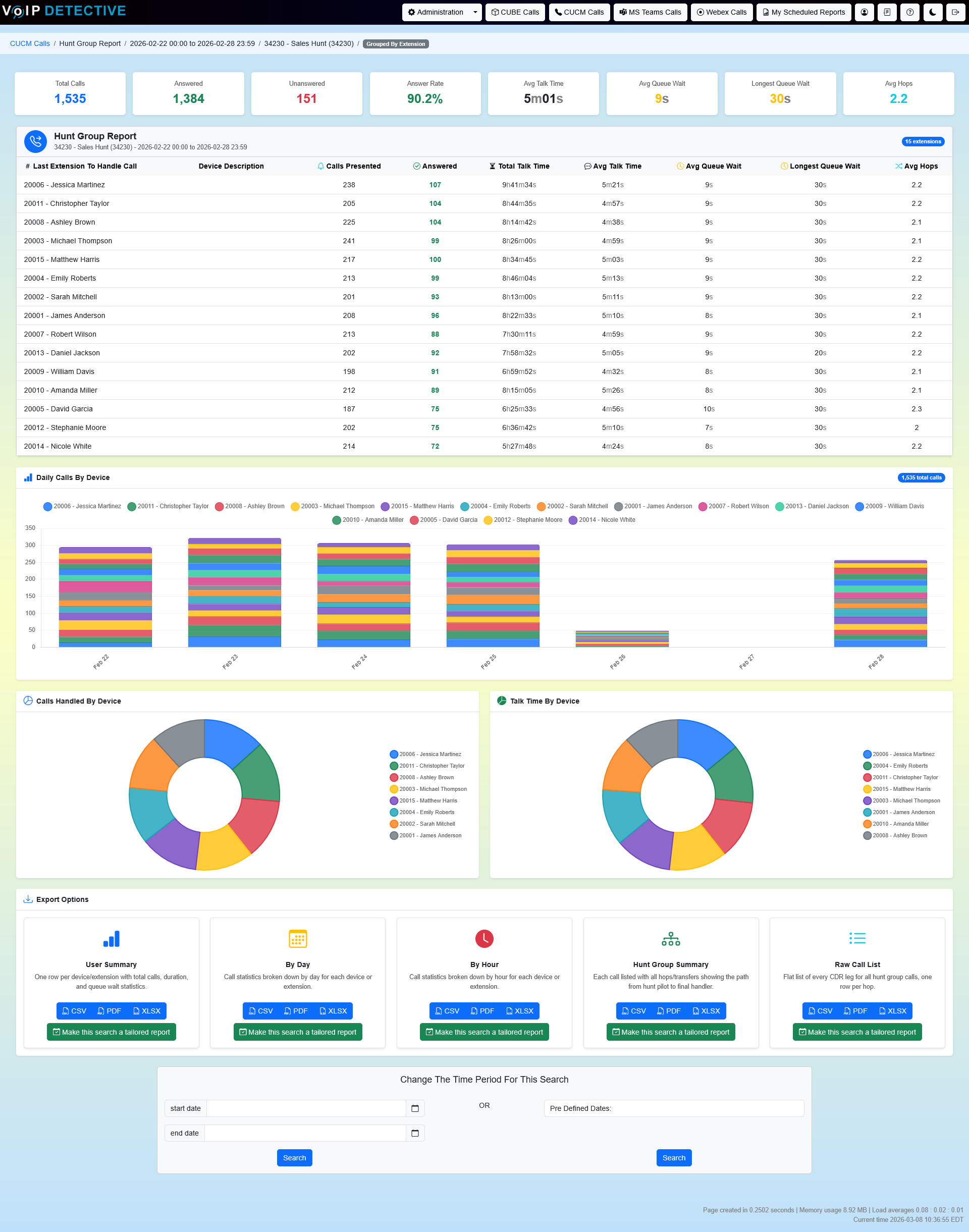
After the report runs, the results page displays KPI summary cards at the top, a detailed member-level summary table, interactive charts (daily calls bar chart and pie charts), and a full set of export options at the bottom.
Running the Report
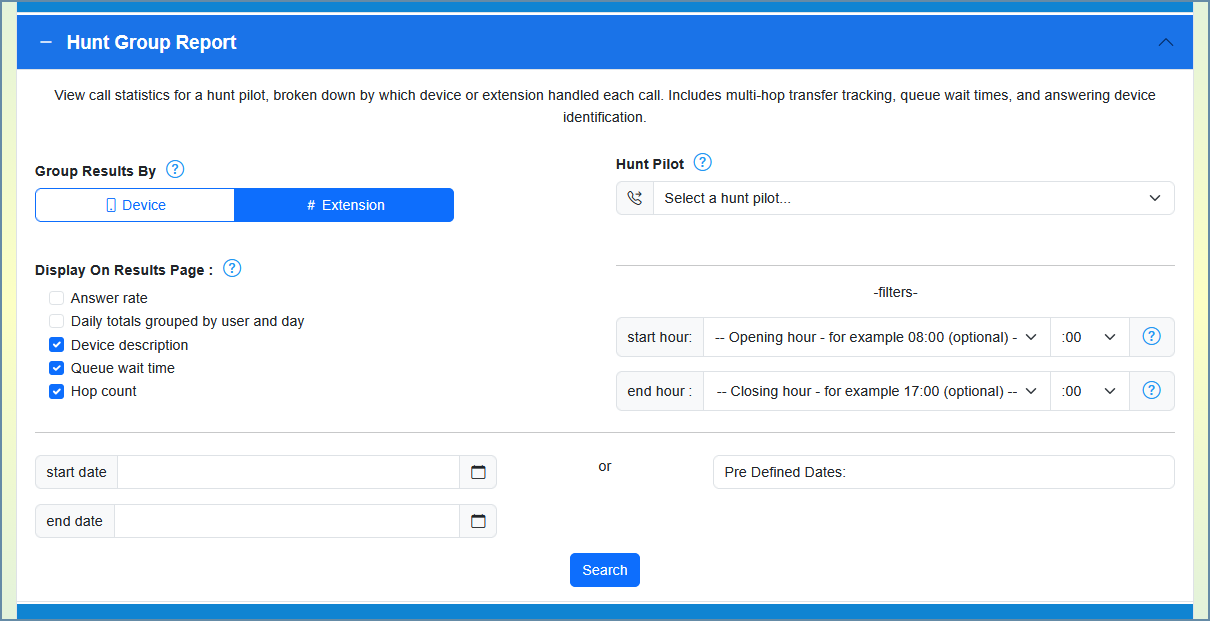
The Hunt Group Report is launched from the main search page. Expand the Hunt Group Report accordion panel to reveal the configuration form. The form is divided into two columns: report options on the left, and hunt pilot selection with filters on the right.
Selecting a Hunt Pilot
If VoIP Detective has synced your hunt pilot data from CUCM, you will see a dropdown list showing each hunt pilot by description, pattern, and route partition. Select the hunt pilot you want to report on. If no synced data is available, a free-text field is shown instead, where you can type the hunt pilot DN directly.
Group By: Device vs. Extension
The Group By toggle controls how call data is aggregated in the results. This is one of the most important choices you make before running the report, because it determines what appears in the first column of the summary table, the export files, and the chart labels.
Group By Device aggregates calls by the CUCM device name of the last non-voicemail endpoint that handled the call. Examples of device names include SEP00112233AABB (a physical phone), CSFUSER01 (a Jabber soft client), or TCTUSER01 (a mobile client). This mode is useful when you need to understand which specific pieces of hardware or software clients are receiving calls. It is especially helpful for troubleshooting situations where a user has multiple devices (desk phone, Jabber, mobile) and you need to see the distribution across them.
Group By Extension aggregates calls by the directory number (DN) of the last non-voicemail endpoint. This is the phone number or extension, such as 2001, 3500, or +18005551234. This mode is typically more useful for managers and supervisors, because it maps directly to people rather than physical hardware. If a person has three devices that all share extension 2001, all of those calls will roll up into a single row for 2001 in the report.
Tip: Extension mode is selected by default and is the best starting point for most users. Switch to Device mode when troubleshooting hardware-specific issues or when you need to see which specific client (desk phone vs. Jabber) is answering calls. |
Display Options (Checkboxes)
Below the Group By toggle, you will find a set of checkboxes that control which optional columns appear in the results table and in exported files.
Option | Description |
Answer Rate | Shows the percentage of presented calls that were answered by each member. Color-coded green (80%+), yellow (60-79%), or red (below 60%). |
Show Calls by Day | When checked and the date range spans more than one day, a daily breakdown row appears beneath each member in the summary table. Each sub-row shows that member’s statistics for a single day. |
Device Description | Displays the CUCM device description next to each member in the table. Checked by default. Most useful in Device grouping mode. In Extension mode the description is derived from the device associated with the extension. |
Queue Wait Time | Adds two columns: Average Queue Wait and Longest Queue Wait. Checked by default. Shows how long callers waited in the hunt queue before being connected. |
Hop Count | Shows the average number of hops (ring attempts across different members) per call. Checked by default. A higher number means calls are bouncing through more members before being answered. |
Filters: Start Hour and End Hour
On the right side of the form, beneath the hunt pilot selector, you can optionally set a Start Hour and End Hour filter. These restrict the report to only include calls that originated during the specified window of the day. For example, setting Start Hour to 8 and End Hour to 17 will only analyze calls placed between 8:00 AM and 5:59 PM, across all days in the date range. This is useful for focusing on business-hours traffic and excluding after-hours or overnight calls.
Date Range
At the bottom of the form, you select the date range using either a start/end date picker or a predefined range (Yesterday, Last 7 Days, etc.). The date range determines which CDR records are included in the report. After configuring all options, click Search to run the report.
Understanding the Results Page
KPI Summary Cards
At the top of the results page, a row of color-coded summary cards provides an at-a-glance overview of the entire hunt pilot’s performance for the selected date range.
Card | Description |
Total Calls | The total number of unique calls that entered the hunt pilot during the report period. |
Answered | The number of calls that were connected to a non-voicemail hunt group member. Shown in green. |
Unanswered | The number of calls that were not answered by any hunt group member. Shown in red. This includes calls that went to voicemail, were abandoned, or timed out. |
Answer Rate | The percentage of total calls that were answered. Color-coded: green (80%+), yellow (60-79%), red (below 60%). |
Avg Talk Time | The average duration of answered calls across all members. |
Avg Queue Wait | The average time callers spent waiting in the hunt queue before being connected. Only shown if the Queue Wait Time option was checked. |
Longest Queue Wait | The single longest queue wait experienced by any caller. Only shown if the Queue Wait Time option was checked. |
Avg Hops | The average number of member endpoints each call rang before being answered or abandoned. Shown in blue. |
Summary Table
Below the KPI cards, the main summary table lists every device or extension that handled at least one call through the hunt pilot. The first column shows the member name (device name or extension, depending on your Group By selection). A badge in the table header shows the total number of members and the current grouping mode.
The table is sortable. Click any column header to sort ascending or descending. The columns shown depend on which display options you checked before running the report. The always-visible columns are: the member identifier, Calls Presented, Answered, Total Talk Time, and Average Talk Time. Optional columns include Answer Rate, Avg Queue Wait, Longest Queue Wait, Avg Hops, and Device Description.
Calls Presented counts every time a device or extension was rung for a hunt group call, regardless of whether it answered. This number can be higher than Calls Handled because a single call in a sequential hunt group may ring multiple members.
Answered counts only the calls that member actually connected to and spoke on.
Daily breakdown rows: If you checked Show Calls by Day and the date range spans more than one day, each member’s summary row (highlighted in blue) is followed by individual rows for each day showing that member’s daily statistics. |
Charts
The results page includes three interactive Chart.js visualizations that render directly in the browser.
Daily Calls by Member is a stacked bar chart showing call volume per day, with each member represented as a colored segment. This helps identify daily trends and see which members are carrying the most load on specific days.
Calls Handled by Member is a pie chart showing the proportion of total calls handled by each member (top 8). This gives a quick visual of workload distribution.
Talk Time by Member is a pie chart showing the proportion of total talk time consumed by each member (top 8). A member with fewer calls but longer talk times may show a larger slice here than in the calls pie chart.
Export Options
At the bottom of the results page, five export cards are displayed. Each card offers three download formats: CSV, PDF, and XLSX (PDF and XLSX require a paid license). Each also includes a Make this a tailored report button that schedules the export to run automatically on a recurring basis and be delivered to your email with charts attached.
Export | Description |
User Summary | One row per device or extension for the entire date range, showing total calls handled, calls presented, answered, unanswered, total talk time, average talk time, and any optional columns you enabled (answer rate, queue wait, hop count, device description). This is the most compact export and is ideal for sharing a high-level performance summary with management. |
By Day | One row per device/extension per day. This breaks the summary data down by calendar day so you can see trends over time for each individual member. Useful for identifying which days were busiest and how each team member performed day by day. |
By Hour | One row per device/extension per hour. This provides the most granular time-based breakdown, showing statistics for every hour in the report period. All hours in the range are included, even those with zero calls, making it easy to spot quiet periods. If Start Hour and End Hour filters were set, only hours within that window are shown. Ideal for staffing analysis and identifying peak call hours. |
Hunt Group Summary | One row per calendar day showing aggregate totals for the entire hunt pilot (not broken down by member). Includes a grand totals row at the bottom. This is useful for tracking overall hunt group performance trends without the per-member detail. |
Raw Call List | One row per unique call through the hunt pilot, sorted chronologically. Shows the timestamp, calling party number, hunt pilot DN, final handler (device or extension), answered status, duration, and optional hop count and queue wait. This is a flat list of every call and is ideal for custom analysis in Excel or for auditing specific calls. |
Tailored (Scheduled) Reports
Each export card includes a green Make this a tailored report button. Clicking it saves the current search parameters (hunt pilot, grouping mode, display options, date range type) as a scheduled report. The system will automatically run the export on a recurring schedule and deliver it to your email as an attachment, along with an email body summarizing the top-level results (such as the top 5 members by call volume). PDF and XLSX tailored reports also include chart images (pie charts and bar charts) embedded in the email for quick reference without opening the attachment.
Tailored reports can be managed from the My Scheduled Reports section, accessible from the top navigation bar. There you can edit the schedule, change the delivery email, or delete reports you no longer need.
Group By: A Closer Look
The Group By setting affects every part of the report. Here is a side-by-side comparison to help you choose the right mode.
Aspect | Group By Device | Group By Extension |
First column shows | CUCM device name (e.g. SEP00112233AABB, CSFUSER01) | Directory number / extension (e.g. 2001, +18005551234) |
Best for | Hardware troubleshooting, seeing Jabber vs. desk phone usage, identifying unregistered devices | Supervisor reporting, staffing decisions, performance reviews, sharing with non-technical stakeholders |
Shared lines | Each device gets its own row even if they share the same DN | All devices sharing a DN roll up into one row |
Description column | Shows the CUCM device description (useful for mapping device names to people) | Shows the description of the associated device (less reliable when multiple devices share the DN) |
Chart labels | Pie charts and bar charts use device names as labels | Pie charts and bar charts use extension numbers as labels (resolved to display names when available) |
Export files | All five exports use device names in the member column | All five exports use extension numbers in the member column |
Tip: If you see only a voicemail device (such as UnityConnection_PUB_SIP) in the results and all calls show as unanswered, it usually means the hunt pilot is pointing to a Unity Connection call handler rather than a line group with phone extensions. Check the hunt pilot configuration in CUCM. |
Key Concepts
Calls Handled vs. Calls Presented
Calls Handled (sometimes labeled Calls in exports) is the number of unique calls attributed to a member. A call is attributed to the last non-voicemail member it reached. Calls Presented counts every time a member’s device rang for a hunt group call, including calls that were not answered by that member and went on to ring someone else. In a sequential hunt group, a single call may be presented to three members but handled by only one.
Hops
A hop represents one step in the hunt sequence. When a call enters the hunt pilot and rings Member A (hop 1), then moves to Member B (hop 2), and is finally answered by Member C (hop 3), that call has a hop count of 3. The Avg Hops metric is the average hop count across all calls for a given member or time period. High hop counts suggest that earlier members in the hunt list are frequently unavailable.
Queue Wait Time
Queue Wait Time measures how long a caller waited from the moment their call entered the hunt pilot queue until it was connected to a member. Avg Queue Wait is the average of this value across answered calls. Longest Queue Wait is the single highest value observed. These metrics require the Queue Wait Time display option to be enabled and depend on the CUCM hunt queue feature being active for the hunt pilot.
Voicemail Handling
The report automatically detects calls that land on Cisco Unity Connection (voicemail). These calls are attributed to a device or extension named with a Unity prefix (e.g. UnityConnection_PUB_SIP). Voicemail legs are excluded from the “answered” count because they represent the call forwarding to voicemail rather than a person answering. If you see all calls attributed to a Unity device with zero answered, the hunt pilot may be configured to route directly to a Unity Connection call handler.
Quick-Start Checklist
1. Navigate to the Search page and expand the Hunt Group Report panel.
2. Select Group By Extension (default) unless you need device-level detail.
3. Check the display options you want: Answer Rate, Queue Wait Time, and Hop Count are recommended for a comprehensive view.
4. Select your hunt pilot from the dropdown (or type the DN manually).
5. Optionally set Start Hour and End Hour to focus on business hours.
6. Choose your date range and click Search.
7. Review the KPI cards at the top for a quick health check.
8. Scroll down to the summary table to see per-member performance.
9. Review the charts for visual trends and workload distribution.
10. Use the export cards at the bottom to download data in CSV, PDF, or XLSX format, or schedule a tailored report for automatic delivery.
Was this article helpful?
That’s Great!
Thank you for your feedback
Sorry! We couldn't be helpful
Thank you for your feedback
Feedback sent
We appreciate your effort and will try to fix the article