Live wallboards and call search for Webex Contact Center
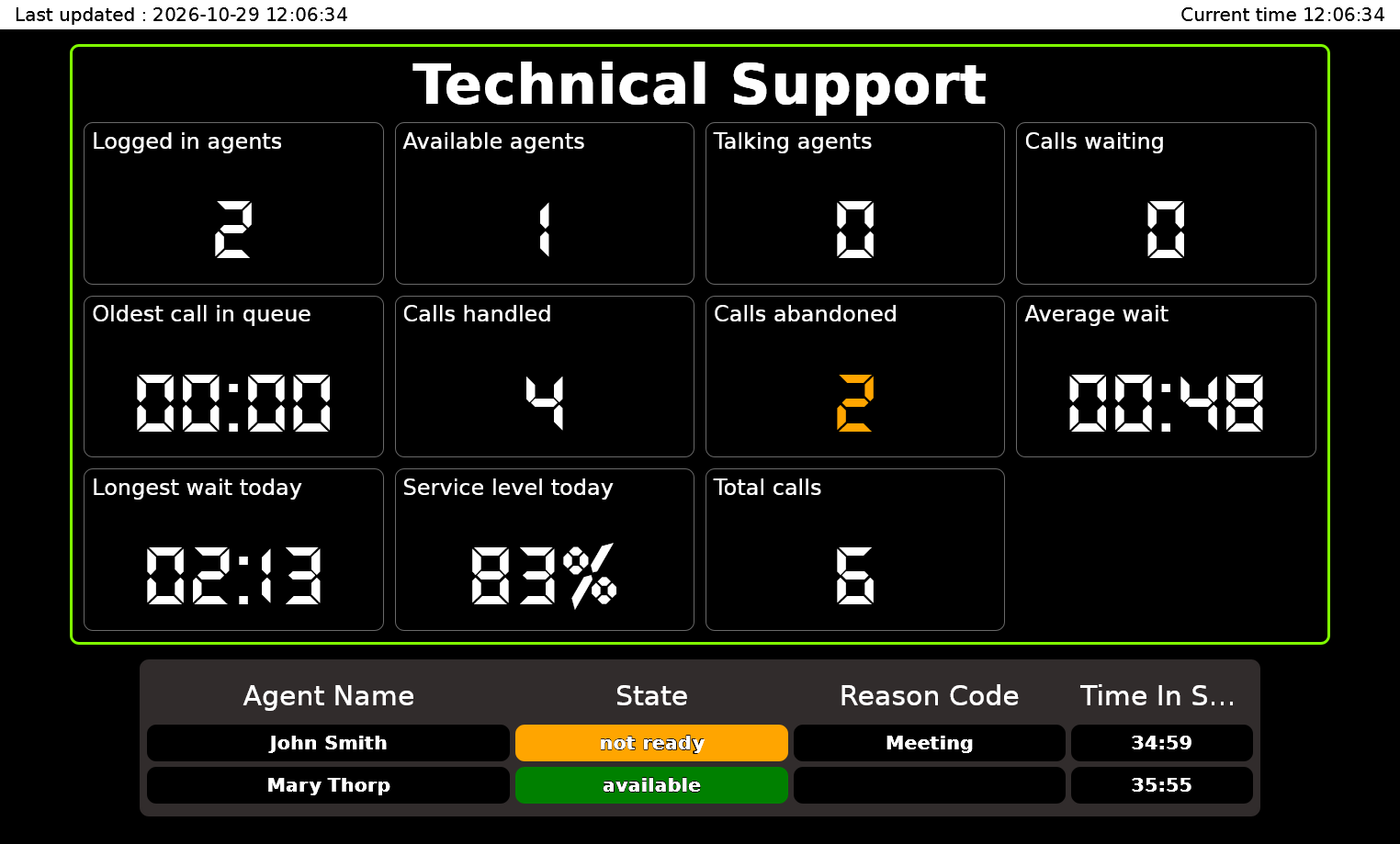
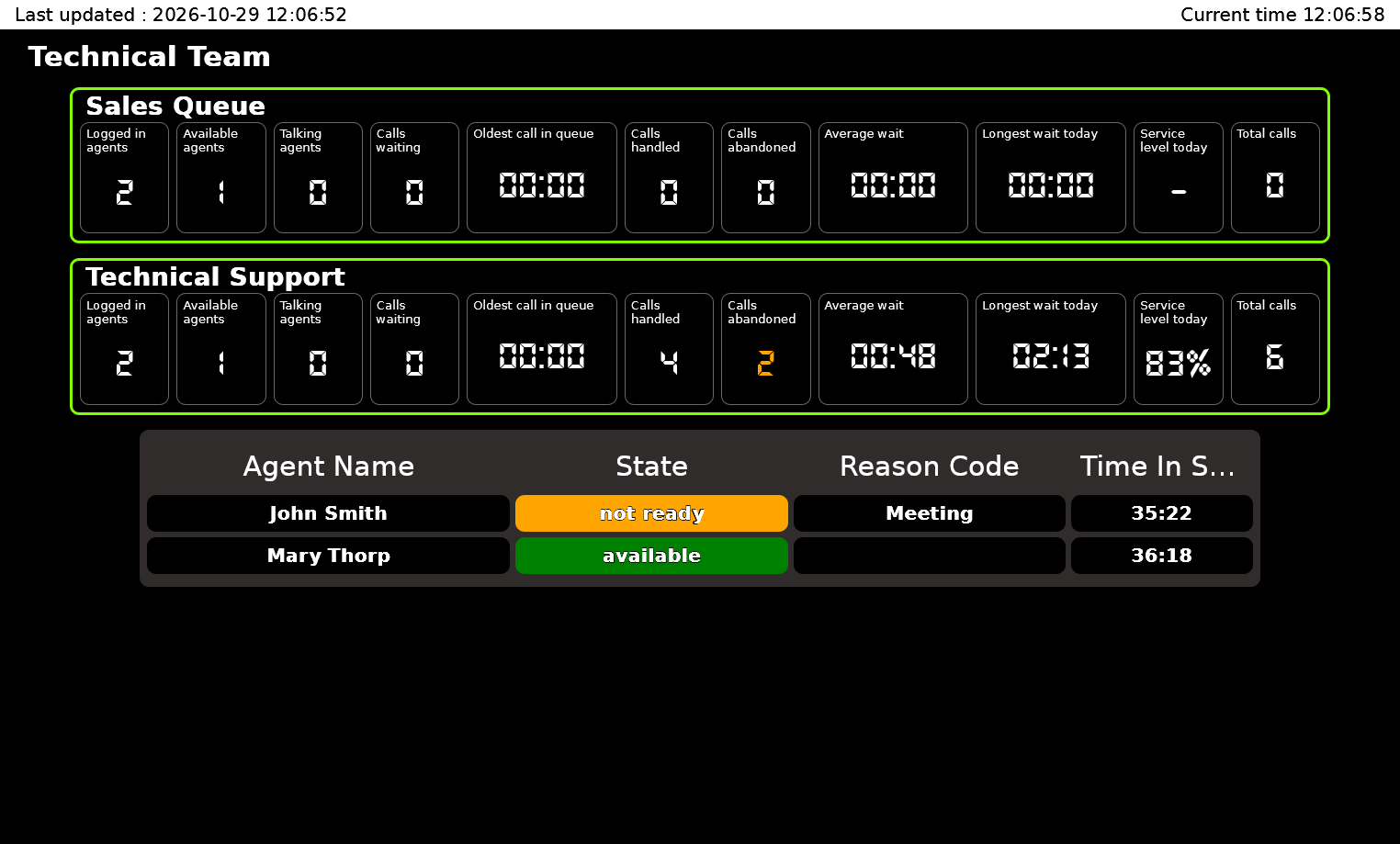
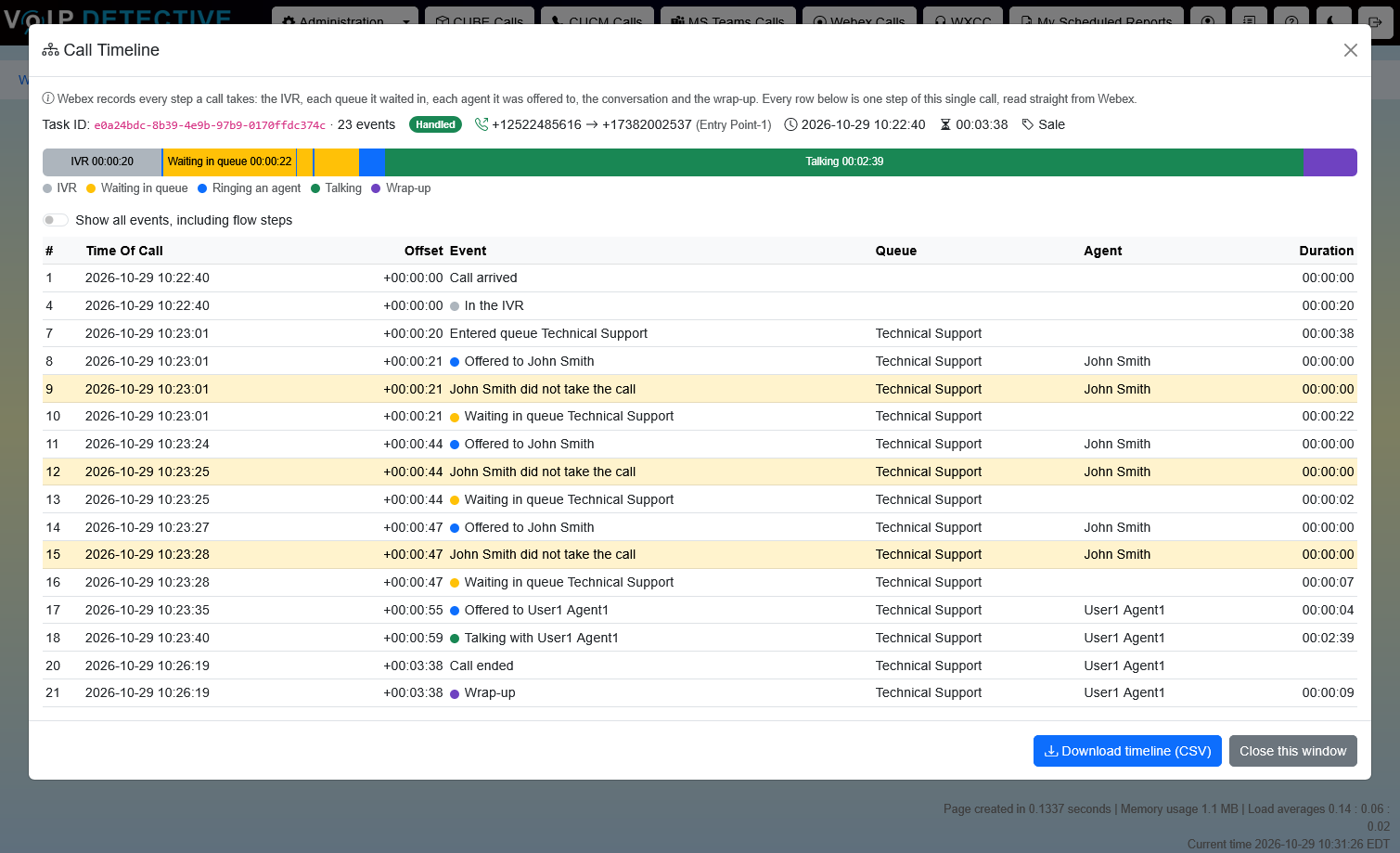
VoIP Detective reads live queue, agent and call data from the Webex Contact Center API. You get wallboards for every queue and team, plus a call search with a full timeline for each call. Wallboards are plain web pages, so you can put them on any screen without giving anyone access to Webex.
This guide will help you install and configure VoIP Detective to read data from your Webex Contact Center. At a high level, this is the process:
- Authorize the VoIP Detective service app inside of your Webex account
- Receive tokens from the VoIP Detective support team
- Install the virtual machine and configure it
Requirements
- VoIP Detective PRO. Webex Contact Center reporting is not part of VoIP Detective Free.
- Webex Contact Center for your organization.
- A Control Hub administrator who can authorize service apps.
- Internet access from VoIP Detective over HTTPS (port 443) to:
- the VoIP Detective token service: oauth.voipdetective.com
- the Webex API for your region
- A web proxy is supported if your network requires one.
Adding the VoIP Detective Service App to your Webex account
- Log in to your organization's Control Hub (https://admin.webex.com).
- Go to Management > Apps > Service Apps.
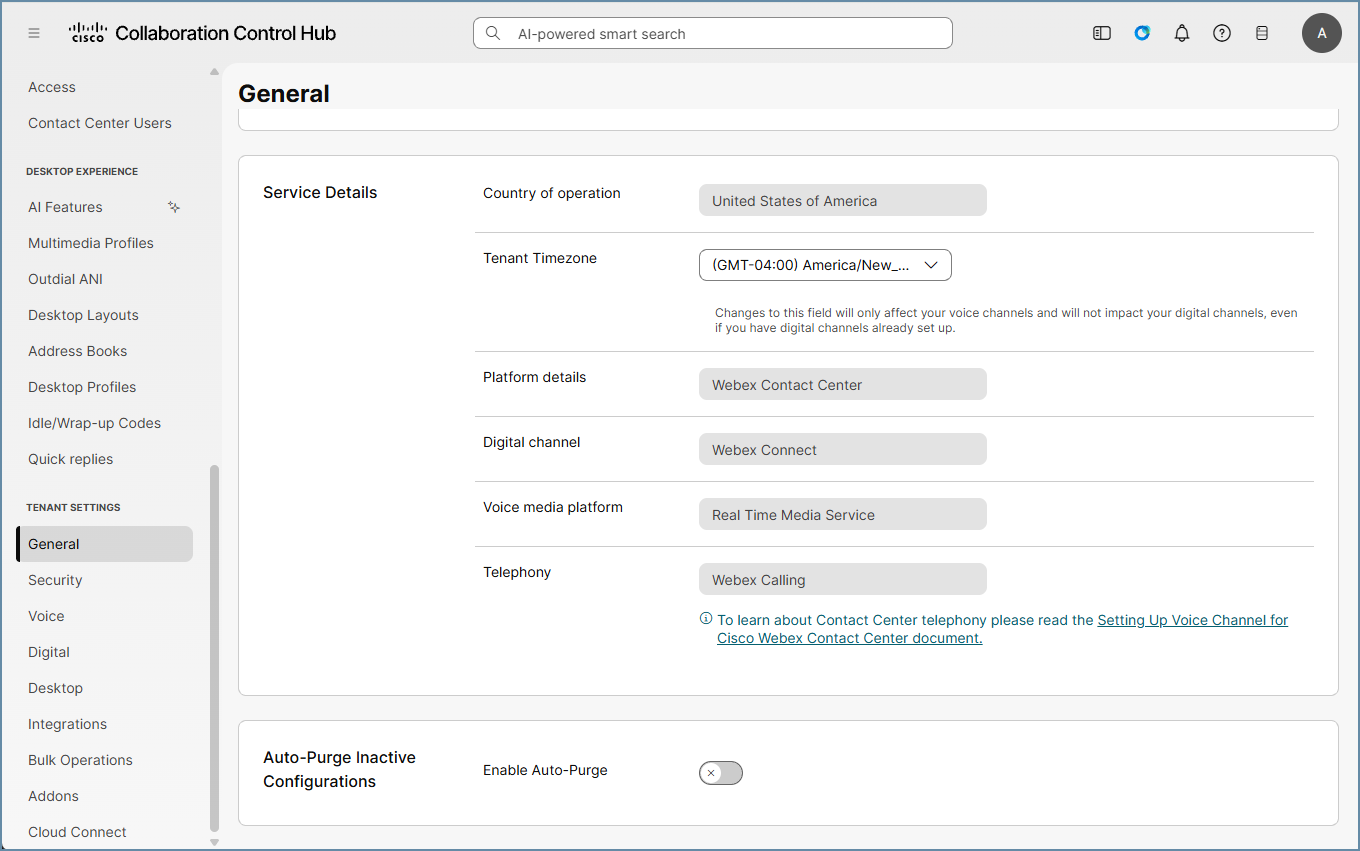
- Find the "VoIP Detective wallboard for WxCC" Service App and click on its name. This opens a panel with information about the Service App. It asks for permission to read your Contact Center configuration and call data.
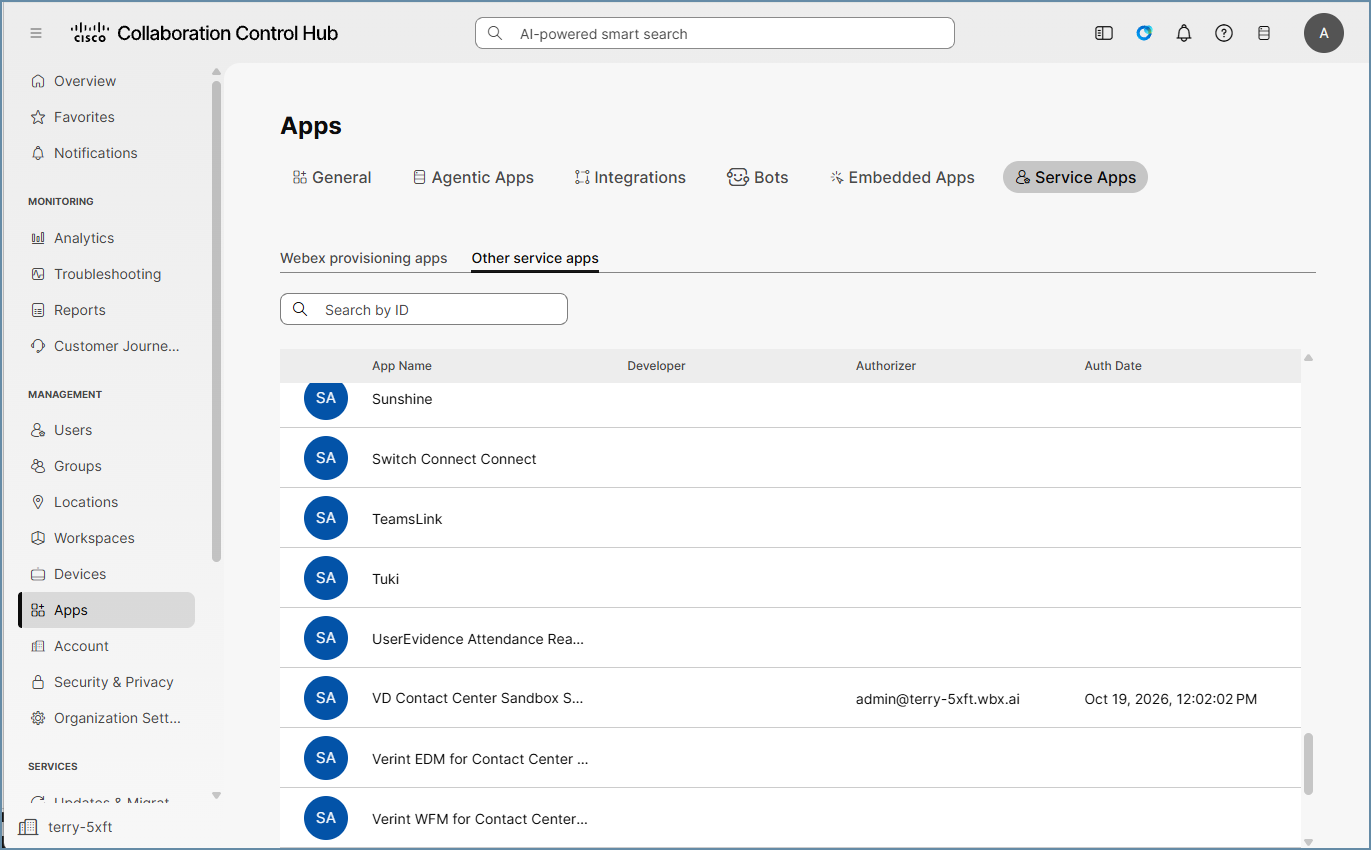
- Slide the "Authorize" toggle to on and press "Save" at the bottom of the screen. If you have problems authorizing the app, please see the troubleshooting section at the bottom of this page.
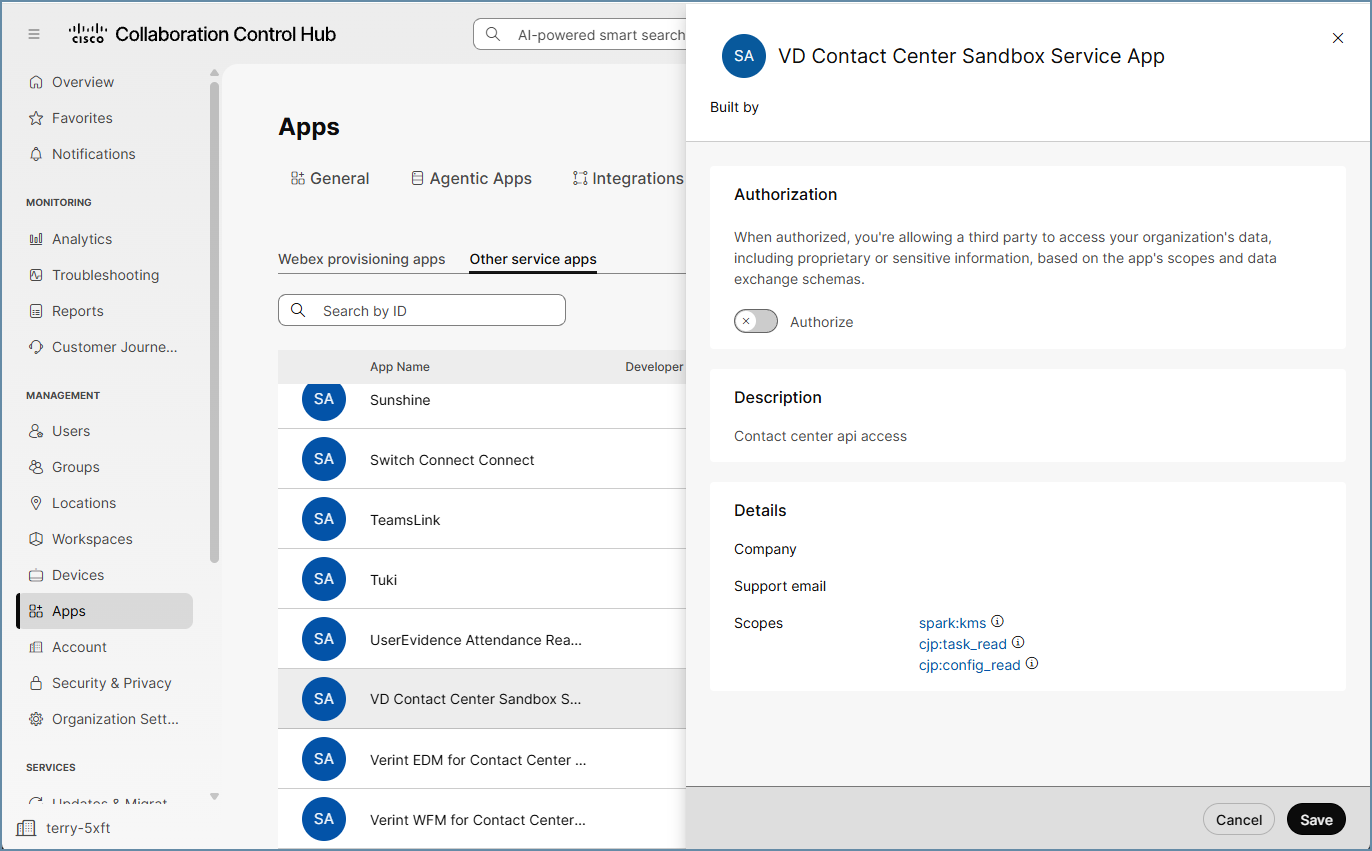
- Next, locate your Webex "Organization Name" and "Organization ID". On the left side of the screen, click on Account. Copy both and keep them, as you'll need to add the Organization ID to VoIP Detective.
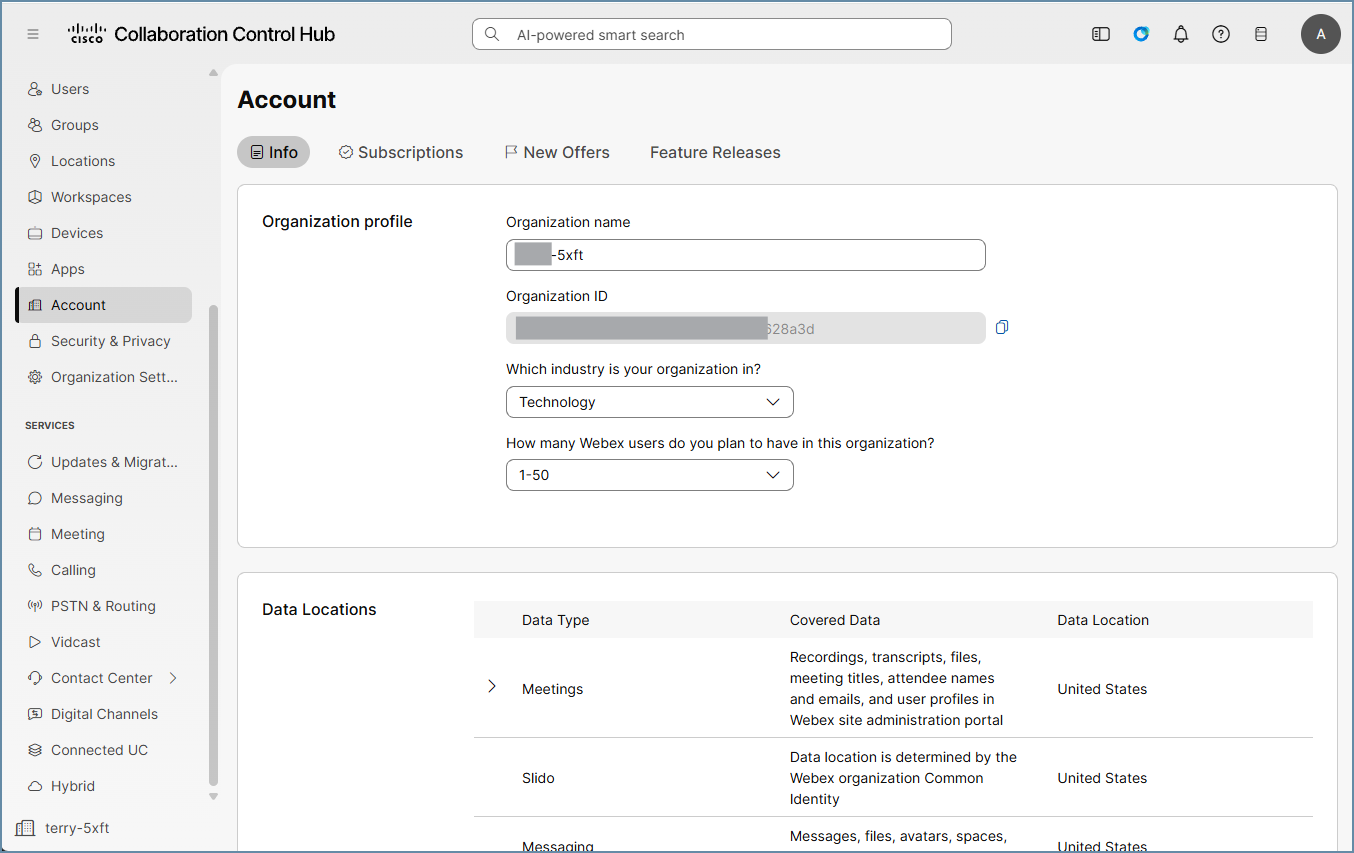
- Next, find your Contact Center region. Go to Contact Center > Tenant Settings > General and note the region shown.
- Reach out to support by creating a ticket (link at the top of this page). Include your Webex Organization Name, Organization ID and region, and we will send you your access and refresh tokens. After creating your support ticket, continue on with the process below.
Note: VoIP Detective needs the Organization ID in its long form with dashes (for example 1eb65fdf-9643-1234-9974-ad72cae0e10f). The long encoded ID shown in some Webex screens will not be accepted.
Configuring VoIP Detective to connect to Webex Contact Center
New installation of VoIP Detective
These directions walk you through installing VoIP Detective for the first time. If you already have VoIP Detective installed (for example for CUCM or Webex Calling reporting), jump down to "Existing installation of VoIP Detective".
First, deploy the VoIP Detective virtual machine using the instructions for your hypervisor, then return here.
- Installation on VMware ESXi / vSphere
- Installation on VMware Workstation Player
- Installation on Hyper-V
- Installation on Nutanix
- Installation on Linux KVM
Once VoIP Detective is deployed:
- Power on the virtual machine.
- Type the IP address (or hostname) of VoIP Detective into your browser.
- Read the EULA and click "Accept" at the bottom.
- Enter the IP address or hostname you will use for VoIP Detective into the Site URL field. This can be either http:// or https://.
- Enter the admin email. This address is linked to the "admin" account and receives system status messages, including token alerts.
- Enter your PRO license key.
- The system will check internet connectivity.
- Click on "Activate Online License".
- Choose the reporting package to activate. In this example, choose "VoIP Detective wallboard for WxCC".
- You'll be prompted to log in. The default username is admin and the password is voip. Change this password after your first login.
- Once logged in, click the down arrow next to Administration and choose Configuration.
- Continue with step 1 of the instructions below.
Existing installation of VoIP Detective
Once the VoIP Detective virtual machine is running and the service app is authorized in Webex, configure VoIP Detective to use Webex Contact Center.
- Go to Administration > Configuration and scroll down to the Webex Contact Center section.
- Set Enable Webex Contact Center to on.
- Enter your Organization ID (the long form with dashes from step 5 above).
- Choose your Region (from step 6 above).
- Paste the Access token and Refresh token sent by VoIP Detective support, then save.
VoIP Detective now reads your queues, teams and agents from Webex. Go on to "Checking the connection" below to confirm everything works.
Checking the connection
- Open the Webex Contact Center wallboard admin page Administration - Webex Contact Center Wallboard.
- Scroll down to the Troubleshooting section.
- Check the token status. It shows when the access token expires.
- Run the DNS checks and the live API tests. Each test shows a green pass or a red failure with the reason.
- If a test fails, click Download support file and attach it to your support ticket. The file never contains your tokens, and caller numbers are masked.
Once the tests pass, the queue list fills in and your wallboard links appear at the top of the page.
Setting up your first wallboard
Every wallboard is a web address. There is nothing to save; you build the address and open it on any screen.
- On the wallboard admin page, find the Queue wallboards or Team wallboards table. Each row has a ready-made address.
- To customize one, use the Wallboard builder:
- Choose a queue or a team.
- Choose a layout: Classic (scrolls), Fit (fills the screen, no scrolling) or Minimal (one row of numbers, agents fill the rest).
- Choose the agent options (hide agents, agents only, hide logged-out agents).
- Click Copy URL and open it on your wallboard screen.
- To change colours, sizes and fonts, use the Styling section. These settings apply to all Webex Contact Center wallboards. Open wallboards pick up changes within an hour, or straight away if you refresh the page.
Each queue shows: calls waiting now, oldest call, handled, abandoned, service level today, average and longest wait, total calls, and agents logged in, available and talking. A team wallboard shows every queue the team serves, followed by the team's agents, including those logged out.
The border around each queue changes colour to show: all OK, no agents free, callers waiting, or no agents logged in.
Note: Wallboards do not need a login, so anyone with the address can view them. Only share wallboard addresses inside your organization.
Searching for calls
VoIP Detective administrators can search Webex Contact Center calls live. Results come straight from Webex; nothing is stored in VoIP Detective.
- Open the Webex Contact Center call search (WXCC from the menu bar at the top of screen).
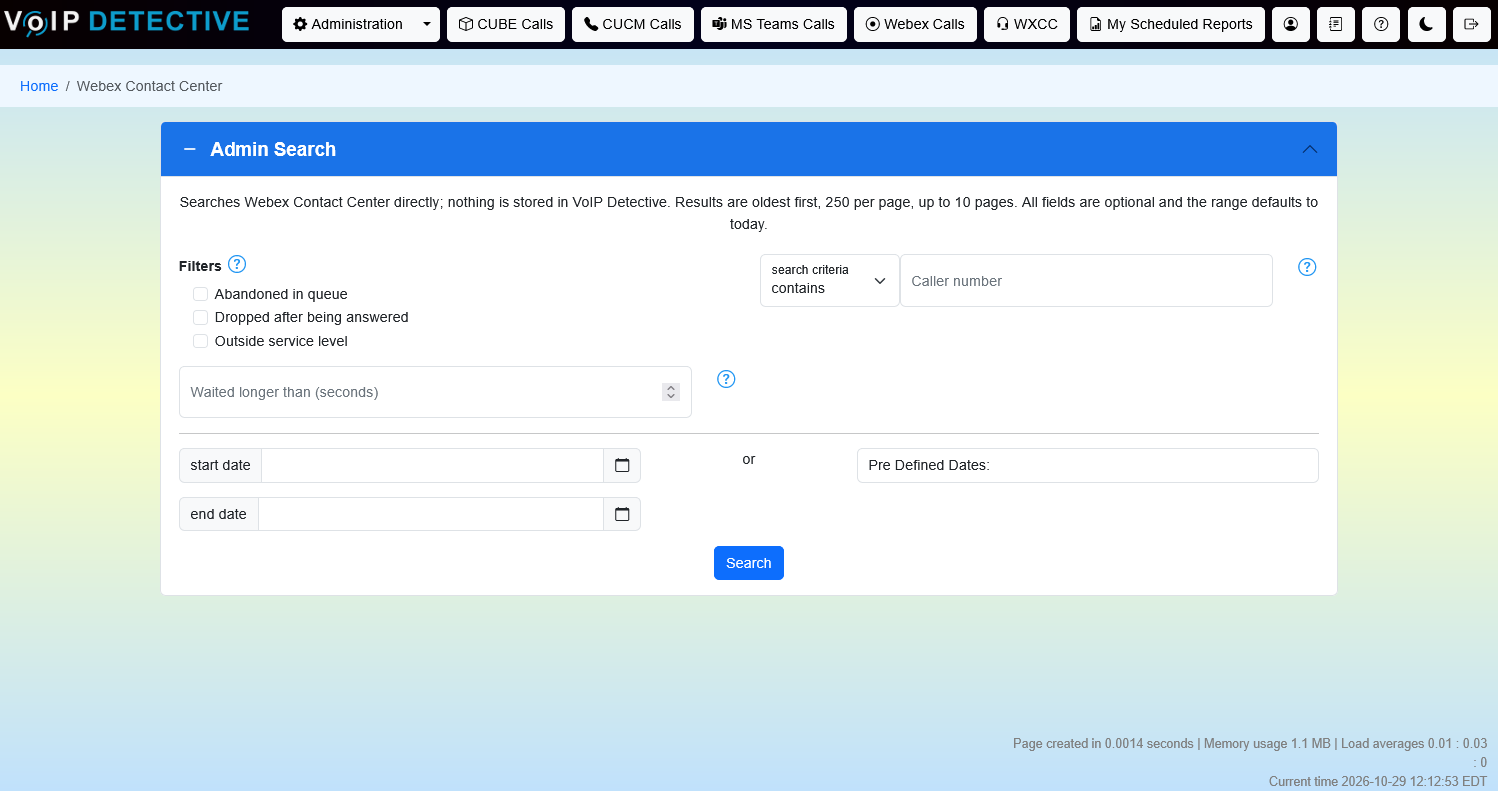
- Filter by any of: caller number, abandoned, dropped after answer, outside service level, waited longer than, or queue. The search covers today unless you pick other dates (up to 365 days).
- Results show 250 calls per page, up to 10 pages.
- Click the timeline button on any call to see each step of that call (IVR, waiting, ringing, talking, wrap-up). You can download the timeline as a CSV file.
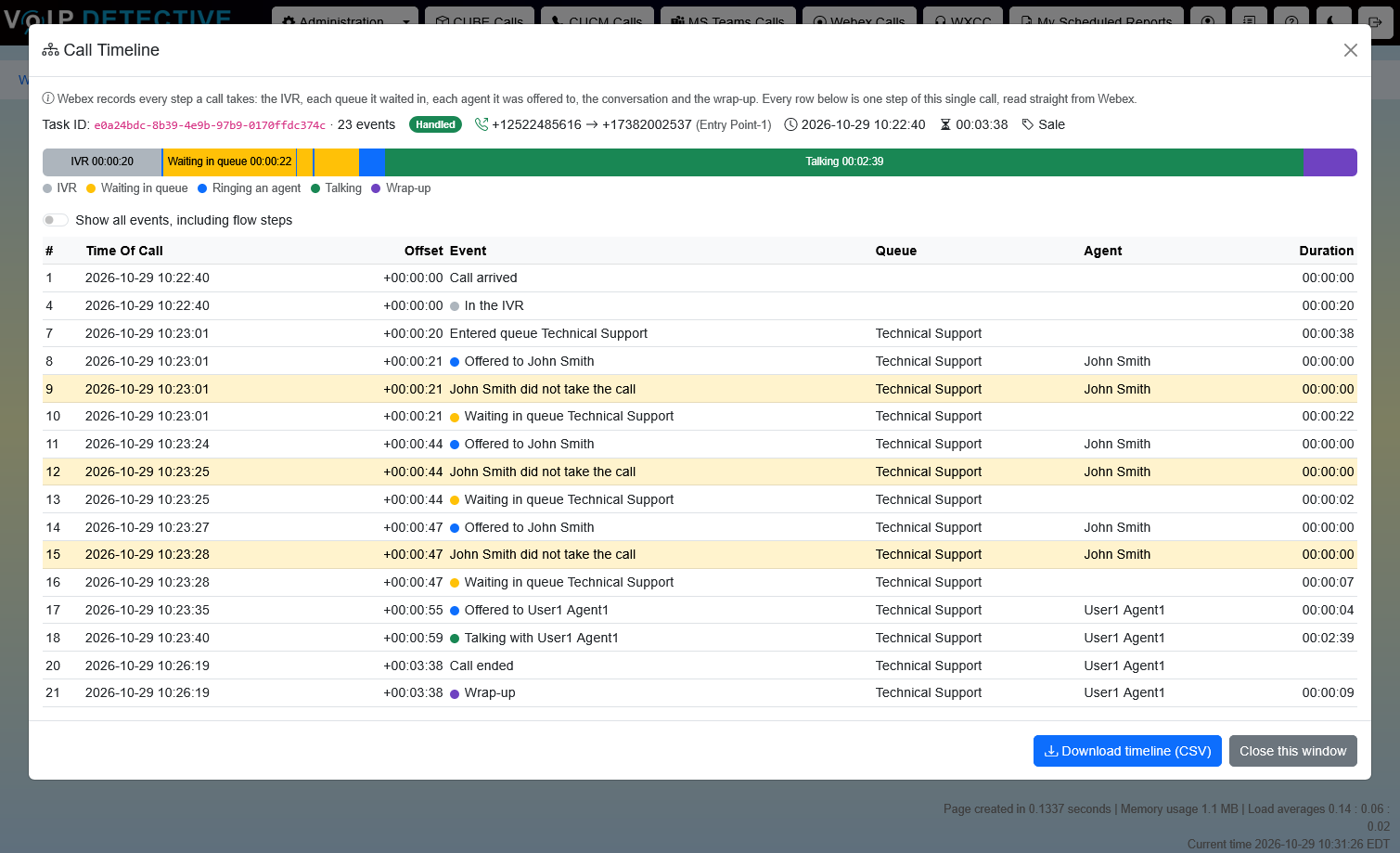
On a wallboard, the Calls abandoned and Service level today tiles open the matching call search. You'll need to log in first.
How often VoIP Detective reads Webex Contact Center data
To stay within Cisco's API limits and keep the system running smoothly, VoIP Detective follows these rules:
- Wallboards update every 15 seconds while at least one wallboard is open. All screens share one copy of the data, so adding screens adds no load on Webex (about 12 requests a minute, against Cisco's limit of 300).
- Queues, teams and agents are read from Webex once an hour. You'll see this as "WxCC sync" under Administration > Job Queue. To pick up a new or renamed queue or team straight away, click Refresh queue list or Refresh teams on the wallboard admin page.
- Access tokens last 14 days. VoIP Detective renews them automatically when less than an hour is left. If renewal fails, the admin email receives an alert every hour. You can also click Refresh token now on the wallboard admin page.
- Call search asks Webex each time you search. Nothing is copied or stored.
Renamed agents: an agent who is logged in keeps their old name on wallboards until they log out and back in. Past calls always show the name the agent had at the time of the call.
You can see activity and errors under Administration > Logs in the Webex Contact Center log.
Things to know
- Only inbound phone calls are shown. Chat, email and outbound calls are not included.
- Logged-out agents appear only on team wallboards.
- Queues where calls go to named agents (rather than to a team) do not appear on team wallboards.
- "Today" on a wallboard starts at midnight in the VoIP Detective server's time zone. The call search uses your own time zone.
- Service level uses Webex's own judgement for each call. Callers who hang up quickly count as within service level. The service level tile turns red below 80%.
- "Oldest call" includes time spent in the IVR before the call joined the queue.
Troubleshooting
Problem | What to do |
|---|---|
The Organization ID is rejected | Use the long form with dashes from Control Hub > Account, not the long encoded ID. |
DNS check or API test fails | Make sure VoIP Detective can reach oauth.voipdetective.com and the Webex API for your region on HTTPS (port 443). Check your proxy settings if you use one. |
Token expired or token alert emails | Click Refresh token now on the wallboard admin page. If it still fails, open a ticket with the support file attached. |
A new queue or team is missing | Click Refresh queue list or Refresh teams. Only active inbound phone queues are shown. |
An agent shows an old name | The agent needs to log out of Webex Contact Center and log back in. |
A wallboard tile opens a login page | Expected: the call search needs a VoIP Detective administrator login. |
For anything else, download the support file from the Troubleshooting section of the wallboard admin page and attach it to a support ticket.
Was this article helpful?
That’s Great!
Thank you for your feedback
Sorry! We couldn't be helpful
Thank you for your feedback
Feedback sent
We appreciate your effort and will try to fix the article