Mail Configuration
VoIP Detective requires an external email server in order to send reports, alerts, and administrator emails out. To that end, VoIP Detective can use the following to send email:
- SMTP (including basic authentication and STARTTLS)
- Microsoft 365 OAuth2 Email Authentication.
Mail can be configured by going to Administration -> Configuration.
Under the Mail settings section, you can enter information relevant to your configuration.
Troubleshooting
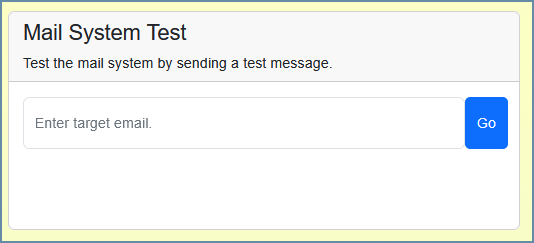
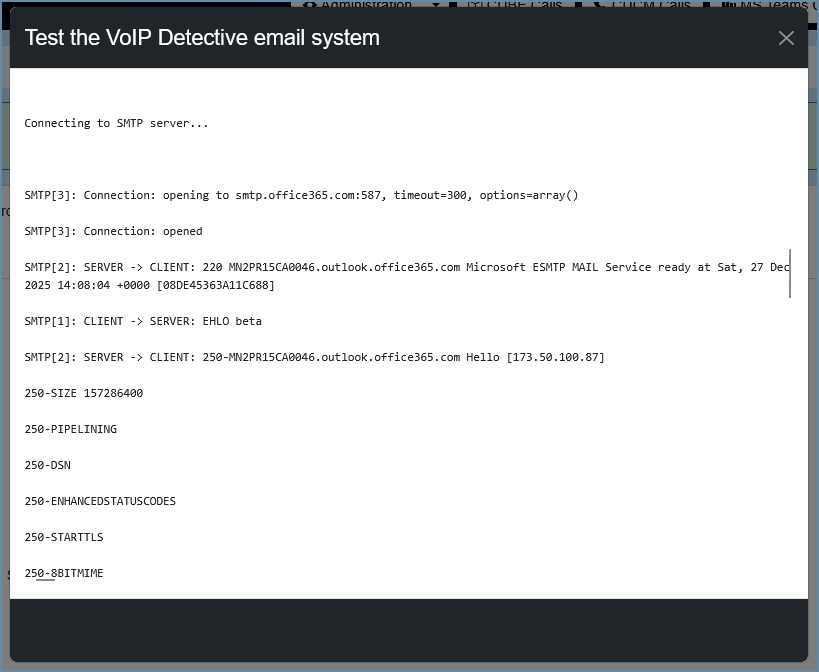
To verify your mail settings, go to Administration -> Troubleshooting and look for "Mail System Test" This will allow you to send a test mail and view detailed debugging information.
Configuring SMTP
To configure SMTP for email delivery, do the following:
- Go to Administration -> Configuration
- Scroll down to the "Mail Settings" section
- Set Mail enable / disable to "enabled" and press the go button
- Set Mail Transport to SMTP and press the go button
- Enter your SMTP host and press the go button
- Enter any other necessary information like username, password, etc.
- Enter the
Configuring Microsoft 365 OAuth2 Email Authentication
Important: Microsoft 365 is retiring Basic SMTP authentication. Basic auth will be permanently disabled starting March 1, 2026 and completing April 30, 2026. Follow this guide to configure OAuth2 authentication before that date.
Prerequisites
Before you begin, ensure you have:
- Administrator access to your Microsoft 365 / Azure tenant
- VoIP Detective OS 4.x or later with PHPMailer installed (use the command line (CLI) menu option 5.5.2)
- A valid Microsoft 365 mailbox that will be used to send emails
Step 1: Register an Application in Azure Portal
- Go to https://portal.azure.com and sign in with your administrator account
- Navigate to Microsoft Entra ID → App registrations (Note: Azure Active Directory has been renamed to Microsoft Entra ID)
- Click New registration
- Configure the application:
- Name: Enter a descriptive name (e.g., "VoIP Detective Email")
- Supported account types: Select "Accounts in this organizational directory only"
- Redirect URI: Leave blank (not required for Device Code Flow)
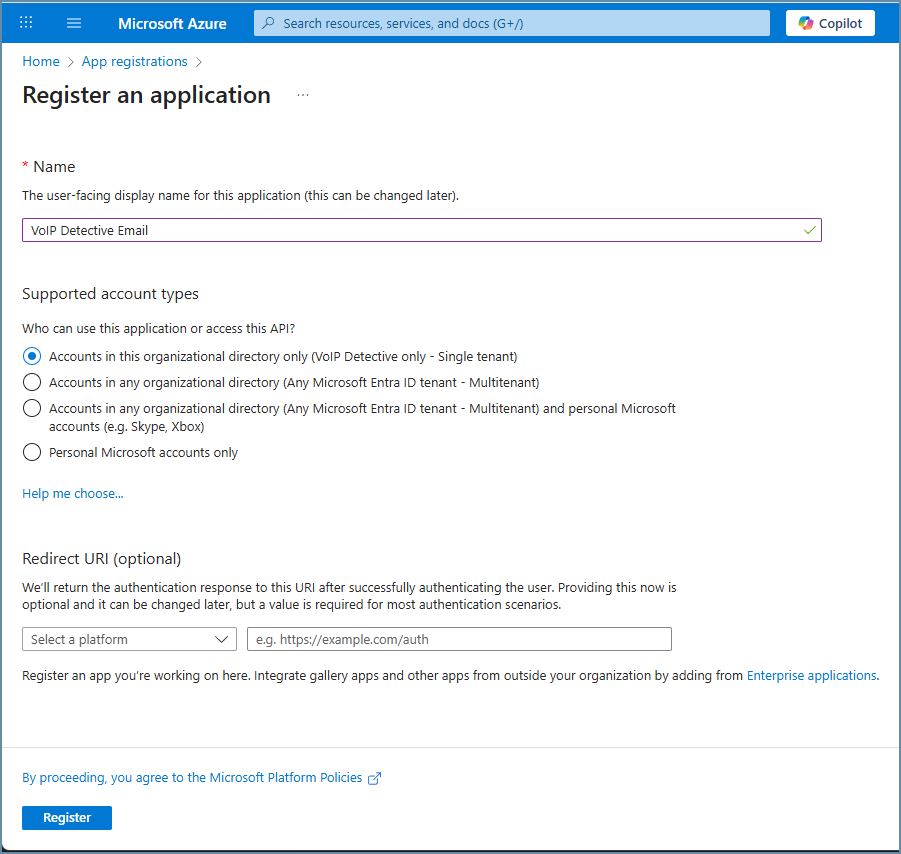
- Click Register
- On the application overview page, copy and save:
- Application (client) ID
- Directory (tenant) ID
Step 2: Enable Public Client Flow
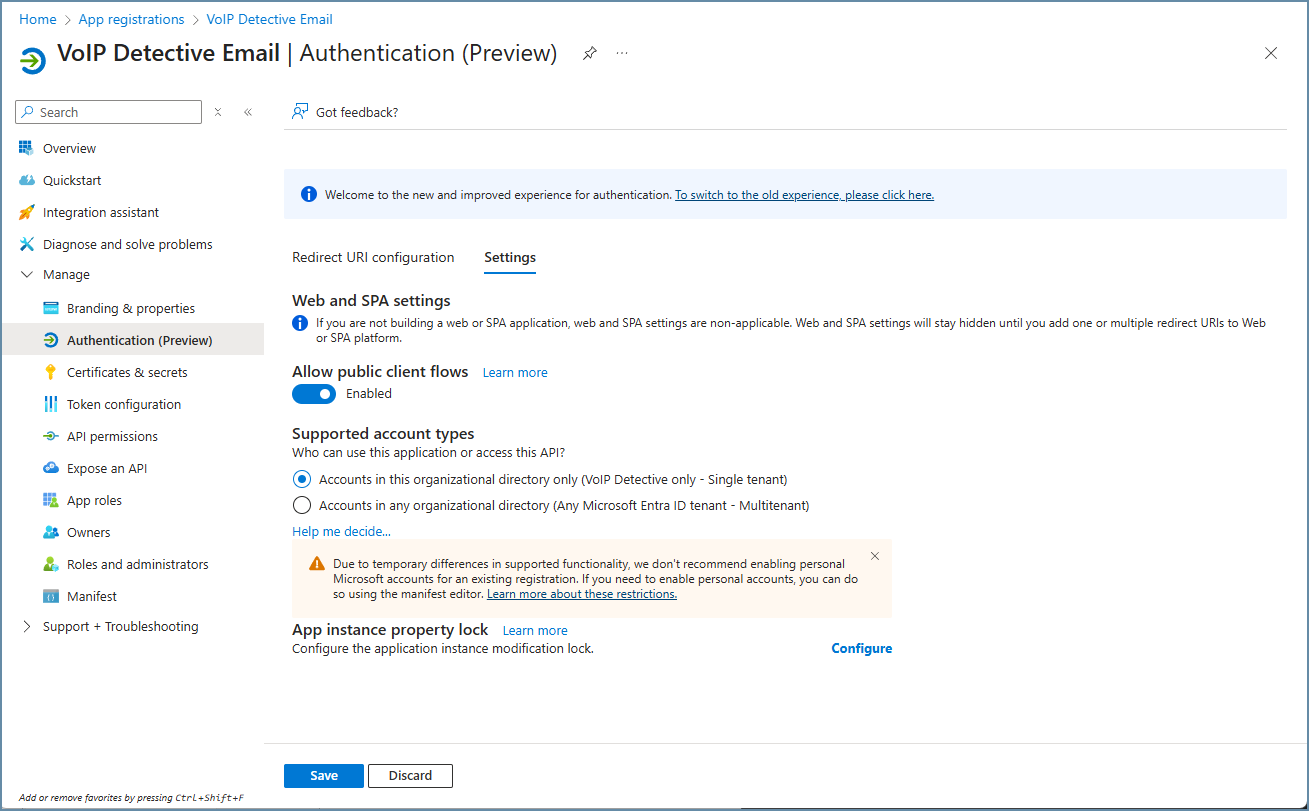
- In your application, click Authentication in the left sidebar
- Go to Settings
- Set Allow public client flows to Yes
- Click Save
Note:This setting is required for the Device Code Flow, which allows authentication from servers that are not accessible from the internet.
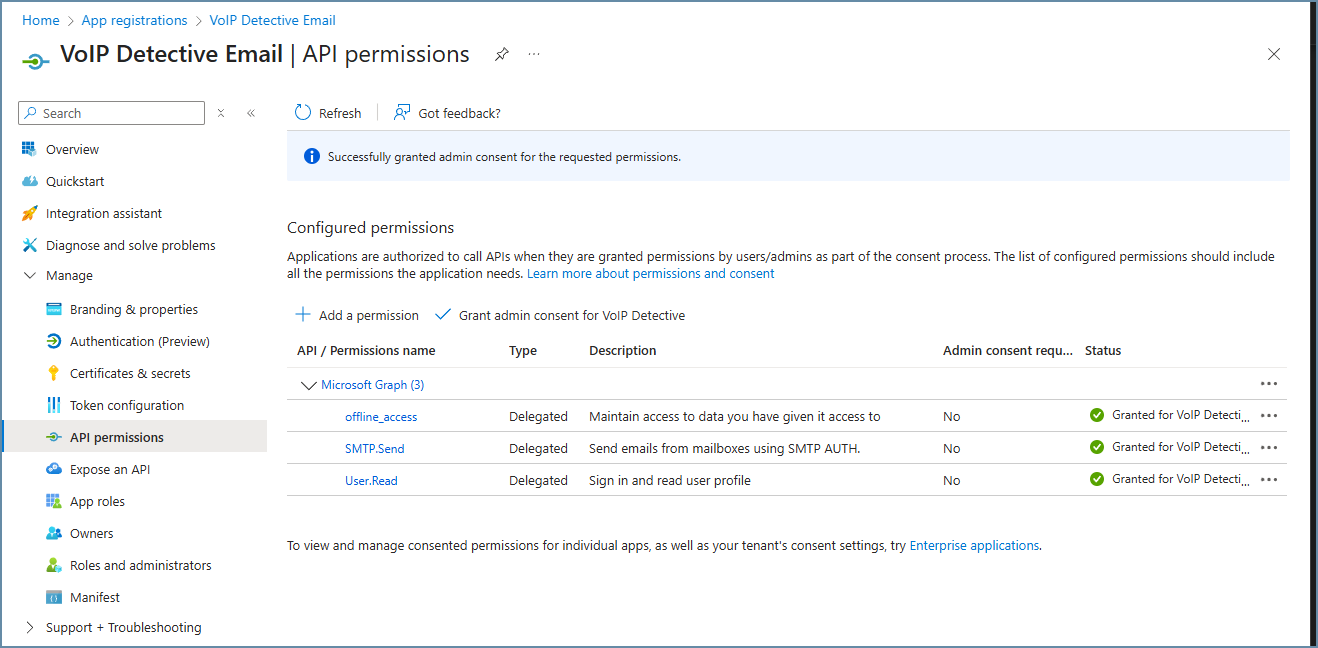
Step 3: Configure API Permissions
- Click API permissions in the left sidebar
- Click Add a permission
- Select Microsoft Graph
- Select Delegated permissions
- Search for and add the following permissions:
offline_access- Allows the app to refresh tokens automaticallySMTP.Send- Allows sending emails via SMTP
- Click Add permissions
- Click Grant admin consent for [Your Organization] and confirm
Note: You must grant admin consent for the permissions to take effect. Look for the green checkmarks in the Status column.
Step 4: Enable SMTP AUTH for the Mailbox
- Go to the Microsoft 365 Admin Center
- Navigate to Users → Active users
- Select the user/mailbox that will send emails
- Click the Mail tab
- Under "Email apps", click Manage email apps
- Ensure Authenticated SMTP is enabled
- Click Save changes
Step 5: Install PHPMailer on VoIP Detective
- Connect to your VoIP Detective server via SSH or console
- Navigate to Option 5 (Configure) → Option 5.5 (Mail Services)
- Select Option 2 to install PHPMailer with Microsoft 365 OAuth2 support
- Wait for the installation to complete
This will install the required components to send mail with M365 OAuth2
Step 6: Generate OAuth2 Tokens
- Log in to VoIP Detective as an administrator
- Navigate to Admin → Microsoft 365 OAuth2 Setup (or go directly to
https://YOUR_SERVER/admin/m365_oauth_setup.php) - Enter your Azure application credentials:
- Application (Client) ID: From Step 1
- Directory (Tenant) ID: From Step 1
- Click Continue
- You will see a device code and a URL. On any device with internet access (phone, laptop, etc.):
- Open https://microsoft.com/devicelogin
- Enter the code displayed on the VoIP Detective page
- Sign in with the Microsoft 365 account that will send emails
- Review the permissions and click Accept
- The VoIP Detective page will automatically detect the successful authentication
- Enter the email address you authenticated with and click Save Configuration
Note: The Device Code Flow allows you to authenticate even if your VoIP Detective server is not accessible from the internet. You can complete the Microsoft authentication step on any internet-connected device.
Step 7: Configure VoIP Detective Email Settings
- In the VoIP Detective web interface, navigate to Administration → Configuration → Mail Settings
- Select Microsoft 365 (OAuth2) as the mail provider
- Enter the Email Address (must match the account used in Step 6)
- The OAuth2 tokens are managed automatically from the setup in Step 6
- Click Save
- Use the Send Test Email button to verify the configuration
Token Lifecycle and Maintenance
Understanding how OAuth2 tokens work will help you maintain your email configuration:
| Token Type | Lifetime | Auto-Renews? |
|---|---|---|
| Access Token | 60-90 minutes | Yes - automatically when sending email |
| Refresh Token | 90 days of inactivity | Yes - as long as emails are sent regularly |
Key Points:
- Access tokens are refreshed automatically by VoIP Detective when sending emails
- Refresh tokens remain valid as long as your system sends at least one email every 90 days
- If no emails are sent for 90+ days, you will need to re-run the OAuth2 setup (Step 6)
Troubleshooting
Error: "Allow public client flows" not enabled
- Go to Azure Portal → App registrations → Your App → Authentication
- Set "Allow public client flows" to Yes
- Save and try again
Authentication unsuccessful (535 5.7.3)
- Verify SMTP AUTH is enabled for the mailbox (Step 4)
- Ensure admin consent was granted for API permissions (Step 3)
- Confirm the email address matches the account used during OAuth2 setup
- Re-run the OAuth2 setup (Step 6) to generate new tokens
Device code expired
- The device code is valid for approximately 15 minutes
- If it expires before you complete authentication, simply refresh the page and start again
Token refresh failed
- This typically occurs after 90+ days of inactivity
- Re-run the OAuth2 setup (Step 6) to generate new tokens
Permission denied / Unauthorized
- Verify the SMTP.Send permission is added and admin consent is granted
- Ensure you're using a licensed Microsoft 365 mailbox (not a shared mailbox without a license)
- Check that "Allow public client flows" is enabled
Tokens directory permission error
- Run deployment menu option 5.5.2 again to recreate the directory with correct permissions
- Or manually fix:
sudo chown apache:apache /var/www/tokens && sudo chmod 750 /var/www/tokens
Security Notes
- OAuth2 tokens are stored securely outside the web root in
/var/www/tokens/ - Token files are protected with restrictive permissions (640)
- No client secret is required with the Device Code Flow, reducing credential exposure
- Only the Apache web server process can read the token files
Important Dates
| Date | Event |
|---|---|
| March 1, 2026 | Microsoft begins disabling Basic Auth (gradual rollout) |
| April 30, 2026 | Basic Auth completely disabled for all tenants |
Additional Resources
Was this article helpful?
That’s Great!
Thank you for your feedback
Sorry! We couldn't be helpful
Thank you for your feedback
Feedback sent
We appreciate your effort and will try to fix the article